
If you do not have SSO today and want to get started (only one SSO), follow the steps in this guide.
Prepare
Prepare the following before you contact us:
- The IT department's email address (the one who will carry out the set-up for SSO)
- The primary domain that is being used for SSO. For example, if everyone uses @foretaget.com, let us know that domain.
1. Gain access to Authentication Settings Visma Connect
This access provides Flex applications, please create a purpose in the Service Portal.
In the purpose, provide the IT department's email address and the primary domain as above.
2. Log in to Authentication Settings and verify domain
You can access Authentication Settings at the following link: https://authenticationsettings.connect.visma.com
For more detailed information about Authentication Settings, see the documentation at the following link: https://docs.connect.visma.com/docs/authentication-settings
When you arrive at the link, it is common that you do not have a password. Reset your password by clicking on "Forgot your password?".
Before you can set up SSO, you need to verify your domain in Authentication Settings. You can do this by following the guide at the following link: https://docs.connect.visma.com/docs/domains
3. Set-up of SSO
To set up SSO against Visma Connect, you can follow the guide below: https://docs.connect.visma.com/docs/single-sign-on
4. Verification
The easiest way to verify that your SSO connection works after set-up is to log in to Visma Home.
- Go to https://home.visma.com
- Enter the email address you have verified in HRM / Visma Connect and click on Next.
- Choose to log in with your identity provider (e.g. Entra ID).
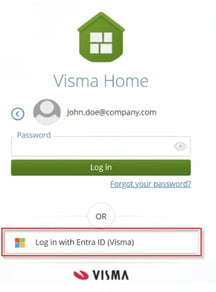
- Log in with your identity provider.
Did you succeed in logging in and accessing Visma Home? Then your SSO connection is working!
Please note: This article is AI-translated. This means that linguistic errors or misunderstandings may occur.