
If you need to set up multiple SSO, use this guide.
How to set up SSO
1. Requirements
For a user to be able to log in via SSO, the user in question must have verified their email address in Flex HRM, and that email address must belong to the domain verified in step 3 of this guide.
If you have questions about Visma Connect and how users verify their email addresses, you can read more about it at the following link: https://www.flexapplications.se/azure-visma-connect
2. Authentication Settings
Authentication Settings is a self-service portal where you as an Administrator can manage and configure Single Sign-On (SSO).
If you are an Administrator in Flex HRM, you can assign authorisation to Authentication Settings under General > Security in Flex HRM.
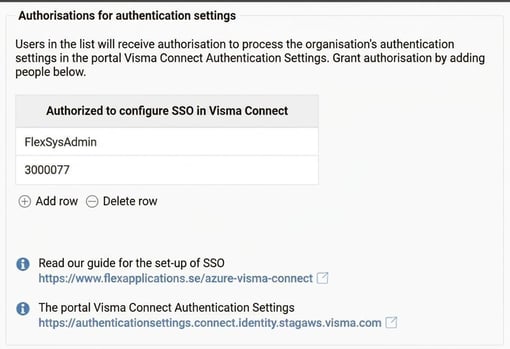
So, if for example you wish to give IT personnel authorisation to set up SSO, click on Add row according to the image above and search for the user you want to give the authority to. Then press Save in the top left corner.
Bear in mind that if you want to have authority for Authentication Settings yourself, you will also need to grant your own account authorisations there.
You can access Authentication Settings via the following link: https://authenticationsettings.connect.visma.com
For more detailed information about Authentication Settings, see the documentation at the following link: https://docs.connect.visma.com/docs/authentication-settings
3. Verify domain
Before you can set up SSO, you need to verify your domain in Authentication Settings. You can do this by following the guide at the following link: https://docs.connect.visma.com/docs/domains
4. Set-up of SSO
To set up SSO with Visma Connect, you can follow the guide below: https://docs.connect.visma.com/docs/single-sign-on
5. Verification
The easiest way to verify that your SSO connection works after set-up is to log in to Visma Home.
- Go to https://home.visma.com
- Enter the email address you have verified in HRM / Visma Connect and click on Next.
- Select to log in with your identity provider (e.g. Entra ID).
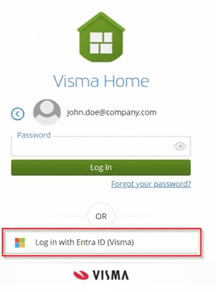
- Log in via your identity provider.
Did you succeed in logging in and accessing Visma Home? Then your SSO connection is working!
Related articles
How do I ensure our users can only log in with SSO?
Please note: This article is AI-translated. This means that linguistic errors or misunderstandings may occur.