
By default, your users will be able to log in both via SSO and with a password to Visma Connect. If you want your users to be able to use both login methods, you can disregard this information.
Note!
If you execute the steps according to this article before you set up SSO according to this guide you will not be able to log in to Flex HRM or authentication settings.
To restrict login to SSO only, two settings need to be configured:
1. Choose which domains may connect to Visma Connect
- Connect to Flex HRM and go to General > Security.
- At the bottom of the page, there is a box called Allowed domains for connection to Visma Connect.
- Click on Add row and enter your domain name. For example: “com”.
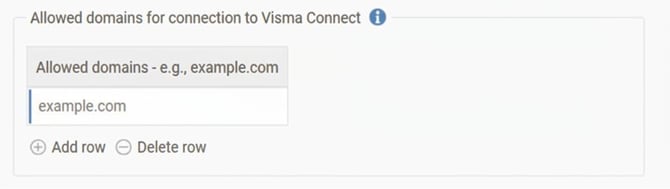
In this example, only users with a verified email from “example.com” will be able to log in. - Press Save in the upper left corner.
2. Disable Visma in Authentication Settings
- Connect to Authentication Settings on https://authenticationsettings.connect.visma.com
- Go to the menu Policies. Please note that you must have authorisation for Authentication Settings according to the instructions earlier in the guide to be able to do this.
- Click on Identity Providers
- Set Visma to “OFF” (see image below)
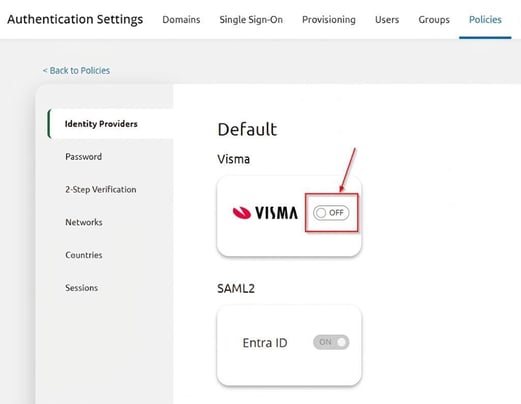
Your users will now only be able to log in with SSO and will no longer have the option to enter a password when connecting to Flex HRM or Mobile.
Please note: This article is AI-translated. This means that linguistic errors or misunderstandings may occur.