
Requirements for settings in Flex to export to Fortnox
"Program link" to Fortnox
- specify the verification series used in Fortnox
- check which dimensions you want included in the journal voucher and that they are marked as "Used for accounting"
Setting for "Contra account journal voucher"
- A balance account for contra account code
- otherwise, you should enter the contra account for all pay codes linked to the expense codes in use. This setting overrides the standard setting
Verification number is found on the travel expense claim
Transfer to accounting (Fortnox)
- When transferring to Fortnox, all travel expense claims that have not previously been transferred will be included. Please note that if you have already settled travel expense claims to payroll before issuing the journal voucher to Fortnox, you must manually specify which verification numbers these settled travel expense claims have, so they are included in the journal voucher to Fortnox.
Program link to Fortnox
Go to Settings > Import/export > Program links
See the section about how to activate a new program link to Fortnox here.
The program link must be active, and you must specify the verification series where the journal voucher should end up in Fortnox.
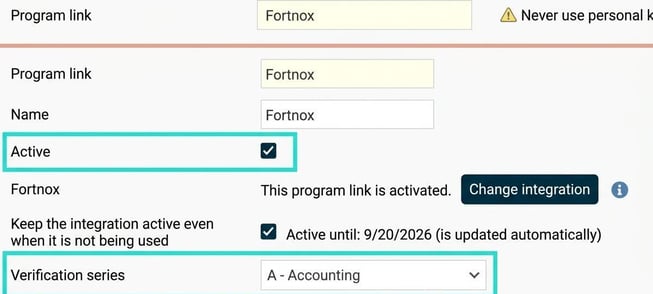
Settings in Flex
For the journal voucher to be exported to Fortnox, you need to specify a contra account for the verification and choose which review step is required for a verification number to be created on the travel expense claim in Flex.
Go to Settings > Travel > Travel expense claims
Specify account for contra account code in the journal voucher sent to Fortnox.

Specify review step for the creation of a verification number on the travel expense claim in Flex (such as approval).

Only travel expense claims that have a verification number will be able to be exported to Fortnox.
Transfer to accounting (Fortnox)
To create a journal voucher for Fortnox:
Go to Actions processed > Transfer to accounting (Fortnox)
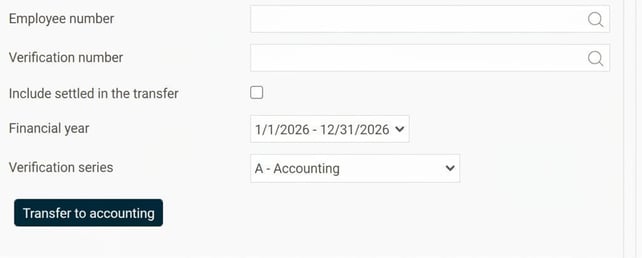
Here, you can select employee number and verification number for the transfer. By default, all reviewed travel expense claims that are not settled will be transferred. There is also an option to transfer already settled travel expense claims by ticking the box Include settled in the transfer, but then you must specify the verification numbers for these. You can choose which financial year the travel expense claims should be posted to, and you can also select the verification series if it should differ from the standard setting.
Transfer to accounting (button)
Once your selection is ready, click the button Transfer to accounting to start the transfer. The transfer is processed as a background job.
Transfers
In this list, you can see the status of the transfer, and by clicking Info you will see detailed information about the transfer for the selected travel expense claim. Alongside accounting information, any attached appendices on the travel expense claim and a printed travel allowances PDF are included in the transfer, which are attached to the verification in Fortnox.


How do you activate a new link to Fortnox?
When you click the Activate button (or Change integration), you’ll go to Fortnox, where you log in with your Fortnox login information. You’ll then approve the integration’s authorisations. Once you’ve approved the authorisations, you’ll return to the program links page in Flex HRM and the integration is activated.
How do you export orders and invoices to Fortnox?
See separate article
Please note: This article is AI-translated. This means that linguistic errors or misunderstandings may occur.