
Create a new payroll run
To be able to create a payroll run, you must have authorisations for Payroll assigned to your role and be a user in the payroll system.
You access the function to create a new payroll run via Payroll > Payroll process.
In this function, a new payroll run is created and the system prepares registration for the new period. Fixed transactions for the period are automatically retrieved from the employee register. If integration exists with Flex HRM Travel or Flex HRM Time, transactions from these will also be included. You can also import your own files into the payroll process, provided an import template has been created.
Click the button +Payroll run and select New.
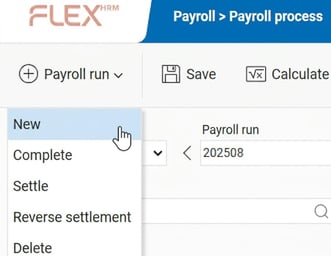
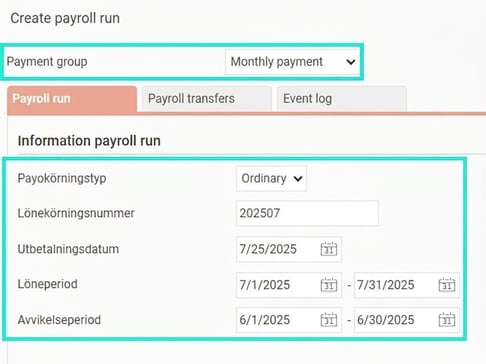
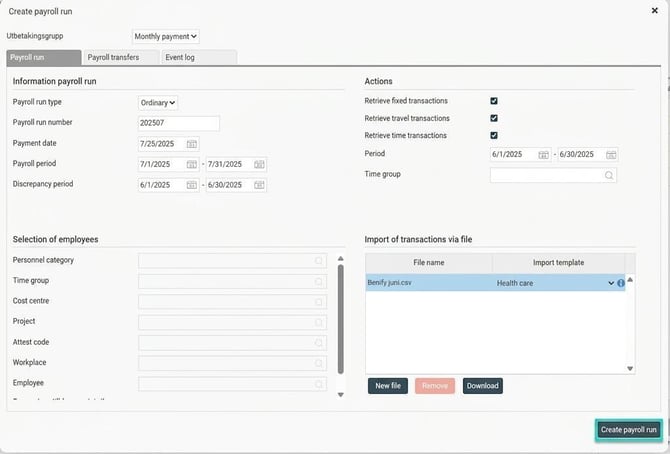
A new window opens where you must specify your selection for the payroll run you want to create. Based on your system settings for payroll runs, you will get suggested selections that can be edited.
Information payroll run
- Payment group - The first step is to choose the payment group for which you wish to create the payroll run. You can select among the groups registered in the system under Administration > Settings > Payroll > Payment groups.
- Payroll run type – First specify the current payroll run type: extra or ordinary. To be able to create an extra payroll run, an ordinary payroll run must have already been processed for the selected payment group. You would create an extra payroll run if you missed something and it’s too late to change the ordinary payroll run. By clicking the magnifying glass in the payroll run number field, you can choose which payroll run should be processed as extra.
- Payroll run number – In the Payroll run number field (ordinary payroll run) or Extra run number (extra payroll run), you specify the number for the current payroll run. It is suitable to specify the year and the month, week or other periodicity the payroll run refers to. Once you have selected a payroll run number and clicked Create payroll run you cannot change this afterwards.
- Payroll period – In this field, you specify the first and last date for the period the payroll run refers to. This value can be changed even after the payroll run has been initiated.
- Discrepancy period – In this field, you specify the date interval during which discrepancies should apply.
Selection of employees
- The payroll run applies to all employees in the selected payment group. By default, you cannot specify a selection for an ordinary payroll run due to the risk of missing an employee (if you still want this function, you need to activate the setting "Allow employment selection when creating ordinary payroll run"). However, you can select employees for an extra payroll run.
- If you do not wish to include everyone, you can "Remove" a selection of individuals. In that case, choose Remove and select who should be sorted out. You will get a list showing how many will be removed.
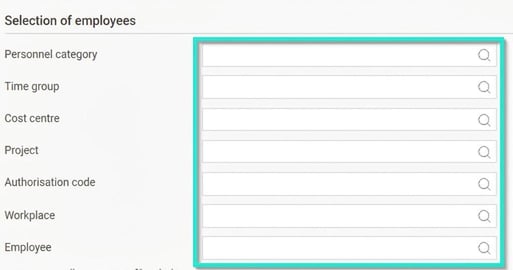
- Here you also choose if you want to include employees who have completed their employment but have not yet had their final pay paid out.

- Retrieve fixed transactions – This field should be checked if the system should retrieve the fixed transactions registered for each person. These transactions are registered under Personnel –>Employees > Payroll > Fixed transactions. These transactions are such as regularly recurring payments for each payroll payment, such as monthly salary, pay rise, union fees and the like. This means you do not need to register these again for each new payroll process. Please note! The system only retrieves fixed transactions for the current payroll period and not retroactively.
- Retrieve travel expense claims – This field should be checked if the system should retrieve transactions for authorised travel expense claims that are ready for payment (when integrated with Flex HRM Travel).
- Retrieve time transactions – This field should be checked if the system should retrieve transactions for the time reports that are ready for payment according to the specified time interval in the Period field and any designated time group in the Time group field (when integrated with Flex HRM Time).
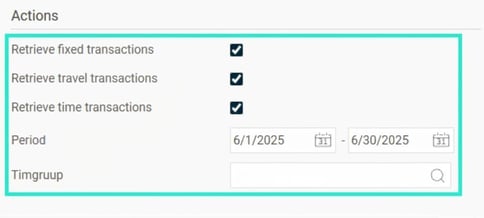
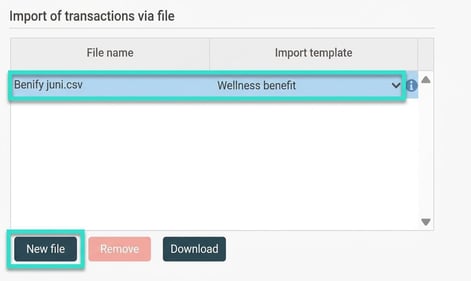
- Here you can choose a file to be imported into the payroll run. For this function to work and be visible, you first need to have created an import template for importing payroll transactions. You can read more about this here. For further information about importing transactions via file, you can also read here.
Once you have completed your selection, click the button Create payroll run. This opens a preliminary payroll process where you can make changes/additions.
Please note: This article is AI-translated. This means that linguistic errors or misunderstandings may occur.