
Step 1: Preparations - Debt lists
-
Before you can create the actual accounting file, you need to go to Payroll > Debt management.
-
There you create and check the debt lists (e.g. vacation debt, time off in lieu debt) that should be included in the accounting.
Related articles:
Step 2: Create the Journal Voucher
-
Go to Payroll > Accounting and click on New.

-
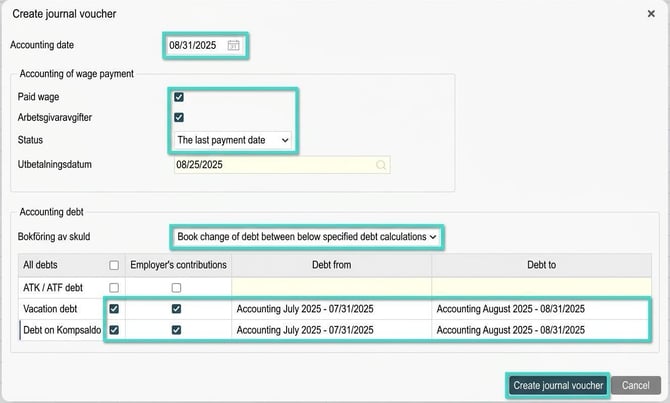
Date: Enter the correct accounting date.
-
Content: Tick what should be included, usually Paid wage and Employer's contributions.
-
Payroll run (Status): Select which payroll run should be included in the accounting.
-
Preliminary: For a payroll run that has not yet been locked and settled.
-
The last payment date: For the latest settled payroll run.
-
Any payment date of your choice: To select a specific, earlier settled payroll run from a list.
-
-
Include debts (if relevant):
-
Choose if you want to account for the total debt or only the change since the previous period.
-
Tick the specific debts to include (for a debt to appear in the list, a debt list must have been created and checked for the period under Payroll > Debt management).
-
Select which debt specification (which month's debt list) the accounting should be based on.
-
- Click on Create journal voucher.
The screen shows an example of a journal voucher on a settled payroll run in August 2025, with a change in vacation and time off in lieu debt from July to August (based on debt lists for July and August).
This creates a specification in the list.
To create an accounting file (.csv or Sie4 format, depending on your company's settings), select the row with the journal voucher and click on Create accounting file.
The file will be created to the far right, next to the journal voucher, and can be downloaded to a location of your choice.

Save and format the accounting voucher in Excel
To save the accounting voucher in Excel, do the following:
-
Select the accounting voucher in the view Payroll > Accounting and click on Print

- Make any selections/adjustments needed and click on Preview.

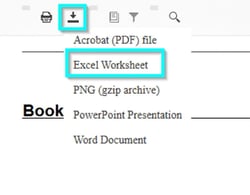
- When the accounting voucher opens, click on the download symbol and choose Excel.
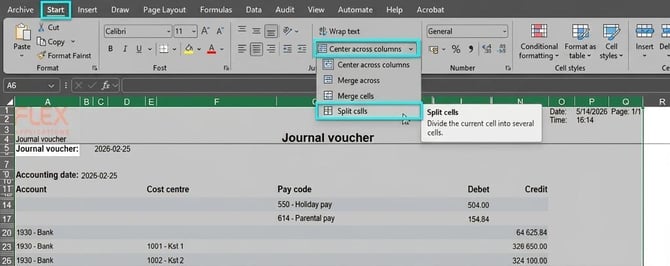
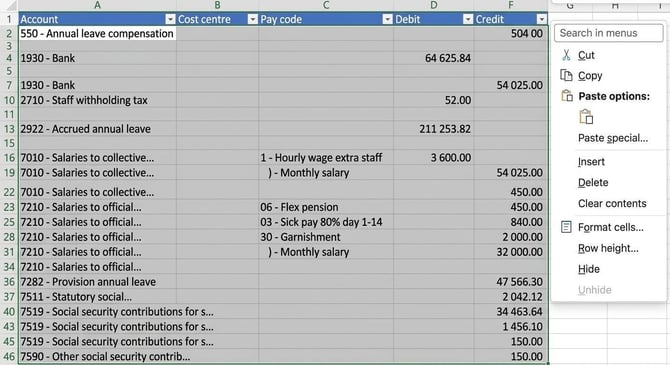
The Excel file contains both merged columns and empty columns/rows. To make the file easier to work with, you need to reformat it.
-
Select all columns in the sheet (A–Q), then click on the Home tab > Center across columns and select the Separate cells option in the dropdown. This splits all merged columns.
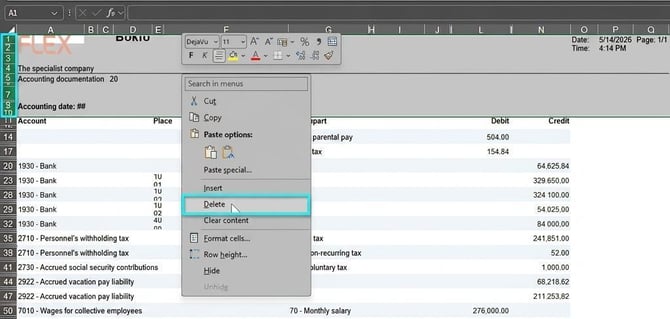
- Next, select the rows above the header rows to remove them (rows 1-10 in the example), right-click and select Delete.
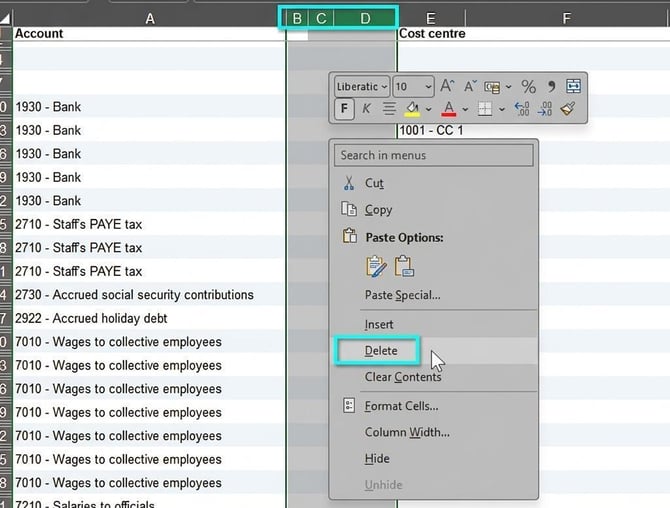
- Widen all columns (A–N) so that you can see which columns contain values or are empty and can be removed. Select the empty columns, right-click and select Delete to remove them.
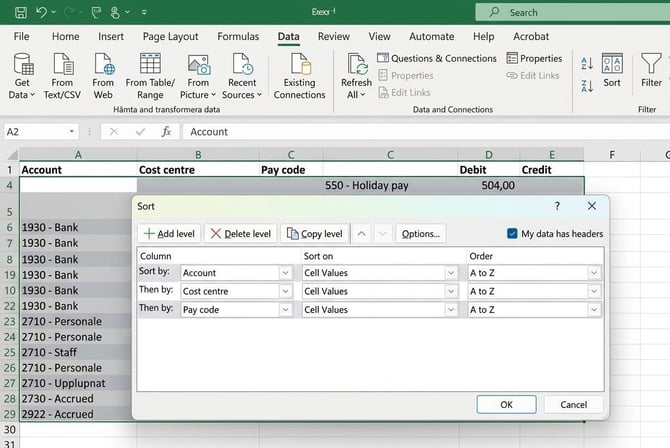
- Select the remaining columns and click on the Data tab > Sort to arrange the list in the desired sequence, in the example Account – Cost centre – Pay code, in order to remove empty rows from the list.
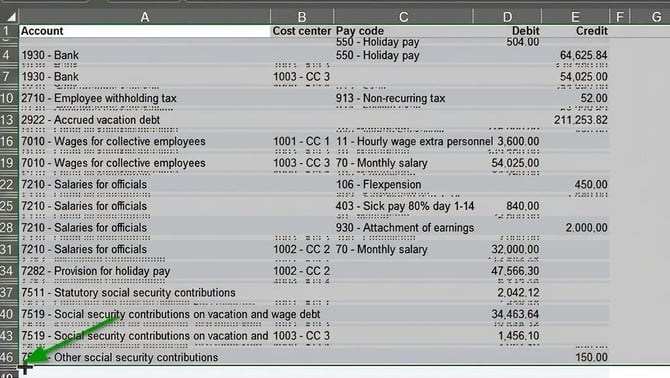
- Adjust the row height of rows with values by selecting all rows and double-clicking when the plus symbol appears, or alternatively right-click and select Row height to specify the desired height.
Please note: This article is AI-translated. This means that linguistic errors or misunderstandings may occur.