
⚙️Here you can read more about how to create HR-forms.
Share front page documents via HR-forms
You can use ready-made templates, via HR-forms, to share documents on the front page in HRM. This may be generic templates such as internal notifications with information, invitations to info meetings, and so on. Another useful location is when you want to share a form that employees themselves can retrieve from the front page, for example, a leave application.
HR-forms as templates
Create templates for the front page
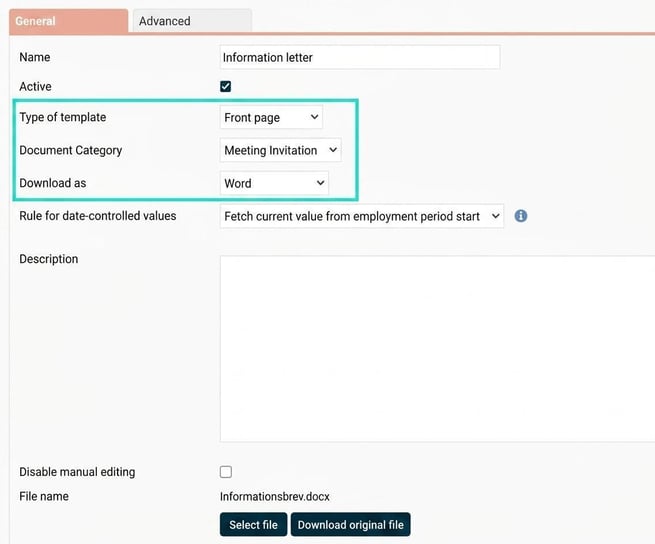
To share a template via the front page in HRM, you need to add it under HR-forms and choose Type of template as Front page. Otherwise, proceed the same way as for other HR-forms – meaning you fill in the relevant options and upload your file. You can also use tags in the templates for the front page from Available tags. Depending on your selection under Download as you will get the right (Word) or not the right (PDF) to edit the template before sharing it from the front page.
Share document templates from the front page
To share a document on the front page using a template (from HR-forms), first select Add new document and then Select template. If the template is set to allow editing, you will get the option to Download template. This means you can edit the document, perhaps insert the date for a meeting or similar, then choose to save and Upload template again. That button only lights up if you have first downloaded the template for editing.
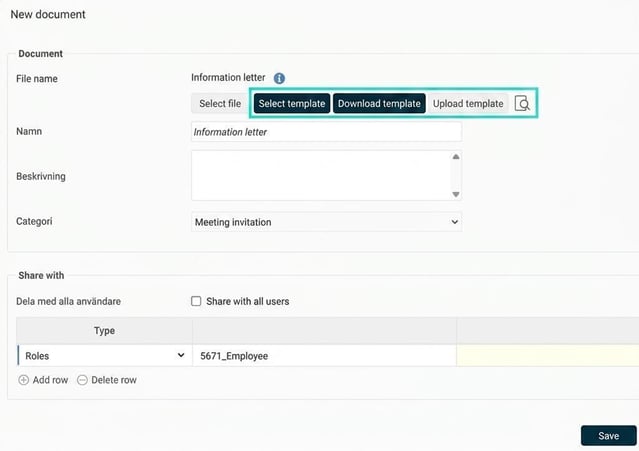
By clicking on the icon with the magnifying glass in a document, you can preview the template before saving and sharing it with others.
Please note that you will see any tags in the template unformatted before you have shared the document, since it is not yet linked to any employee.
Note also that the tags only show a value for those who are employees in the company where the document is shared, meaning if you are only a user of a specific company any fields with tags containing employment information will be empty.
Authorisations - Front page
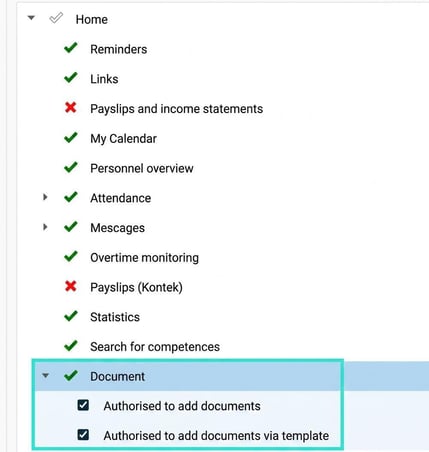
To be able to share a document, via a template, with others through the front page, you must first activate the authority for the relevant roles under Roles.
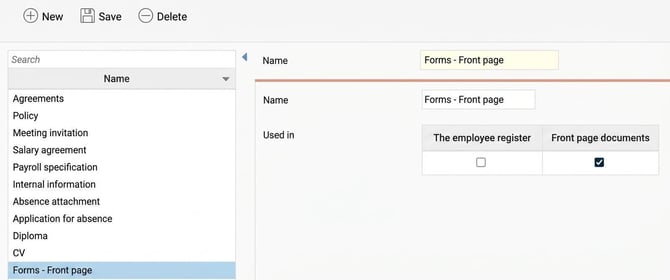
Remember that you also need to tick the box below for the document categories that should be selectable on the front page. Check which categories can be used for the front page under Document categories.
Please note: This article is AI-translated. This means that linguistic errors or misunderstandings may occur.