
Manage time rows
Day information
Audit day
Update day
Check day
Overtime marking
Allowances
Note
Account code allocation
Curious about our new app?
We have a new Flex HRM app that is under development. Here you can see how to get started with the new app.
 |
In HRM Mobile, the Time report view shows all your time entries day by day. You can edit all time entries and manually manage your time report from here. |
Manage time rows
To register a new time row, click on the plus sign.
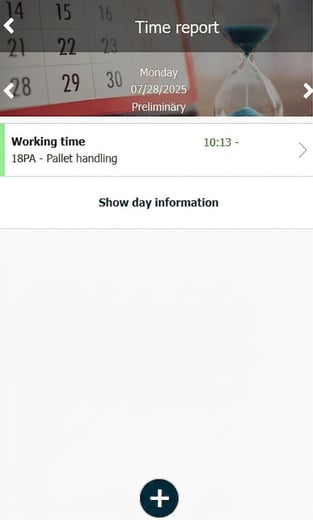
The new time row view suggests the standard time code for work, which can be changed.
Day reporting user specifies time if the suggested one is not correct (image to the left below), while the period reporting user enters number of hours (image to the right below).
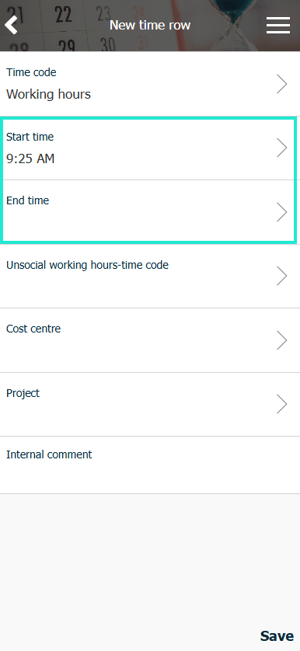
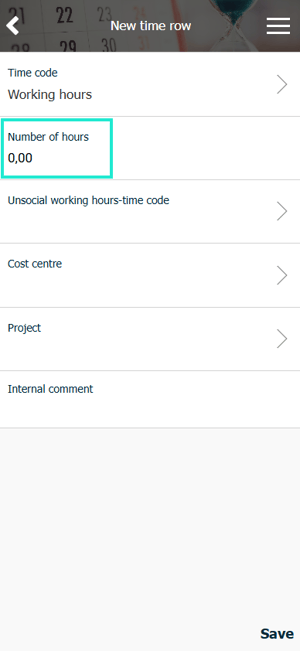
Account the time to project, cost centre etc by clicking respective account code dimension.
If permitted, invoicing information can be changed and invoice price is shown. If the number of billable hours does not match the worked time, this can also be adjusted.
You can leave an internal comment linked to the time row. If the row is billable, you can also add an external comment.
Day information
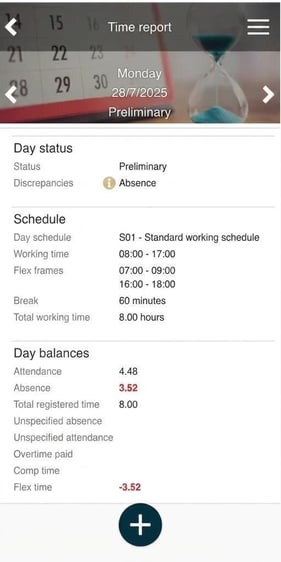
Click the button Show day information to view information about the day such as scheduled times, status, and balances.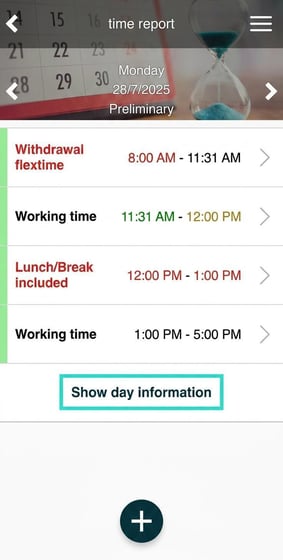
Audit day
|
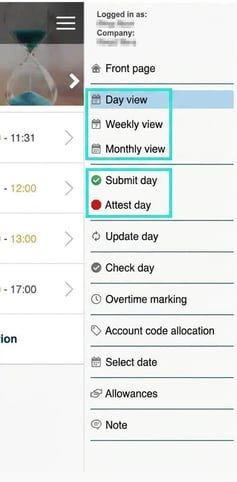
The time report's side menu features a function to review the day. If you choose to display the week or month view, you can review multiple days at the same time. Please note that the terminology used for reviewing is configurable and may vary in your organization. In this guide, we have chosen to use two levels of review, referring to them as Ready for approval (Klarmarkering) and Approval (Attestering). |
|
Update day
Click Update day in the side menu to reload the day. This can be done if you had the time report loaded whilst e.g. a time clocking or schedule change was made.
Check day
|
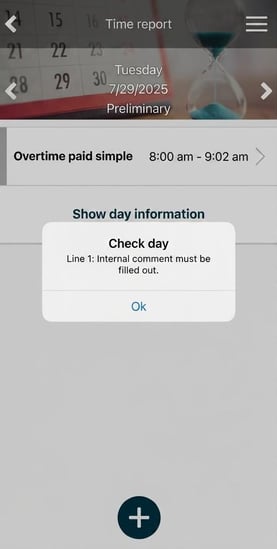
Click Check day in the side menu to view information about any issues in the time report. In the example on the right, you will not be able to review the time report because a time code is configured to require an internal comment, which is currently missing. |
 |
Overtime marking
If you have worked overtime, you can click Overtime marking in the side menu to choose which type of overtime, and for the overtime to be handled according to set rules. Only used in day reporting.
Allowances
Click Allowances in the side menu to view and register allowances.
Note
Click Note in the side menu to specify a note for the day. Notes can be shown in the Attendance board and Calendar in HRM Time, Attendance board in HRM Timeclock, and in My colleagues in HRM Mobile.
Account code allocation
Instead of specifying account codes per row, you can use the function Account code allocation which you find in the side menu. This is used when it is not important when the time was worked but how many hours it took.
Account code allocation does not have to be carried out day by day but can be done over a longer date interval. It also does not have to be carried out using number of hours but can be done
as a percentage of the reported time (switch between hours and percentage in the side menu).
Example
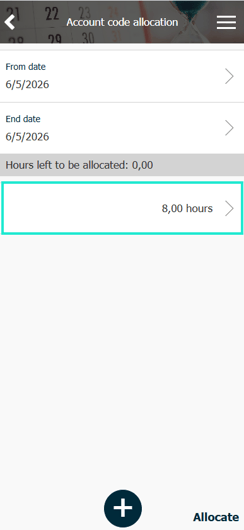
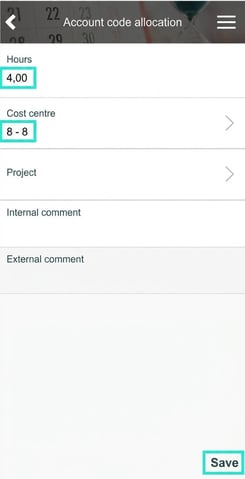
In the example below, eight hours of working time have been registered for one day. These should be split equally between two cost centres.
| Click Account code allocation in the side menu. | 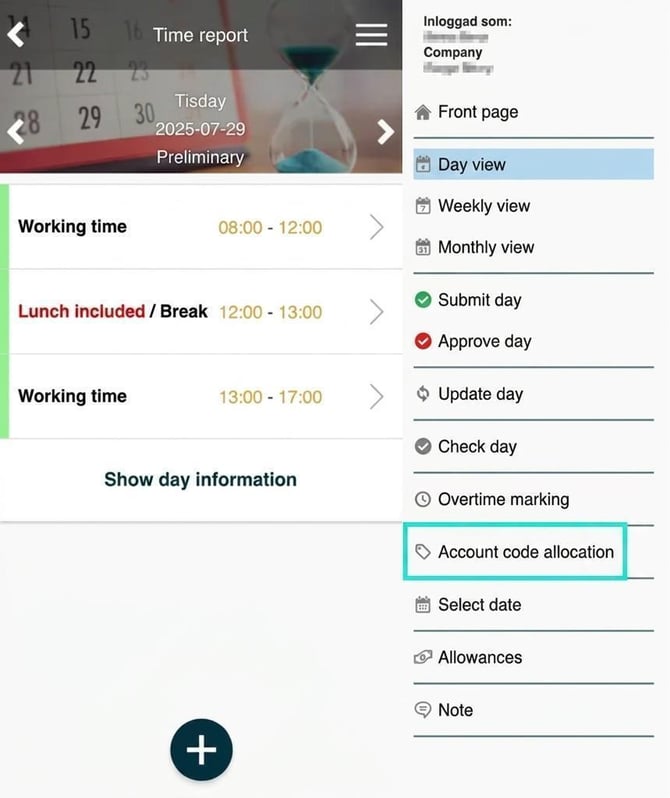
|
|
A row showing eight hours without any cost distribution will appear (as this is what is currently entered in the time report). Click on this row. Enter the cost center and change the number of hours to 4. You can also add a comment if desired. Save. |
|
| Click the plus sign to add a new row. Enter 4 as the amount, specify the cost center, and Save. |
|
| Click Allocate. | 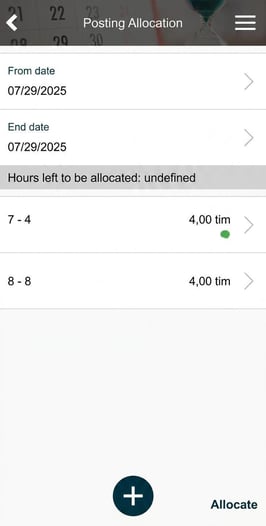
|
| The time entries in your time report are now distributed as requested. | 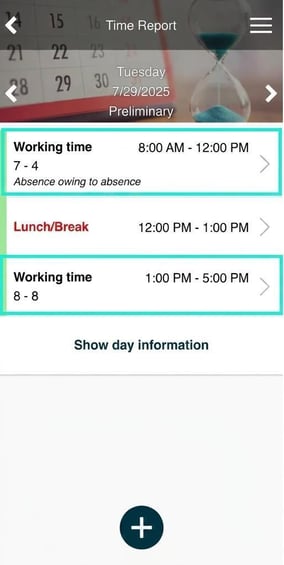
|
Related articles:
What do the different terms in HRM Time mean?
Day reporting in HRM Time
Period reporting in HRM Time
Please note: This article is AI-translated. This means that linguistic errors or misunderstandings may occur.