
You can use as many audit levels as you want in your company, and there are extensive options to configure the levels to suit you. Typically, employees themselves submit their time report, and then their manager approves it. If you also report time to a project, you often want a project manager to review the time for their project, between submission and final approval.
In this example, we will go through how you can set up submission, partial approval and final approval. You can skip the partial approval step if you do not wish to audit time rows reported on projects. You can find a description of all the settings here: What settings can be configured for the auditing of time reports?
Setting for submission
Requirement: We want employees to submit their own time to indicate the time report is completed.
-
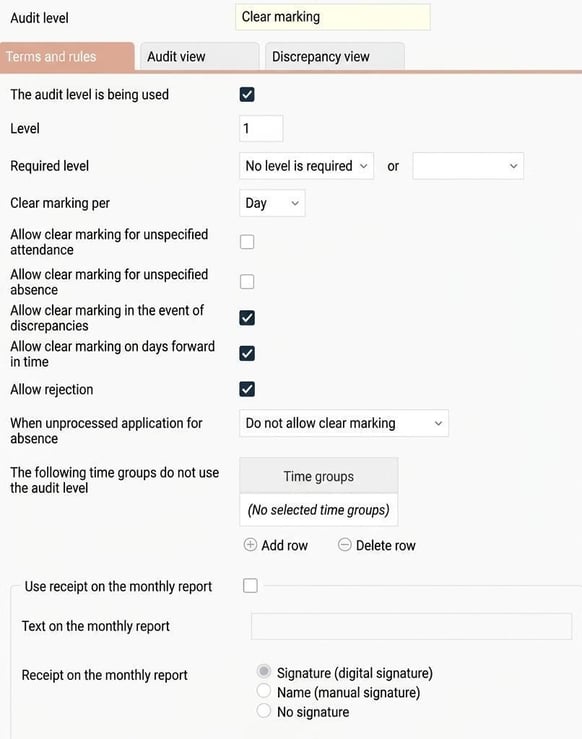
Go to Settings > General > Audit levels > Time reports.
-
Set submission to be used as level one. Submission is the first audit of the time report, so it does not require any prior level.
-
Choose that submission is to take place per day. Employees can then submit one day at a time. They can also wait until the end of the month and audit the entire period at once.
-
We want employees to perform the audit directly in the time report, without a separate view for submission. Therefore, do not tick Activate audit view on the Audit view tab.
|
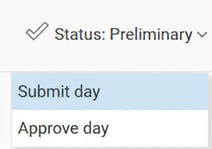
Results - Employees can submit: one day at a time in the day view |
|
| days in the period view | 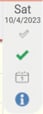 |
| or a whole period of days in the period view | 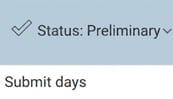 |
Setting for partial approval (Audit of account code)
Requirement: We want time rows that have a project (or another account code) to be audited by the person responsible for the project.
-
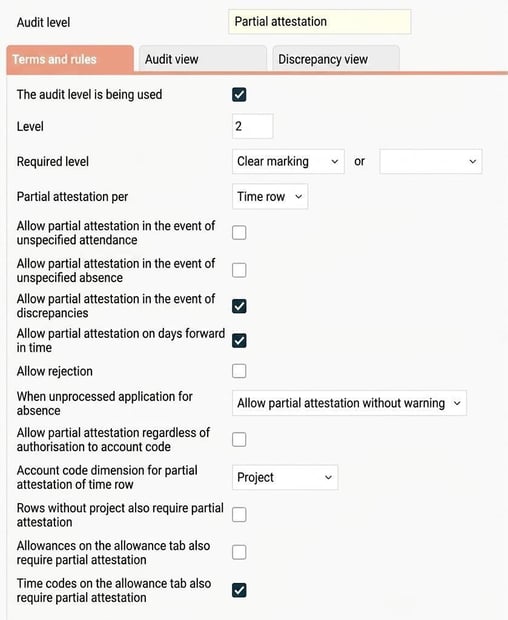
Set partial approval as level 2.
-
Choose that interim approval should be done per time row and project.
-
Select Submission as the required level. This means partial approval can only be done when the employee has submitted their time report.
-
Go to the Audit view tab and tick Activate audit view.
Result:
-
Users who are authorised to do partial approval can now do so per time row in the time report:

per day in the day view: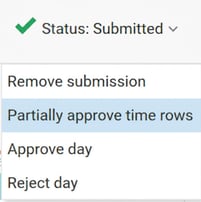
per day in the period view: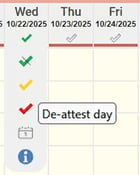
or in a separate audit view: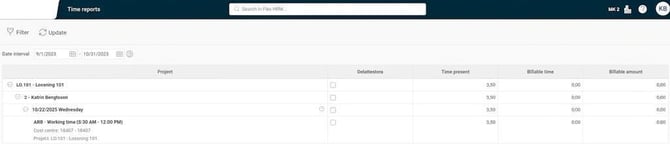
-
In the interim approval view, only time rows that have been submitted are visible, as this is the required level.
Note: This only applies to time row auditing. In the audit view for, for example, final approval, all time reports within the date selection are shown regardless of whether they have been submitted or interim approved. -
In the interim approval view, you can only see the time rows you are authorised to audit. You set the authority per user on the Audit of account code tab in the user register.
Setting for final approval
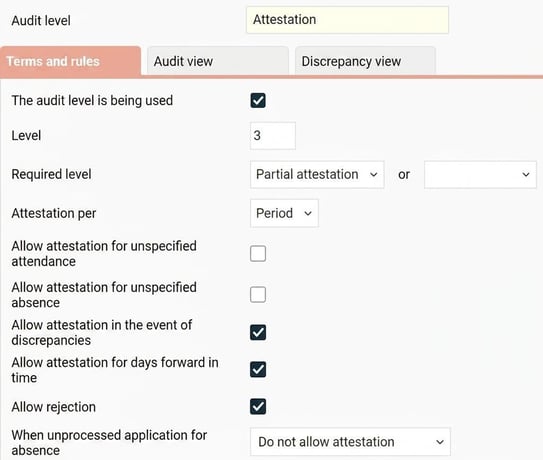
Requirement: We want the employee's manager to approve the time report when the employee has submitted it and the project managers have interim approved the time rows associated with a project.
-
Select partial approval as the required level for Final Approval.
-
The days/time rows without a project will receive interim approval status directly upon submission, and therefore qualify for final approval. Provided that you have not set up a requirement for time rows without a project to also be audited.
-
-
Set final approval to be done per period. This means managers must approve an entire period at a time; they cannot approve single days.
-
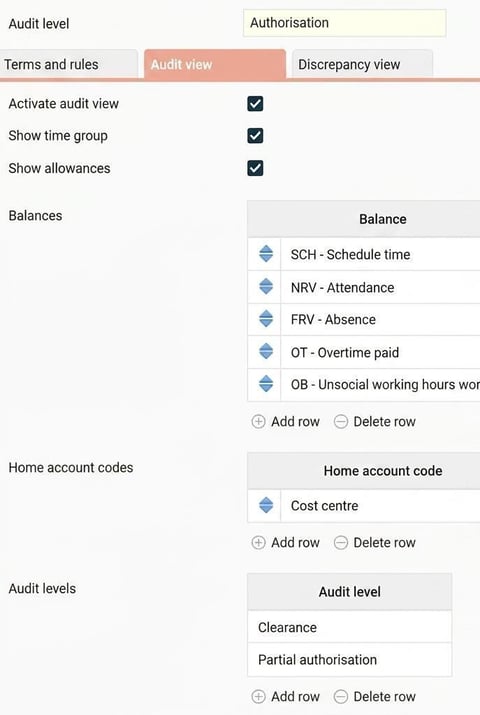
Activate the audit view.
-
Set the audit view to display:
-
The employees’ home cost centre
-
Balances for schedule time, attendance, absence, overtime and unsocial working hours
-
The audit levels submission and partial approval.
-
Result:
-
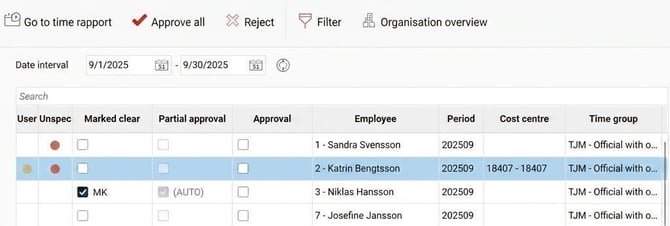
The approving manager can authorise in the time report or in a separate audit view.
-
In the audit view, the manager gets an overview based on the settings you have selected. For example, they can see worked overtime and if the time report is submitted and interim approved.
-
If auditing is missing, there is information about who is authorised to audit.

Please note: This article is AI-translated. This means that linguistic errors or misunderstandings may occur.