
In Flex HRM, you can set up different audit levels for time reports. This article describes the settings you can make under Settings > General > Audit levels > Time reports.
If you want to see an example of how to set up audit levels, we recommend the article: How do I set up auditing of time reports?
Basic prerequisites
Audit levels
You create the available audit levels under General > Audit levels > Time reports. All companies in your database can then choose to use these levels, but they are not obliged to.
For each level you set up the name, colour and optionally a description
The audit levels then become selectable for all companies. You set per company which levels should be used and how they should work under Settings > General > Audit levels > Time reports.
Authorisation for auditing and views
The authority to audit time reports is set per role under Users/Authorities > Roles. There is one setting for permission to audit and another for access to the audit view.
The most common scenario is that you have authority both to audit and access the audit view.
-
If you are authorised to approve but not to the approval view, you can only approve directly in the time report.
-
If you are authorised for the view but not for approving, you will not see employees in the approval view.
Auditing per time row also requires authorisation to audit account codes. Read more in this article: What settings are required for partial approval of time rows?
Terms and rules
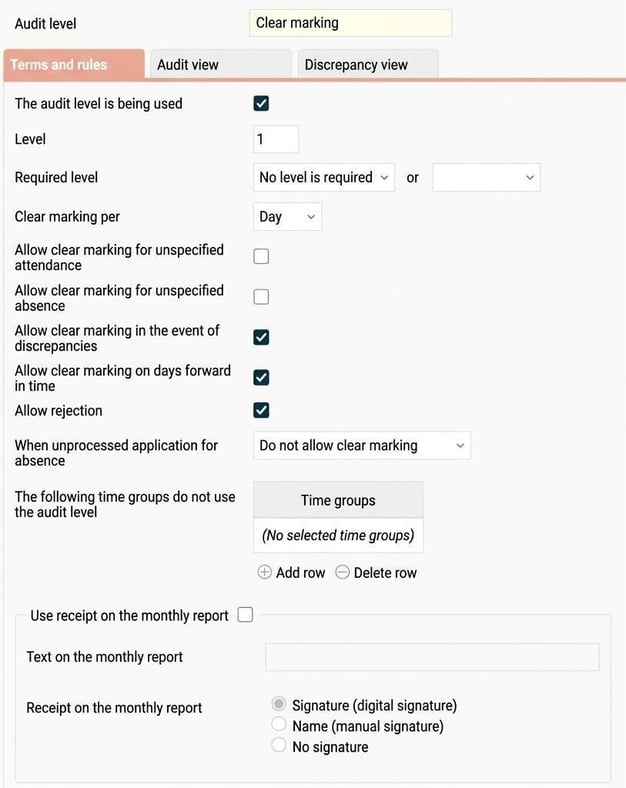
On the tab Terms and Rules you can make the following settings:
The audit level is being used
Choose whether the current audit level should be used or not when processing the company's time reports.
Level
Distribute an audit level a sequence number. This number determines in which order the level will be shown in the system's various functions. For example, if you want approval to only be possible when a time report is submitted, the approval level must have a higher sequence number than submitted.
Required level in order to audit
Here you specify which audit level may need to be reached before you can proceed with the current level.
Example:
-
You can specify that the time report must be Submitted before it can be approved.
-
If you specify two levels, for instance Submitted or Approved, it is enough for the time report to be either Submitted or Approved for it to be approved.
-
If you audit in several steps, for example that submitted time reports are first approved and then approved at a higher level, you specify Approved as the required level for Approval. Since the Approved level itself requires submission, you automatically include that requirement.
Auditing per
Select whether the auditing should be done per day, period or time row.
-
Day: Time reports can be audited one day at a time.
-
Period: Time reports can be audited for an entire period at once (a week or month, depending on the selected period type).
-
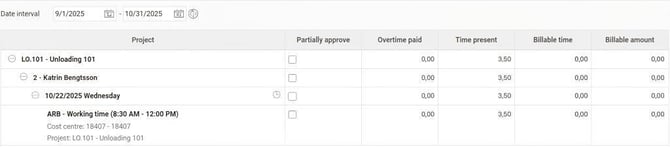
Time row: Time reports can be audited per time row. This can be useful, for example, if a project manager should approve all hours worked on a specific project, or if a shop manager should approve all times worked in the shop regardless of who worked there.
Allow auditing in the event of unspecified attendance
Check this field if time reports containing unspecified attendance should be able to be audited. Unspecified attendance may occur, for example, if someone works overtime but does not mark it as overtime.
Allow auditing in the event of unspecified absence
Check this field if time reports containing unspecified absence should be able to be audited.
Allow auditing in the event of discrepancies
Check this field if time reports containing discrepancy should be able to be audited. What should count as discrepancies is set per company/time group/employee. For example, it could concern overtime, absence or deviating break registration.
Allow auditing on days forward in time
This setting (which is enabled by default) allows you to choose whether time reports containing days forward in time can be audited or not.
Allow rejection
You can allow one or more days in a time report to be rejected via an icon in the time report view/audit view. You can also write a comment to the employee about what needs to be corrected. When a rejection is made, all earlier audits are removed and the day/days receive the preliminary status.
To be able to use this function, you must check Allow rejection on the audit levels you wish to allow rejection. You may, for example, want to allow rejection when a day is Submitted , but not when it is Approved .
When unprocessed application for absence
Here you set how the system should handle cases where someone tries to audit a time report containing an unprocessed application for absence. By activating a block or warning, you can prevent a time report from going all the way to payroll without, for example, annual leave being included.
The following options exist:
-
Allow auditing without warning: You can audit the time report without receiving any information about unprocessed applications for absence during the period.
-
Allow auditing with warning: You can audit the time report, but you will get a warning if there is an unprocessed application for absence during the period.
-
Do not allow auditing: You cannot audit the time report if there is an unprocessed application for absence during the period.
The following time groups are not using the audit level
Here you can specify one or more time groups that should not use the current audit level for their time reports.
Use receipt on the monthly report
You can specify whether a receipt should be printed on the monthly report. If you check this field, you can enter any receipt text you like on the monthly report and
choose which type of receipt should be used:digital signature ,manual signature or no signature .
Settings for auditing per time row
These settings are shown if you have chosen auditing per Time row:
Allow auditing regardless of authorisation to account coding
Check this setting to allow users to audit all projects. This can be useful if employees are submitting their time reports per time row and you want to avoid setting permissions for all projects.
Account code dimension for auditing of time row
Choose which account code dimension should be used for auditing. Authorisations will be set for this account code dimension. If a project manager is to approve their projects, you select the coding level Project .
Even rows without – require auditing
Specify whether time rows without the selected account code (the account code dimension you chose in the field above) also need to be audited. For example, this could apply to absence or time an employee has not reported on a project.
Allowances/Time codes on the allowance tab also require auditing
Choose whether allowances/time codes on the allowance tab should also require auditing.
Audit view
On the tab Audit view you choose whether to use a separate audit view and how it should be designed. Without this view, auditing takes place directly in the time report. With the view, you get a separate overview of the time reports to be audited.
In the view you can choose to show:
-
Time group
-
Allowances
-
Balances
-
Home account code
-
The audit levels that have been used before the current level.
You can change the sequence for balances and home account codes using the blue arrows.
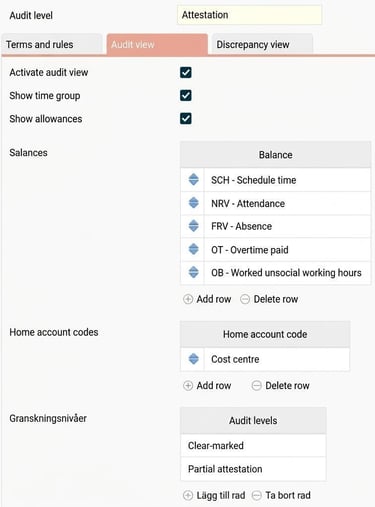
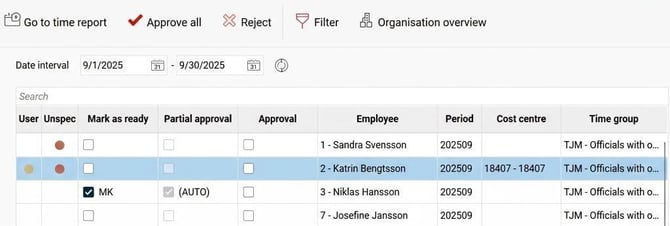

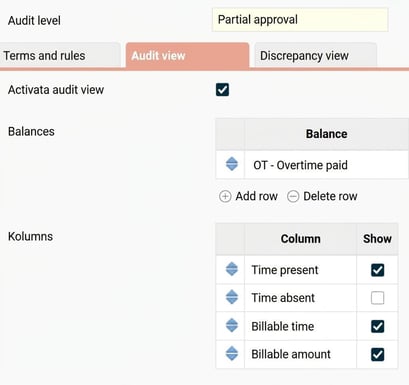
Note: Views for auditing per Time row can only show balances, time present, time absent, billable time and billable amount.
Please note: This article is AI-translated. This means that linguistic errors or misunderstandings may occur.