
Here we explain how to configure the display of balances in the time report. If you want to create or configure a balance, we recommend this article: How do you set up balances?
Day information
Period information
Period total
Timeclock
How do changes in time groups affect the display of balances?
Layout settings
Under Layout settings balances you set, for each time group, which balances should be displayed and how they should be positioned in the time report (day balances, period balances, period total) and in the time clock.
Layout day balances
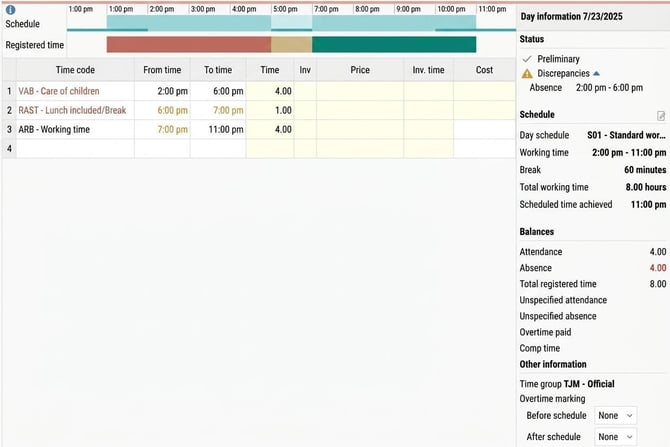
Here you add the day balances that the company wants to show in the Day information column in the time report Day information.
In our example below, we display, for all time reports for employees in the TJM time group, balances for Attendance, Absence, Total registered time, Unspecified attendance, Unspecified absence, Paid overtime, and Comp time.
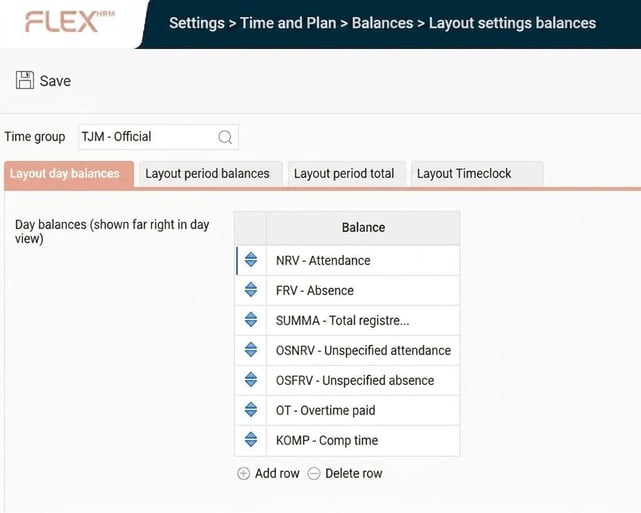
If you want to remove a balance from the layout, click on the relevant balance followed by Delete row. Once you save, it will disappear and will no longer be shown in the time report.
Layout period balances
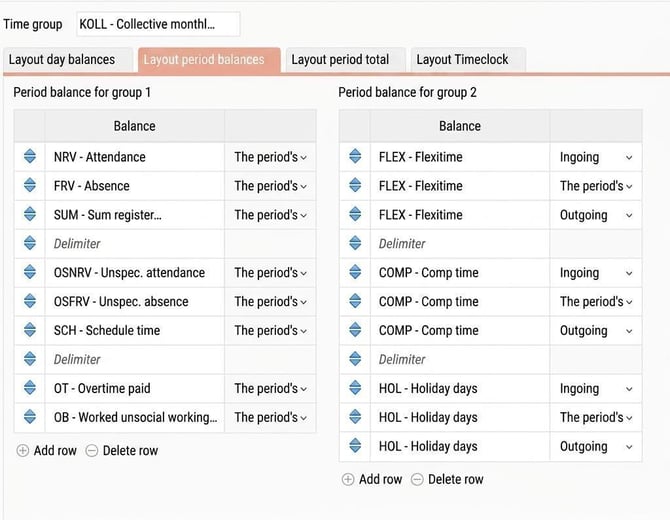
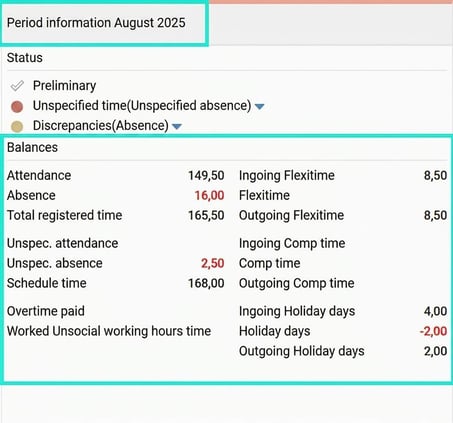
These balances are displayed in the column for Period information in the time report. Note that for rolling balances, you can display three different values for the same balance: ingoing, the period's and outgoing value.
In our example below, we choose to display, in Period balance for group 1 attendance, absence, total registered time, unspecified attendance, unspecified absence, schedule time, paid overtime and worked unsocial working hours.
Delimiter means that you get a blank row in the column, which can be useful for readability
In Period balance for group 2 we display other balances: flex time ingoing/the period's/outgoing, comp time ingoing/the period's/outgoing, holiday days ingoing/the period's/outgoing.
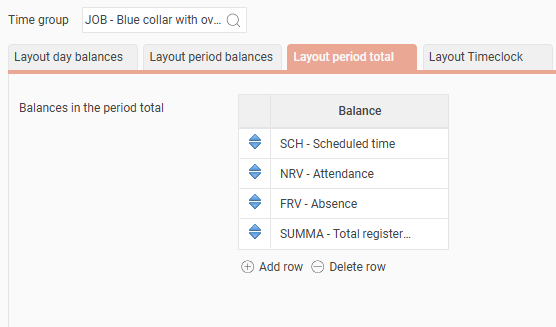
Layout period total
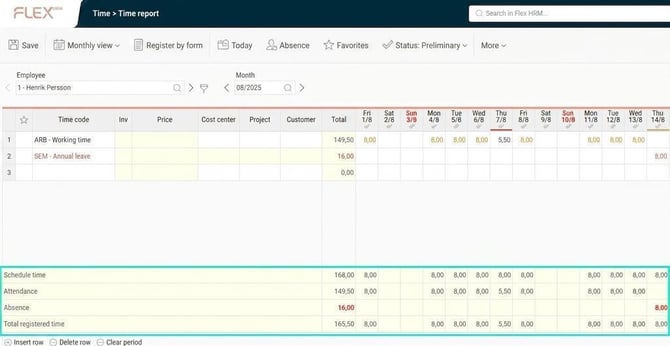
These balances are shown in the summary at the bottom of the period views in the time report.
In the example below, we show schedule time, attendance, absence and total registered time.
How do changes in time groups affect the display of balances?
If an employee sees different balances in their time report during different periods, they must have changed time group. The display can only be set at the time group level.
If you change time group in the middle of a period, period balances and period total are displayed according to the layout settings for the time group you have on the period's first day. If you are not employed on the period's first day, or do not have a time group then, it applies to the first day in the period when you are employed/have a time group.
Layout Timeclock
The balances set under Layout Timeclock are shown in stamping terminals, the Balances button.
Please note: This article is AI-translated. This means that linguistic errors or misunderstandings may occur.