
Curious about our new app?
We have a new Flex HRM app that is under development. Here you can see how to get started with the new app.
HRM Mobile - Time clocking
In HRM Mobile, the view Time clocking you will find functions for time clocking.
Please note that different options may be available depending on your settings.
|
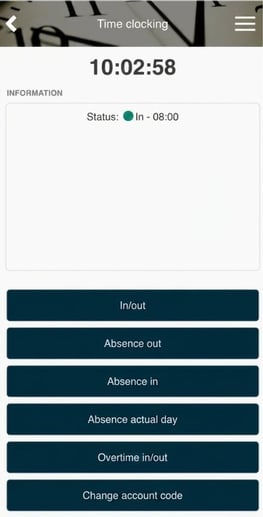 |
In/out
Used for clocking arrival, break and leaving. Status information after clocking is displayed at the top.
Absence out
Used when you clock out with absence, whether it’s for a short time during the day or a longer period. Clocking with Absence out starts a rolling absence (=absence without end date) which is ended when you clock in next time or stop it in the absence manager.
Absence in
Used for clocking in with absence, e.g. when you’ve been on a business errand before coming to work.
Absence current day
Used when you clock out with absence for the rest of the day.
Overtime in/out
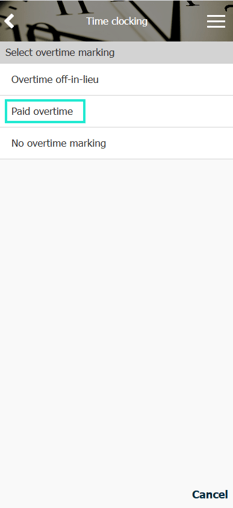
With this function you clock either arrival or leaving and specify which type of overtime allowance should apply.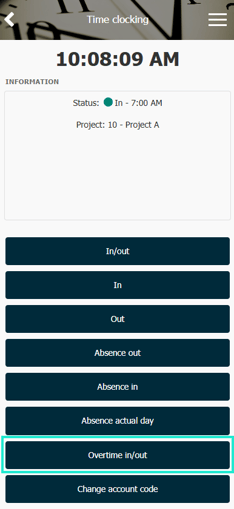
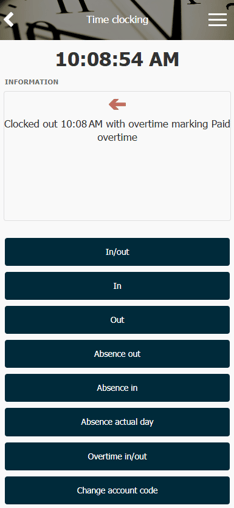
Change account code
Click on the account code dimension you want to change. If you know, for example, the name of the project, you can type into a search box and possible matches will be listed in the search results. If you want to select from the account code register instead of searching, you’ll find the menu Register in the side menu.
Related articles
How does the time clock terminal work?
How do you clock directly in the time report?
Please note: This article is AI-translated. This means that linguistic errors or misunderstandings may occur.