
How do I log in to Flex HRM?
Curious about our new app?
We have a new Flex HRM app that is under development. Here you can see how to get started with the new app.
You log in to Flex HRM using a Visma Connect Account.
When you specify the web address (URL) for Flex HRM or HRM Mobile, you are first directed to the login page for Visma Connect.
-
If your company uses SSO (Single Sign-On) you can proceed without entering a password.
-
If you do not use SSO you specify the password for your Visma Connect Account. After this, you can start working in Flex HRM.
Below is a step-by-step guide showing you how to log in to Flex HRM Mobile.
Get started with HRM Mobile
If you are using a mobile device, download the app HRM Mobile in either the App Store or in Google Play. 
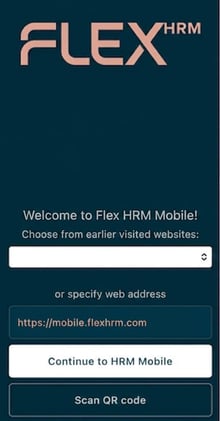
The first time you use the app, you will be asked which web address (URL) should be specified.
- Specify the URL for the mobile app https://mobile.flexhrm.com
- In the next step, enter your email address and click on Next.
- Does your c ompany SSO (Single Sign-On) choose to use it.
If your company does not use SSO you specify your password.
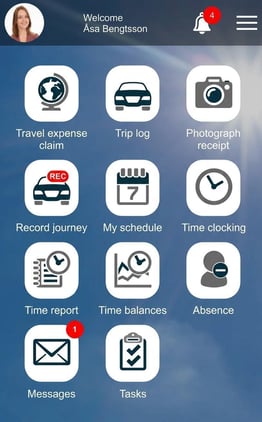
You are now logged in.
Please note: This article is AI-translated. This means that linguistic errors or misunderstandings may occur.