
You access the function via: Administration > Settings > Payroll > Accounting and debt management. Click on Settings and select Accounting of wage costs in the menu to open the settings.
The Accounting folder
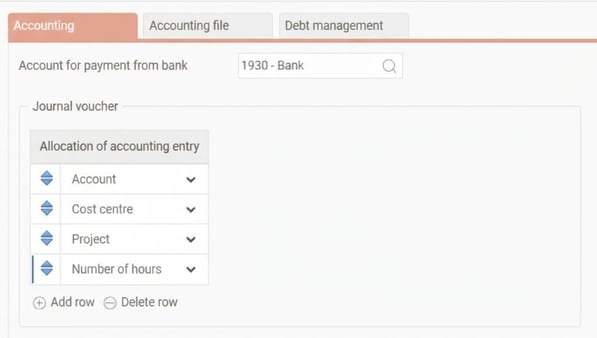
Here you configure the basics for your journal voucher and how entries should be allocated.
-
Account for payment from bank: Specify which account should be used for payments. You can search the account register by clicking on the magnifying glass.
-
Allocation of accounting entry: Choose how the entries should be allocated by default. Account must always be one of the levels. The available options are all account code dimensions with the setting Is being used for account ing under Settings – Account code dimensions, General folder. Additionally, you have the option to group the accounting entries by employee number or pay code.
-
Click on Add row to add more dimensions (for example, cost centre).
-
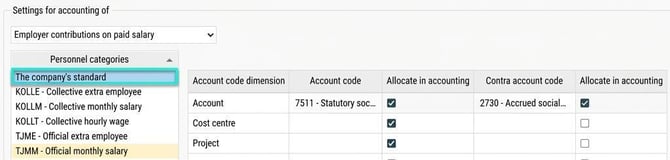
Settings for accounting of: Select which location the settings should apply to.
-
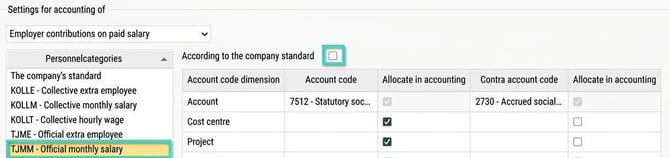
Personnel categories: Select a personnel category to make specific settings for the chosen category. If a category deviates from the company’s standard, it’s highlighted in yellow.
-
According to the company standard: Tick this box if the category should follow the common settings. Then all other fields are locked for editing. Remove the tick if the personnel category should have a deviating setting.
-
Account code settings: Specify account code and contra account code for each dimension. For all account code dimensions, you can also configure whether allocation of account code and/or allocation of contra account code should be used on the journal voucher. In the images, we have set account 7511 (company standard) and 7512 (deviating account for personnel category TJMM) to also be allocated to cost centre and project, which are retrieved from the employee’s home account code as we have left the account code field blank for these levels.
The Accounting file folder
Here you manage how the accounting file should be created and saved.
-
Download file to specified location: Choose whether the file should be saved locally or in a Remote folder.
-
Search path: Specify the exact location for the remote folder where you want the file to be saved.
-
File format: SIE-4i, here you link the system’s values to the correct SIE dimensions.
Note that, for those who want to include number of hours in the accounting, these will automatically be directed to the Quantity field in the SIE-4i file.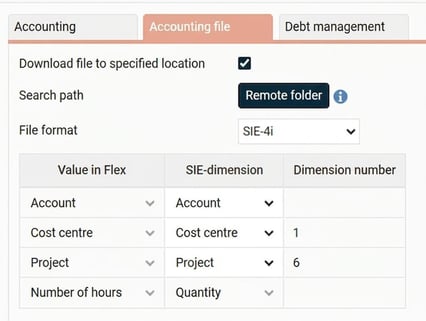
You can also connect a set up export template.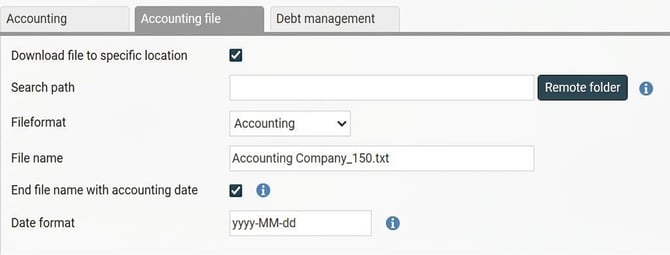
Do you need help setting up a specific export template for your accounting file? See the article on export templates.
The Debt management folder
Here you choose which model to use for calculating the company’s debts.
-
Remove annual leave that is paid the month after the debt date:
Usually, for the debt as of, for example, 31 October, you include all holiday money that has not yet been paid out as of this date. If, for instance, I am off for 5 holiday days in October, for which I get holiday pay in November, most people consider that this money should be included in the debt for 31 October, since it has not yet been paid at that date. However, there is an alternative interpretation that is also used, which means excluding the money relating to days off in October even though they are paid out the following month. If this calculation model is applied by the company, tick the option Remove annual leave paid the month after the debt date, and the debt list as of 31 October will then be created during the payroll run for November. -
Include vacation in advance in vacation debt with calculation type “Accounting of debt”: If you want vacation in advance to be included in the booked debt, select this box. If the box is unticked, vacation in advance will not be included, which is common to avoid recording debts that are not repayable, for example in the event of bankruptcy.
-
Allow creation of several debts of type “Accounting of debt” with the same debt date: Activate this if you need to create several separate debt calculations for the same date.
Note: Be careful with the selection of employees so that no one is included in several calculations or missed from all calculations, which may result in the debt being recorded twice or not at all.
Include number of hours in journal voucher
If you want the number of hours to be shown in your journal vouchers, you need to configure a setting in the pay code register for the pay codes concerned.
Here’s how to configure the setting in the pay code register
For hours to be transferred to the accounting, you need to mark two settings on the relevant pay code:
- Go to Administration > Settings > Payroll > Pay codes.
- Click on the pay code you want to change.
- Make sure that the setting Transfer to accounting is selected.
- Also select the setting Include the number of hours in the journal voucher (payroll).
How hours are handled in the journal voucher
For payroll transactions where you have chosen to include number of hours, the hours will be summed up and handled in the same way as the amount. This means that if you have two different transactions with exactly the same account code, the hours from these will be combined in the journal voucher.
Important to keep in mind Transactions where you want to record number of hours must have an account specified. If an account is missing, we will display a warning about this when you create the journal voucher.
Please note: This article is AI-translated. This means that linguistic errors or misunderstandings may occur.