
What do you see in the Presence board?
Manage favourites
Receive a notification when a colleague is on site
Licence and authorisation
What do you see in the Presence board?
You will find Presence board as a shortcut on the app's front page.
Your colleagues are displayed in alphabetical order, sorted by first name. Each row shows a picture or initials, name, and a status. Next to the status there may be a short explanation with a time.
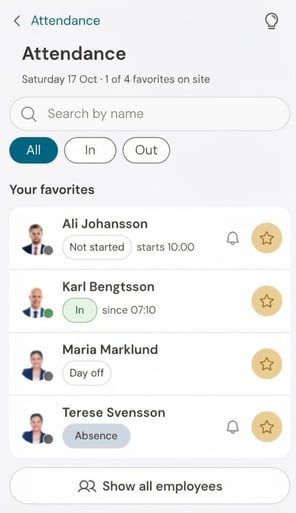
- In: The person is clocked in or is counted as inside according to the schedule. You can see the time the person clocked in or the text "according to the schedule".
- Not arrived: The person is scheduled to work today but has not clocked in yet. The schedule time is shown.
- Break: The person is on a break. You see when the break started.
- Absence: The person has a registered absence. The reason is displayed if you are authorised to see it.
- Out: The person has been in but is no longer present. Time of clock-out is shown.
- Day off The person is not scheduled to work today.
- Not started: The person is scheduled to work later today but has not clocked in yet. The schedule time is displayed.
To update the list, drag down on the screen.
Search and filter the search on employee
At the very top of the field you can search for employees. If you search from the favourites view, the app searches among all employees, not just your favourites.
Below the search field, you’ll find three filters:
- All: Shows all employees.
- In: Shows those who are in.
- Out: Shows other employees (not arrived, on break, absent, and not clocked in).
The filter remains active when you switch between favourites and all employees.
Manage favourites
When you open the Presence board the colleagues you have marked as favourites are displayed. Use the favourites function to quickly see the status of the colleagues you contact most frequently.
- Click on Show all employees to load everyone you are authorised to see.
- Click on the star next to a name to add the colleague as a favourite. A colleague marked as a favourite is shown with a yellow star.
- Click on the yellow star again if you want to remove the colleague from your favourites.
Receive a notification when a colleague is on site
Are you waiting for a colleague you need to speak with as soon as they arrive? There’s no need to manually check the Presence board.
- Click on the bell next to your colleague’s name.
- The clock turns blue, showing that you’re waiting for a notification.
- You’ll receive a notification from the app when the colleague is present. The notification does not name the colleague, but simply lets you know that someone you’re waiting for has come in.
If you no longer want to receive a notification, click the blue bell again.
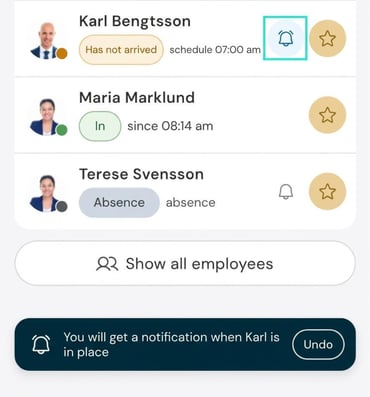
The notification only applies to the next status change within the next 24 hours.
If you want a notification again at a later time, you’ll need to click on the clock again.
Is a colleague missing the clock icon?
The clock icon is only shown for colleagues you can receive notifications for. These are people who are not already in, who have day reporting, and who do not use the setting to post times according to the schedule (which automatically posts schedule times as working time). However, you can receive a notification for people with automatic schedule time posting when they are on a break.
Licence and authorisation
For the Presence board to be available in the app, the company must have a licence for the HRM Time module.
The authority for the Presence board in the app is the same as the authority for the Presence board on the front page in the web version of Flex HRM and for My colleagues in HRM Mobile. One difference is that in the app, you only see your colleagues, not yourself.
If you want to control the authority to see pictures in the Presence board in the app, you do so via the authority for My colleagues by unticking Picture.
Please note: This article is AI-translated. This means that linguistic errors or misunderstandings may occur.