
Create a specification


Remove a base


Check the specification


File for reporting


In-depth information on how the specification is created and calculated
Ongoing work for the reporting of economic trend statistics (KLP)
Once per month, you who have been selected must report economic trend statistics regarding payroll to SCB. You do this in Flex HRM Payroll under Administration > Actions processed > Statistics reporting > Economic trend statistics, salaries for the private sector (KLP).
Create a specification
The first step in the reporting process is to create a specification for the current month’s reporting. You do this by clicking on the New button in the button bar.

Here you select which month you wish to create the reporting specification for. You can also choose to filter employees if you wish.
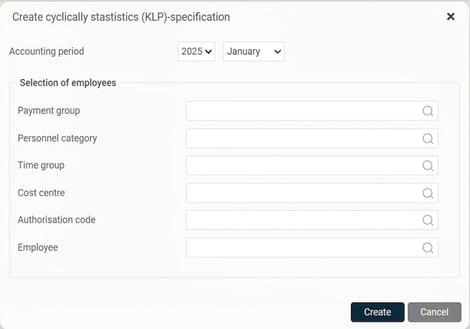
When you click the Create button, the work to create a specification and a reporting file starts. Once the specification and file are created, you can see the specification with the status set to Preliminary in the view.
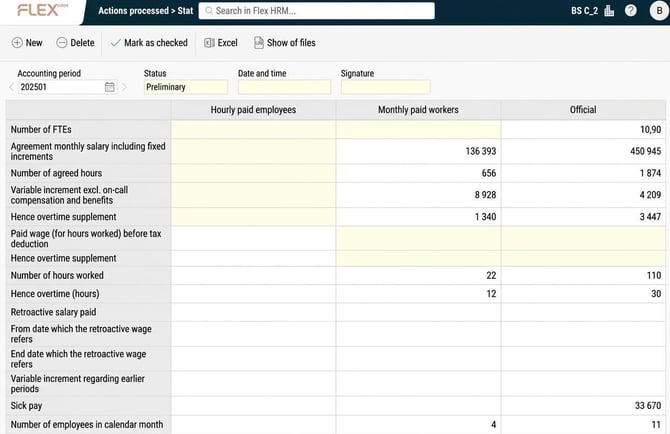
Remove a base
If you discover an error in the specification, you can easily remove it by clicking on the Remove button and creating a new specification from scratch. You can also delete earlier specifications that you no longer want to keep.
Check the specification
The next step is to check the specification before you submit the data to SCB. You do this by auditing the specification in the view.
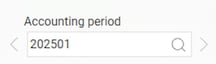
At the top of the view, select the accounting period you wish to view. Previous reports remain available and are easy to access.
The table shows the specification that has been compiled and is to be reported to SCB. The table is divided into columns for hourly paid employees, monthly paid employees and officials.
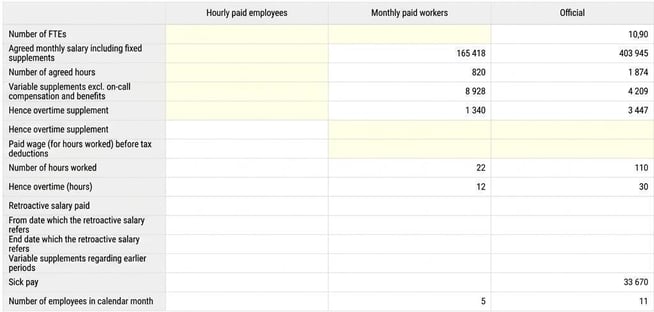
To see all the details about which figures have been summed per employee, you can export the specification to Excel by clicking the button in the button bar.

The employees will be shared in one folder per category corresponding to the columns in the table. This is useful for troubleshooting or assessing the plausibility of the data.
Once the specification has been audited, you mark it as checked by clicking the button for Mark as checked in the button bar.

The status of the specification then changes to Inspected. The date, time and signature of the user who marked the specification as checked are saved to the specification.

If you find an error in an inspected specification, you can remove the audit marking again, which will change the status back to preliminary.

File for reporting
At the same time as the specification is compiled, a file for reporting is also created. The file can be used as an alternative to entering the figures manually in SCB’s reporting service. You download the file for reporting by clicking the Show of files button in the button bar.
The file will remain here until you choose to remove the specification.
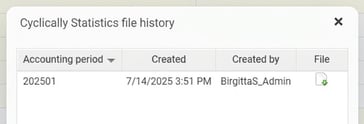
The list of files contains one file per accounting period, with the latest file at the top. Download the file by clicking on the icon and send it to SCB. You do this by logging in on SCB’s website and following the instructions for file reporting there.
In-depth information on how the specification is created and calculated
Below you’ll find detailed information on how the specification is created in the system.
Which employees are included in the specification?
Which ones should be included in the report is stated in SCB’s instructions. This applies to almost all employees except for owners and the CEO.
The following employees are included in Flex HRM Payroll:
- people aged 18 - 66 years (calculated from the month the employee is turning)
- employees marked as employees or officials
- monthly paid employees who have had an employment during the reporting month (including those on leave or on parental leave)
- hourly paid employees who have received a wage for hours worked during the accounting month
Calculation for hourly paid employees
Below is a detailed description of how each field is calculated for hourly paid employees.
- Paid wage for hours worked before tax and other deductions
Sums amounts from pay codes with a cross in the field 'Economic trend statistics (KLP) – Paid wage for hours worked before tax and other deductions', which has been paid out during the accounting month. - Hence overtime supplement
Sums amounts from pay codes marked in the field 'Economic trend statistics (KLP) – Overtime (supplement)', which has been paid out during the accounting month. - Number of hours worked
Sums the field 'Number of hours' from pay codes with a cross in the field 'Economic trend statistics (KLP) – Refers to worked time' which has been paid out during the accounting month. - Hence overtime hours
Sums the field 'Number of hours' from pay codes with a cross in the field 'Economic trend statistics (KLP) – Overtime (hours)' which has been paid out during the accounting month. - Retroactive salary paid
Sums amounts from pay codes with a cross in the field 'Economic trend statistics (KLP) – Retroactive salary paid', which has been paid out during the accounting month. - Period that the retroactive payment refers to
Takes the earliest From date and the latest To date from pay codes marked in the field 'Economic trend statistics (KLP) – Retroactive salary paid' which have been paid out during the accounting month. - Variable increments and allowances referring to earlier periods
Sums amounts from pay codes with a cross in the field 'Economic trend statistics (KLP) – Variable increments and allowances referring to earlier periods', which has been paid out during the accounting month. - Sick pay after qualifying deduction
Sums amounts from pay codes with a cross in the field 'Economic trend statistics (KLP) – Sick pay after qualifying deduction', which has been paid out during the accounting month. If the agreement provides for sick pay day 1 – 14 and then a qualifying deduction, both the pay codes for sick pay and the deduction must be ticked. - Number of employees
The number of hourly paid employees with a value in the Number of hours worked field.
Calculation for monthly paid employees and officials
Below is a detailed description of how each field is calculated for monthly paid employees and officials.
- Number of FTEs
For monthly paid officials, this is counted at month-end as the contractual working hours valid at the end of the month. For hourly paid officials, this is calculated as the number of hours worked divided by the full time measure x 4.3. This field only applies to officials. - Agreed monthly salary including fixed increments
For monthly paid employees, the actual monthly salary + pay rise at the end of the month is reported. The pay rise is taken from own numeric fields ticked as pay rise. For hourly paid officials, the current hourly wage x number of hours worked is reported. - Number of agreed hours
For monthly paid employees, the working measure actual x 4.3 is reported. For hourly paid officials, the number of hours worked minus overtime hours is reported. - Variable increments
Sums amounts from pay codes with a cross in the field 'Economic trend statistics (KLP) – Variable increments' that have been paid out during the accounting month.
To this sum is added the amount from the field 'Hence overtime supplement' (see below). This is so that the basic wage is subtracted for those with overtime allowance. This also means that no pay codes involving overtime allowance/overtime supplement should be ticked as variable increments. - Hence overtime supplement
First, sums amounts from pay codes with a cross in the field 'Economic trend statistics (KLP) – Overtime (supplement)' that have been paid out during the accounting month. This is done for all employees.
For monthly paid employees, amounts from pay codes marked in the field 'Economic trend statistics (KLP) – Overtime (allowance)' that have been paid out during the accounting month are then added. From the sum of the overtime allowance, the actual monthly salary / number of agreed hours (see above) x number of hours with overtime allowance is then subtracted. - Number of hours worked
Sums the field 'Number of hours' from pay codes with a cross in the field 'Economic trend statistics (KLP) – Refers to worked time' that has been paid out during the accounting month. - Hence overtime hours
Sums the field 'Number of hours' from pay codes with a cross in the field 'Economic trend statistics (KLP) – Overtime (hours)' that has been paid out during the accounting month. - Retroactive salary paid
Sums amounts from pay codes with a cross in the field 'Economic trend statistics (KLP) – Retroactive salary paid' that has been paid out during the accounting month. - Period that the retroactive payment refers to
Takes the earliest From date and the latest To date from pay codes with a cross in the field 'Economic trend statistics (KLP) – Retroactive salary paid' that have been paid out during the accounting month. - Variable increments and allowances referring to earlier periods
Sums amounts from pay codes with a cross in the field 'Economic trend statistics (KLP) – Variable increments and allowances referring to earlier periods' that have been paid out during the accounting month. - Sick pay after qualifying deduction
Sums amounts from pay codes with a cross in the field 'Economic trend statistics (KLP) – Sick pay after qualifying deduction' that has been paid out during the accounting month. If the agreement provides for sick pay day 1 – 14 and then a qualifying deduction, both the pay codes for sick pay and the deduction must be ticked. - Number of employees
The number of monthly paid employees with a period of employment during the reporting month and the number of hourly paid officials with a value in the Number of hours worked field.
Related articles:

Economic trend statistics, salaries for the private sector (KLP) – Which settings do I need to be able to retrieve statistics for KLP in Flex HRM Payroll?
Please note: This article is AI-translated. This means that linguistic errors or misunderstandings may occur.