
Setting up logging (Log settings)
In Flex HRM, you can log (track) changes made to many of the system’s registers. The log saves information about the time of the change, who made the change, the old value, the new value, and more.
This is where, under log settings, you activate and set up what should be logged.
You access the settings by going to General > Logging > Log settings.
Activate a log setting
On the left of the view, you see the log settings that already exist.
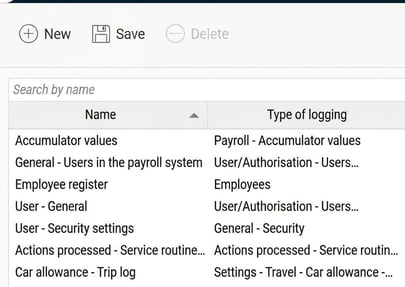
Click on a log to see how it is set up.
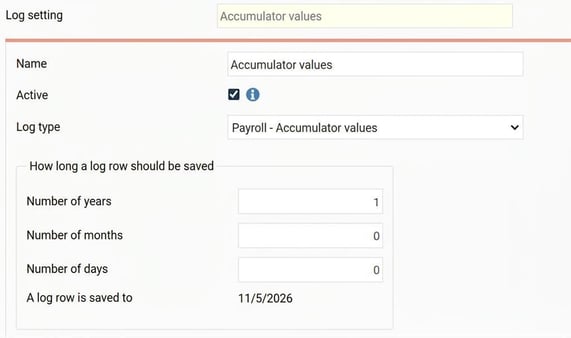
To add a new one, do as follows:
-
Click on the button New.
-
Specify A name
-
Select a Log type and how long a log entry should be saved.
-
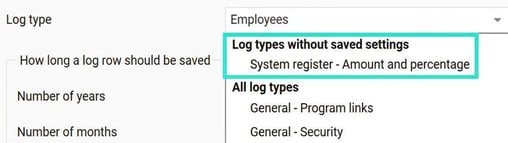
Tip: When you click on the dropdown for Log type the log types that haven’t yet had a row saved appear at the top of the list. This makes it easier for you to see which logs you haven’t yet added.
-
-
Tick the checkbox Active to start logging for the selected log type.
💡Good to know!
Performance and storage
- Some logs can generate large volumes of data (log posts). This puts heavy demands on both the database’s disk space and the server’s capacity.
Therefore, carefully consider what is reasonable to log and how long the log posts need to be saved.
Active and saved logs
- Check that all the logs you want are activated.
A log may be saved (visible in the list on the left) but not activated. The log must be active in order to function. - For the export of type Employees/users with the filters Only changed since latest export/Only changed fields since latest export to work as intended, the Employee register log must be active.
Related articles
How does the change log work in Flex HRM?
Please note: This article is AI-translated. This means that linguistic errors or misunderstandings may occur.