
Show the change log
In Flex HRM, you can log (track) changes made in many of the system's registers. The log saves information about the point in time of the change, who made it, the old value and the new value.
You can find the log by going to General > Logging > Log.
You will then see the following view:
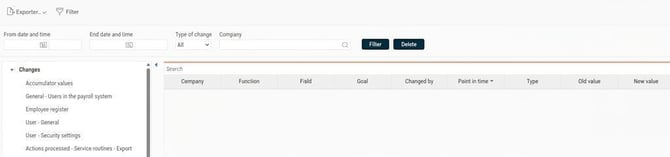
On the left, you see a list of all active logs. The list also shows disabled logs that still have old log posts.
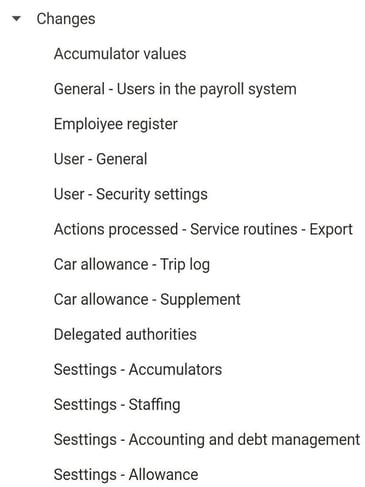
⚙️You set which registers to log under Administration > General > Logging > Log settings.
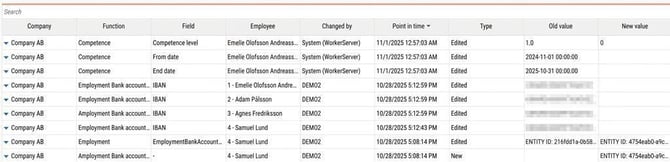
When you select a row in the list on the left (for example "Employee register"), all log posts for that are shown in the list on the right. Here you can see all logged changes per field.
For example, if you have changed the address, phone number and email address for an employee, it will appear as three separate rows in the log (one row for each field changed).
Search and filter in the log
Above the list on the right is a search field. You can search all information shown in the list. This is useful if, for example, you are looking for changes related to a specific employee or made by a particular user.
There is also a filter where you can search by point in time and type of change.

As a default setting, the filter is set to the company you are logged in to. You can change the company filter if needed to see several/other companies.

If you select a row in the list (on the right) you see detailed information about just that change in the field below the list. Among other things, you see the old and new value there.
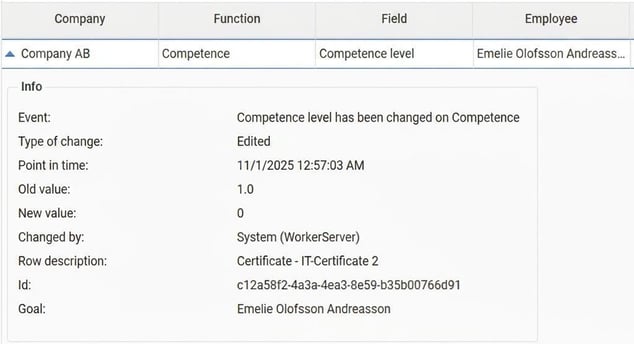
Technical ID numbers are also shown here, which can help a developer with troubleshooting and similar tasks.
Explanation of the columns
In the list of log posts, you see the following columns:
-
Company: Shows which company the change applies to.
-
Function: Shows which part (sub-function) of the register the change relates to. If the log, for example, is for the employee register, the function could be "employment period", "schedule" or "contractual working hours". This clarifies what the field belongs to. (If the field is "from date", the function indicates what the date refers to).
-
Field: Shows which specific field has been changed.
-
Goal: Shows what the change relates to. In the employee register, the goal is an employee, in the pay code register it's a pay code, and so on.
-
Changed by: Shows which user made the change.
- Point in time: Shows when the change was made.
-
Type: Shows the type of change (if a new value was added, an existing value changed, or a value removed).
-
Old value, New value: Shows the value before and after the change.
Export the log
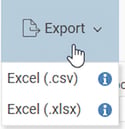
You can export the log rows displayed (based on your selection) by clicking on Export in the toolbar. You can choose between .csv and .xlsx formats.
Important to keep in mind – Authorisation
A user with the authority to view the logs can see all logged information in the entire database. This also includes changed employee information for all employees (if you log this). It is therefore very important to carefully restrict which users should have this authority.
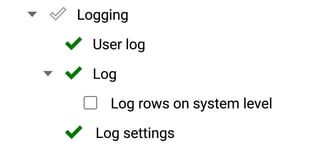
You set the authority for the log on the user's role. There you can set two different levels:
-
Authorized to view the log: Gives the user the right to view the log.
-
Authorized to view log rows on system level: This is an extended authority. It means the user can see the log also for companies to which they normally do not have access.
Integrated custom logs
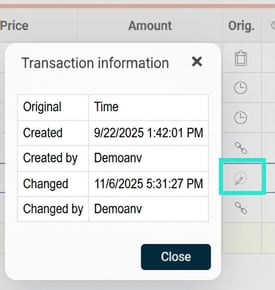
You can also see when a change was made and by which user in several places in the system. For example, you can see changes in custom logs in the views employee register, time reports and payroll process.
Below are some examples:
In the employee register you can see who changed the field monthly salary furthest to the right.

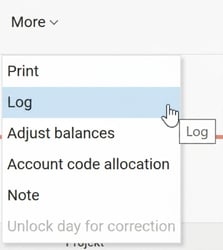
In the time report you find a log of clockings/registered time under More - Log.
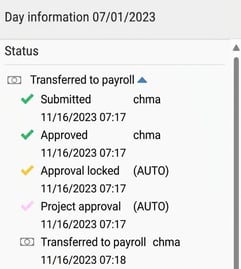
You can also see a log for who has reviewed the time report.
In the payroll process, you can see changes to a salary transaction.
Related articles
How do I set which change logs should be active in Flex HRM?
Please note: This article is AI-translated. This means that linguistic errors or misunderstandings may occur.