
Create a specification

Complete

Remove a base

Check the specification

Reporting

In-depth information about how the specification is created and calculated
Ongoing work for reporting to Fora
In January each year, payroll specification for officials must be reported to Fora.
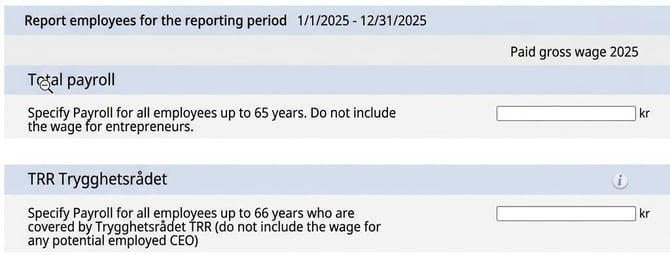
From 2026, the payroll will need to be divided by age into different fields for Fora.
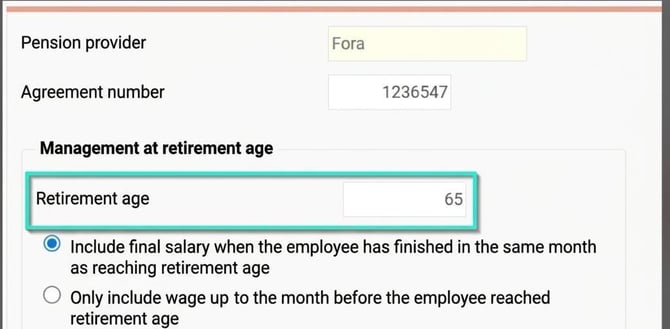
To obtain the payroll for each group, you need to use a setting under Settings > Payroll > Pension and insurance (the setting is available in Flex HRM from version 2026.10).
Choose the pension agreement for Fora.
In the Retirement age field, enter 65. Create the specification (see instructions below) and note the payroll to be reported in the field for those up to 65 years old.
Then change the setting to 66, remove the specification and create it again to get the payroll up to 66 years.
Create a specification
Create a specification for this year’s reporting. Do this by selecting Reporting to Fora and then clicking the New button in the button bar.
Here you specify which year the payroll specification should be reported for. If needed, you can also filter by specific employees.
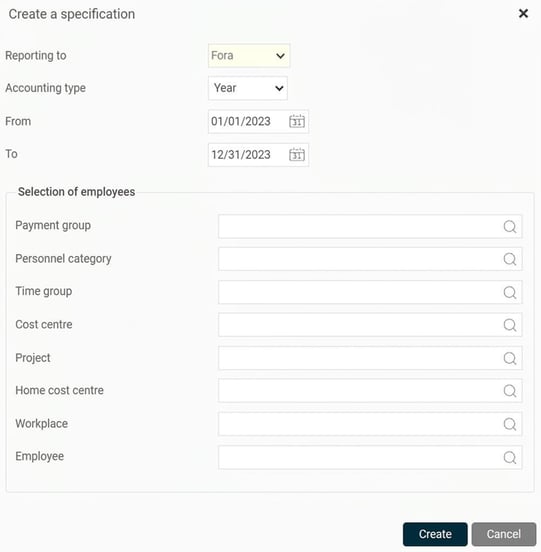
When you click the Create button, the process for creating the specification begins. Once the specification is created, you’ll see it with the status set as Preliminary in the view.
Complete
If you find an error in the specification, you can recalculate the specification for all or a selection of employees by clicking on the Complete button and making the desired selection there.
Remove a base
If necessary, you can also remove a specification, or one or more employees, by clicking Remove – either to start again from scratch or if you no longer wish to save the specification.
Check the specification
The next step is to check the specification. You do this by auditing the specification in the view.
At the top of the view you choose which reporting (if you have more than Fora) and the accounting period you wish to view. Earlier reports remain and are easily available.

The list displays the specification for all employees that have been compiled and will be included in the file to Fora.
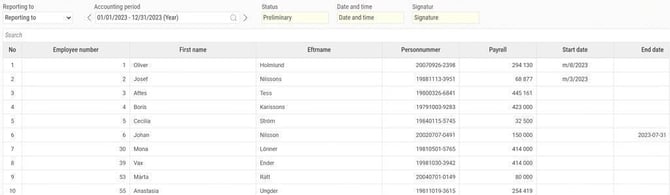
Below the list of employees there is a total for the employees’ and officials’ payrolls. For the officials, you see both a total payroll for all officials and a payroll for Employed CEO.

To enable your own calculations on insurance costs, the proportion of salary exceeding 7.5 basic price amounts and 7.5 income price amounts is also shown. You can also export the specification to Excel to get detailed information about the employees included, including the officials’ payroll data.

Once the specification has been audited, mark it as checked by clicking the button Mark as checked. The status of the specification then changes to Inspected, which means the specification is now locked for editing. The date, time and signature of the user who marked the specification as checked are saved to the record.

If you find an error in an inspected specification, you can remove the check mark again. The status then returns to Preliminary, and you can now complete the specification again. When you then mark the specification as checked again, a new point in time is set for when the specification was inspected so you can see if the file sent to Fora was created from the most recently updated specification.
Reporting to Fora
The officials’ payroll is manually entered in Fora’s reporting service.
In-depth information about how the specification is created and calculated
Below you’ll find detailed information about how the specification is created in the system.
Which employees are included in the specification to Fora?
An employee is included according to the following criteria:
- The employee is marked with the category Employees, Official, or Official – Employed CEO.
- A National ID number is specified for the employee. For those with multiple employee numbers, they will be merged if they belong to the same category.
- If the employee is over 65 years old at the start of the reporting year, a marking for Contracted pension after 65 (SAF-LO) is required.
Calculation of payroll specification
The wage reported is the total paid wage during the reporting year. The pay codes included in the specification are those marked as Fora - Refers to wage.
If you have chosen that the ingoing value should be taken from an accumulator, the ingoing value for the relevant reporting period will be fetched.
For employees who have turned 65 during the reporting year, the following applies:
- If the employee is a worker with agreed contracted pension after 65 years, all paid wage during the year is reported.

- For employees without contracted pension after 65 but who continue working, wages up to the month before they turn 65 are reported.
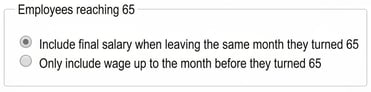
- For employees without contracted pension after 65 who leave in the same month they turn 65, the rule chosen in the company applies.
The payroll specification is summed up per National ID number, provided the different employee numbers belong to the same category. For employees with a shared position where one should be counted as an employee and the other as an official, you therefore need to set up the different positions with separate employee numbers.
Start date, end date and marking code
For employees who started employment during the reporting period, the first employment date is reported. For employees who quit, the last end date is reported.
For employees who have belonged to different marking codes during the year, the last one is reported.
Related articles:
What settings are required to do annual reporting to Fora in Flex HRM Payroll?
Please note: This article is AI-translated. This means that linguistic errors or misunderstandings may occur.