
Create bank agreement
You need to connect your bank account to Autopay in order to send payments.
- Go to Administration > Bank agreement
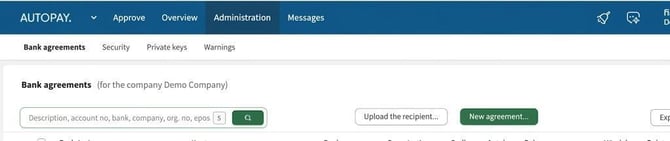
- Click on New agreement and follow the steps.
- Select bank and specify country and method.
- Select your bank account (the same as set under "Wage payment" in Flex HRM) and tick the services you want to activate, for example Outgoing payments.
- Fill in payment information and save.
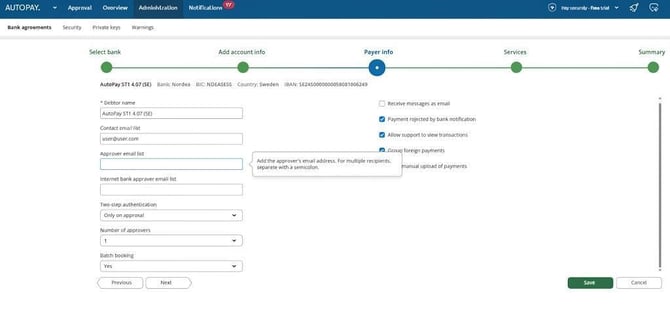
In the payer information tab, you can hover your mouse over the fields to get more information about what should be entered.
Please note that the integration agreement must also be ordered from your bank for the automatic connection to work. If your bank does not support automatic integration, you can instead choose Manual agreement.
Next step: Set up two-factor authentication (2FA) in Autopay
How do I set up post-approval in the internet bank?
If you want payments to be approved one last time in the internet bank before the money is withdrawn, you can activate the post-approval function.
Activate post-approval in the bank agreement
- Go to Administration > Bank agreement.
- Click on the pencil icon to edit the current agreement.
- Go to the section Payment information.
- Tick the box Post-approval in internet bank
- If you want the people approving in the internet bank to receive an email when payments are ready, enter their email addresses in the field Email address of approver in internet bank.
- Save the changes.
If you do not want post-approval in the internet bank but instead want to approve completely directly in Autopay, untick the box for post-approval (this requires support for Accounting-Approved Payments, RGB, with your bank).
Related articles
Guide: How do I get started with Visma Autopay
Please note: This article is AI-translated. This means that linguistic errors or misunderstandings may occur.