
Create Dashboard in HRM with Winningtemp panels
To create new Dashboards in HRM, go to System register > Dashboard > Dashboards. Each dashboard is made up of different data panels. You can mix regular HRM panels with panels of the Winningtemp type.
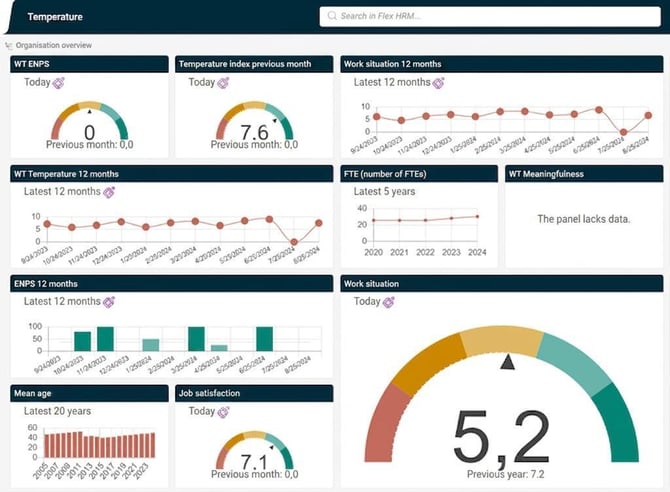
More information on how to create and edit panels and dashboards can be found in the HRM help section and in separate documentation on reports and statistics.
Every time you save a Dashboard that has one or more panels with Winningtemp data, a background job will be run in HRM that updates the information. This may cause a delay before you see figures in your Winningtemp panels.
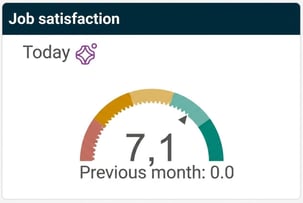
In the upper right corner of a Winningtemp panel there is a purple logo. If you click it, you will be taken directly to the Winningtemp login page.
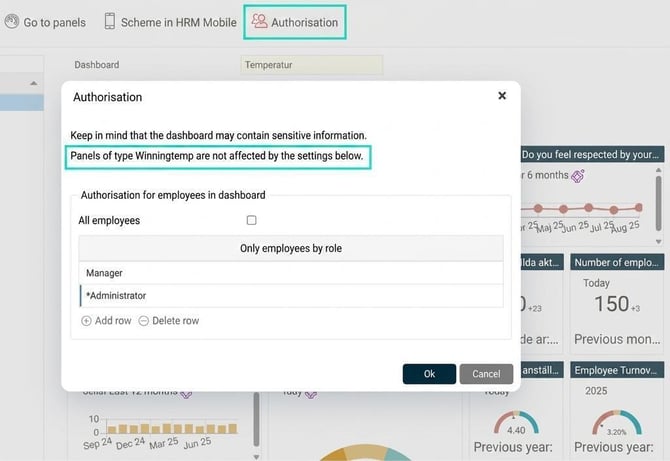
Note: Authorisation per dashboard does not apply to panels containing Winningtemp data
A user authorised to view the dashboard with Winningtemp data will see data based on all employees.
You can also view your Dashboard in HRM Mobile
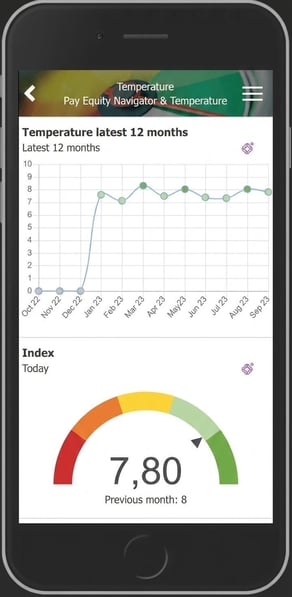
Description of Winningtemp panels in HRM Dashboard
When creating panels of the Winningtemp type, you have a number of different options. These options are described below.
Question
- Index - Shows the index for all categories combined. The overall temperature in Winningtemp shows an aggregated result for all activated categories, exclusive of any customised categories.
- Category - Shows a summary of several questions within the same category. For example, leadership.
- Question - Shows values for a specific question.
Type of question
- Temperature - Displays a value between 0-10
- ENPS - eNPS stands for Employee Net Promoter Score, which measures whether employees would recommend the company as an employer or not. Shows a value from -100 to +100
- Customised - Optional add-on in Winningtemp for bespoke/customised categories. This means that you can create your own categories with your own questions. For example, security or segment-specific questions, e.g. for blue-collar employees or hourly-paid staff, etc.
Here you will find example Winningtemp panels in HRM
What data is displayed in HRM?
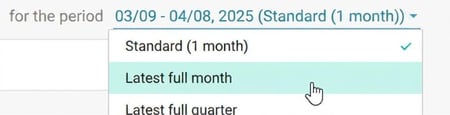
We display the full month, i.e. the previous month, in the Winningtemp panels in HRM. For example, if today is 5 April, it shows data for the period 1–31/3.
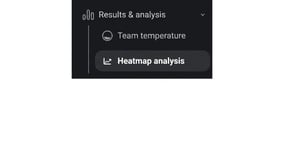
In Winningtemp, as an Administrator, you can view a Heatmap analysis - here, as a user in Winningtemp, you can view the full month if you want to compare the figures.

Related Articles
⚙️ Pulse surveys and employee surveys - How do I integrate Winningtemp & HRM?
Please note: This article is AI-translated. This means that linguistic errors or misunderstandings may occur.