

Create a salary review
Here we explain how to create a new salary review in HRM. This takes place under Personnel > Salary review. The process usually involves an administrator or HR manager creating the salary review, going through the documentation and distributing pay pots before beginning the actual salary setting.
To create a new salary review, click the New button.
Basic settings
Start by giving the salary review a name and specifying the date from which the new salary should be applicable.
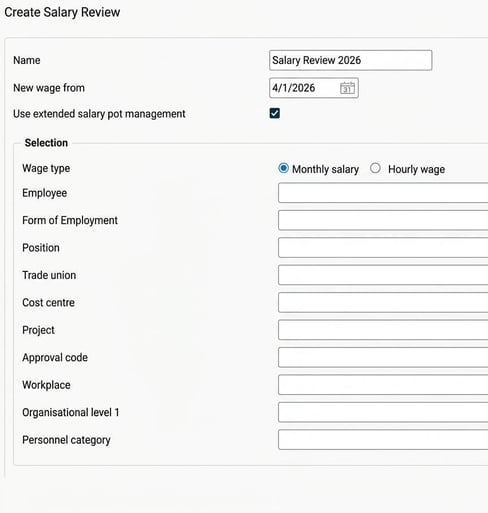
If you are working with extended salary pot management, tick the checkbox Use extended salary pot management. Please note that this option cannot be undone after you have clicked Create. If you need to change this afterwards, you must delete the salary review and create a new one.
Selecting employees
Next, select which employees are to be included in the salary review. Note that you need to perform separate salary reviews for monthly paid and hourly paid employees, as calculations and pay pots cannot be managed for both groups at the same time.
You can either create a large salary review for all employees in the company, or several smaller reviews for different groups of employees. What works best for your organisation often depends on how you want to manage pay pots.
Once you have completed the basic settings and selection, it is time to click Create.
Prerequisites for an employee to be included
For an employee to be included in a salary review, the following conditions must be met:
-
Active employment The employee must have an active employment on the date when the new salary takes effect. If the new salary is valid from 1 April, a person who is employed on 1 May will not be included.
-
Salary details Information about wage type and current monthly or hourly wage must be registered in HRM.
-
Correct salary review year An employee who has already had their salary reviewed in the current year will not be included. In the employment register, under the tab Payroll, you can see when the salary was last reviewed. When a new salary review is created, employees with a lower salary review year than the current one, or where the information is missing, will be included. The field is updated automatically when the new salaries are implemented.
Ongoing salary review An employee who is already included in an ongoing salary review for the same year cannot be added to a new one.
Edit a created salary review
If you have created a salary review and need to adjust something afterwards, the following can be adjusted.
- Change selection, name, or date If you wish to change the name, date for the new salary, or the overall selection of employees, hover over the salary review name and click the Change button. Please note the salary review will be cleared and recreated with the new settings.
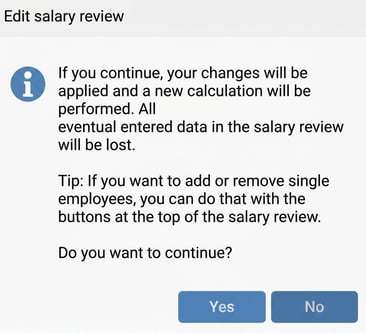
- Add or remove individual employees If you only want to add or remove specific employees, use the buttons Add employee and Delete employee.
Once all employees to be included in the salary review have been added, you are ready to proceed with preparation - Next step - Create pay pots
Please note: This article is AI-translated. This means that linguistic errors or misunderstandings may occur.