

Pay pots in the salary review
To create and manage pay pots in the salary review, click the Pay pots button. In this article, we’ll go through how to set up and use your pay pots.
Pay pots help you ensure the company stays within the agreed framework for this year’s salary review. A pot can serve as either a lower or upper limit:
-
A lower limit is used, for example, when a collective agreement requires that a group of employees receive a wage increase of at least three percent.
-
An upper limit is used to ensure that the budget you have set for the salary review is not exceeded.
Create a pay pot
To set up the different pay pots in the salary review, click the Pots button in the menu bar.
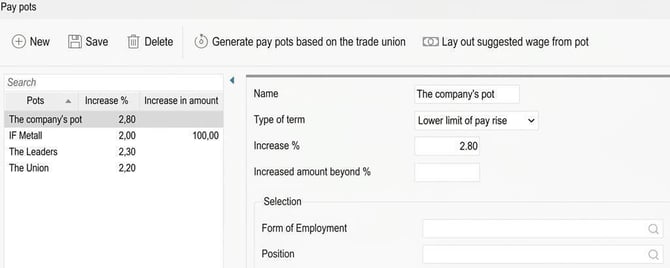
For each pot, fill in the following fields:
-
Name: Specify a name for the pot.
-
Type of term: Here you choose whether the pot should serve as a floor or a roof for the wage increase.
-
Lower limit of pay rise: Select this if the pot is intended to ensure a lowest wage increase, for example, to comply with a collective agreement requirement.
-
Upper limit of pay rise: Select this if the pot should act as a roof for the wage increase, such as to keep within budget.
-
-
Increase %: Specify the wage increase percentage for the pot. The calculation will be the sum of the percentage increase for all employees included in the pot.
-
Plus increase kr: Enter a fixed amount that each employee will receive, in addition to the percentage increase. This is common if a collective agreement guarantees a certain increase in kronor.
-
Description of pot: Enter an optional explanation or help text for the pot.
-
Selection: Here you can make a selection to decide which employees the pot should apply to. For example, you can create a pot per department or per trade union.
Once you have defined the pots, you are ready to start the salary review.
Function buttons
In the button bar, there are two functions you can use:
-
Generate pay pots based on the trade union: Use this button to easily create one pot per trade union. You can then enter the unions’ requirements for lowest pay rise per pot to check that the requirements are met.
-
Place suggested salary from the pot: With this feature, you can allocate the calculated pot as a suggested pay increase for the employees. This can be a good starting point for the salary review.
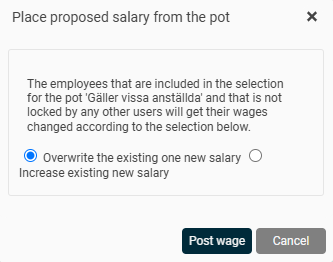
You can choose between two options:
-
-
Overwrite the existing new salary: Replaces any previously entered new salary with the new salary calculated from the pot condition.
-
Increase the existing new wage: Adds the value of the pot to the existing new salary. This is useful if you want several pots to be applied one after another, for example, if you have a separate equality pot.
-
Extended salary pot management
With extended salary pot management, you can see which pot the pay rise comes from for each employee. You can also choose which pots should affect each other.
To activate the function, tick the box Use extended salary pot management when you create a new salary review. Note that when you have clicked Create you cannot undo this choice without deleting the salary review and creating a new one.
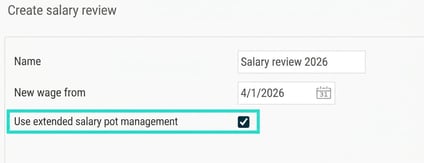
When you use extended salary pot management, you get the following options for your pots:
-
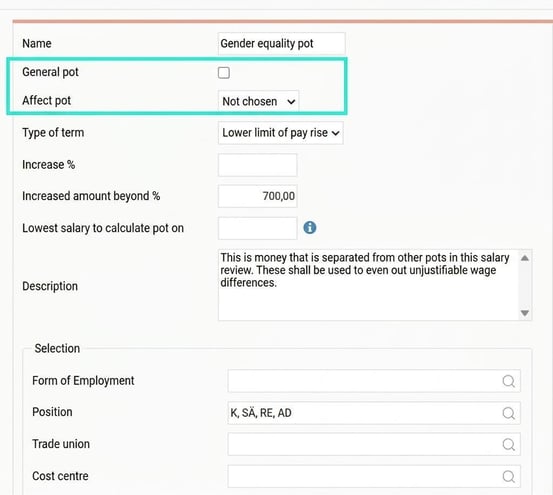
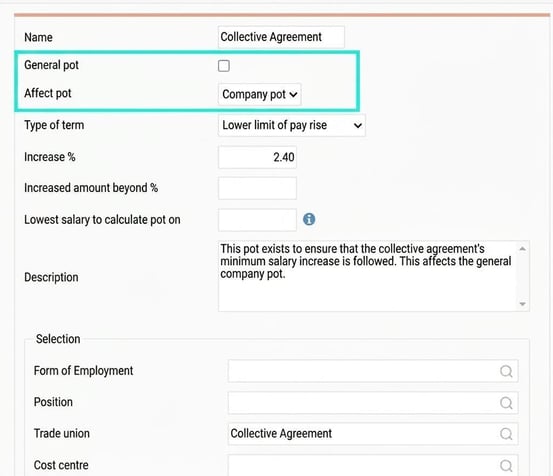
General pot: Means that the pot can be affected by other pots, but cannot itself affect any other pot.
-
Affect pot: Means that the pot can affect another general pot.
Example of a pot that does not affect any other pot
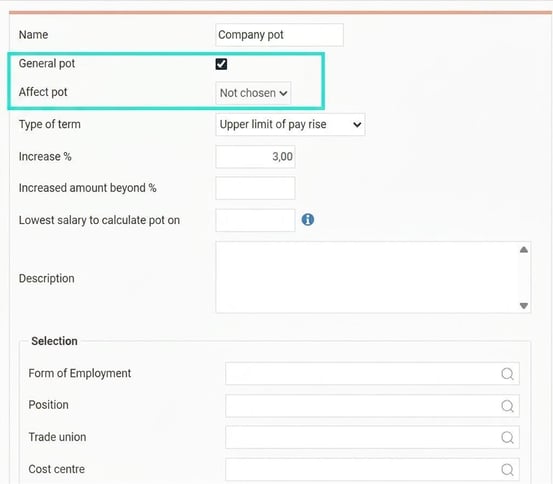
Example of a pot that is completely standalone from other pots, i.e. it neither affects nor is affected by any other pot
Example of a pot that affects another pot
Add columns for pots
With extended salary pot management, you need to add columns for the different pots in order to see them and allocate a suggested salary. You do this in More > Select columns.
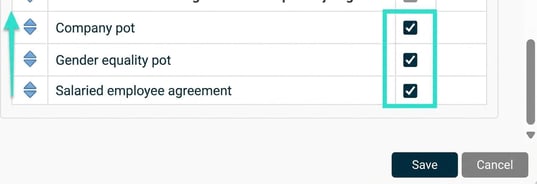
Select your pots by ticking the box on the right and move them to the desired location using the blue arrows. Save.
Here you can find more information about selectable columns.
Once you have added the columns, you can choose to allocate the suggested salary from the pot.

Please note: This article is AI-translated. This means that linguistic errors or misunderstandings may occur.