
General tab
Transfer to payroll tab
Authorisation tab
Time codes
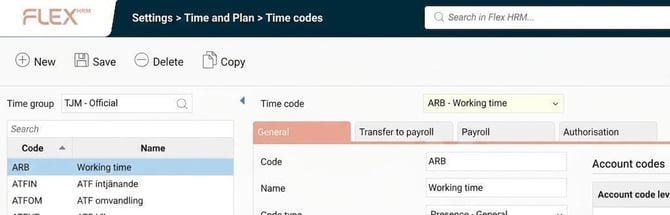
Under the settings view for time codes, you’ll find the codes used in HRM Time, which are then linked to the payroll system. The time codes are created and configured per time group.
A new time code can be created by copying an existing time code, and you can copy time codes between time groups.
The time codes can then be linked to reason for absence, balances, event formulas, rules, schedules. Be careful if any adjustments are made.
General tab
There are extensive configuration options for each time code, these are explained below.
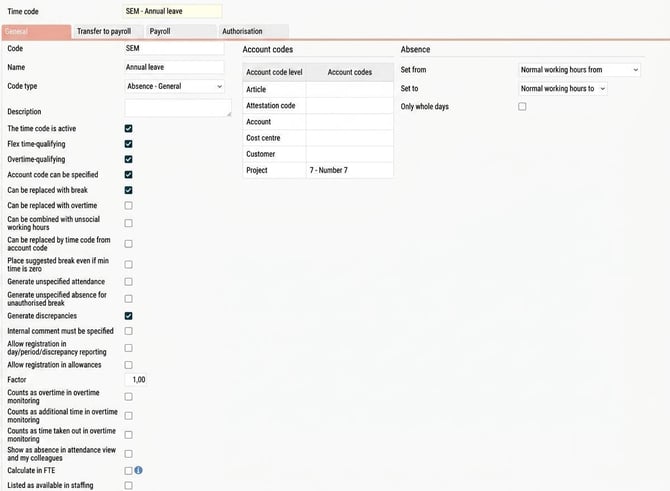
- Code.
- Name.
- Code type. Determines how the time code is handled in the system, how it is summarised, etc.
- Description. Can be used as guidance for the user on when and how the time code should be used. In the time report and in other views where the time code can be selected, the description will appear as a tooltip when you hover the mouse pointer over the time code in the search list.
- The time code is active. An inactive time code cannot be selected in the time report or in the settings views. It may still appear from previously set configurations.
- Flex time-qualifying. Means that the time code fills out the day's flex time. For example, if working hours are 8 hours and you register 6 hours attendance + 2 hours with the time code SICK, SICK has to be flex time-qualifying so the day doesn't end up with a 2 hour minus flex.
- Overtime-qualifying. Means that time registered with this time code counts towards the time required by the overtime rules for overtime to apply.
- Account code can be specified. Controls whether account codes (e.g. project and cost centre) can be specified on time rows where the time code is entered.
- Can be replaced with break. Select if a break can be applied from the schedule when the time code is used.
- Can be replaced with overtime. Select if overtime can be applied from the overtime rules when the time code is used.
- Can be combined with unsocial working hours. Select if unsocial working hours can be applied from the unsocial working hours rules together with the time code.
- Can be replaced by time code from account code. Has an effect when using the deviating time codes function. Deviating time codes enable you to specify a time code, for example in the project register, so that a particular time code appears in the time report when the project is selected. This time code will only be applied if the project is reported with a time code set to be replaceable by a time code from account code.
This setting can be useful if, for example, you don't want overtime to be overwritten, only normal working hours.
- Apply proposed break even if minimum time is zero. Breaks have a minimum time, a maximum time and a proposed time. A break rule with minimum time 0 minutes and propose 60 minutes means that if the employee doesn't register any break, 60 minutes' break will be applied in the time report. If you don't want this to happen, you can deselect the setting. No break will be applied if the employee hasn't registered one.
- Generate unspecified attendance. Controls whether time registered on the time code can become unspecified attendance in the time report.
- Generate unspecified absence for unauthorised break. Controls whether unspecified absence should be generated if a break registered on the time code falls outside the allowed break window.
- Generate discrepancies. Controls whether time registered on the time code can generate discrepancies in the time report. What triggers discrepancies is set in the settings for time reports, time groups or employees. Read more about the time report's settings levels
- Internal comment must be filled out. You can save the time code in a time report without entering a comment, but you will not be able to audit the time report.
- T ilAllow registration in day/period/discrepancy reporting. Controls whether the time code can be selected in the time report.
- Allow registration in allowances. Controls whether the time code can be selected in the Allowances view of the time report.
- Factor. Default is 1. Enter a different factor if time registered with the time code should be counted differently in balances. For example, time codes for comp time might need to be weighted 1.5 or 2.
- Counts as overtime in overtime monitoring. Select which time codes are counted as overtime in the overtime monitoring on the front page.
- Counts as additional time in overtime monitoring. Select which time codes are counted as additional time in the overtime monitoring on the front page.
- Counts as time taken out in overtime monitoring. Select which time codes are counted as time taken out in the overtime monitoring on the front page.
- Show as absence in Attendance and My colleagues. Use this if an attendance code such as "work-related matter" should be shown as absence even if, in the time report, it is counted as attendance.
- Calculate in FTE. Use if time registered with the time code shouldn't be included in the calculation of FTE.
FTE is the number of full-time positions and is used in Statistics and dashboards.
- Listed as available in the staffing. In Flex HRM Plan, you can schedule personnel on different assignments even if they are to be considered available for other assignments. This can be useful, for example, if an employee has the competence to carry out assignment A but for a period is shadowing to learn assignment B. The employee then does not contribute to meeting a requirement for assignment B and is simultaneously available if needed for assignment A.
- Account codes. The account codes entered here will be applied in the time report when the time code is used.
- Absence. Controls how clocked absence is applied in the time report in relation to the schedule.
Tab Transfer to payroll
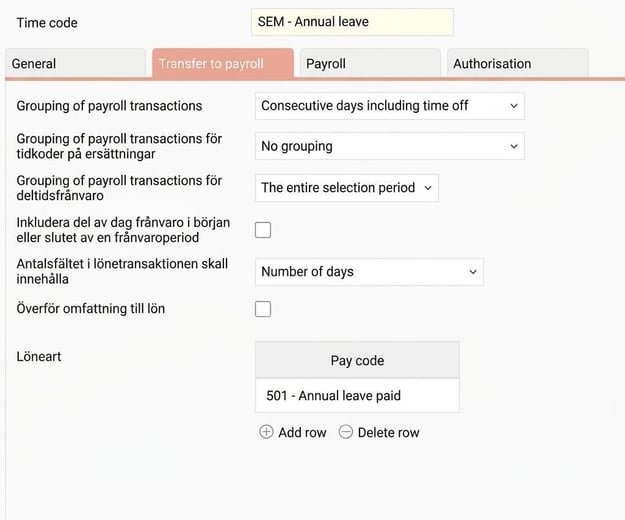
On the tab Transfer to payroll you configure how time reported on the time code should be transferred to payroll. Linking to pay code signals that the time is to be sent to the payroll system. Time codes not linked to a pay code are not transferred to payroll.
The following settings are configured here. It’s important that the settings match what the payroll system expects.
- Grouping of payroll transactions.
- Grouping of payroll transactions for time codes on allowances.
- Grouping of payroll transactions for part-time absence.
- Include absence part of day at the beginning or end of an absence period.
- The number field in the payroll transaction should contain (e.g. number of days).
- Transfer annual leave quota to payroll.
- Transfer the extent to payroll.
- Pay code.
- Reason code.
Transfer to payroll – Overview
Click the button Transfer to payroll – Overview in the menu bar to open an overview for all settings for transfer to payroll.
The overview shows every time group's time codes sorted by code and time group. You can search, for example, to view the time code ARB across all time groups, and you can filter by time group. You can choose to show inactive time codes.
The columns provide an overview of the settings in the tab Transfer to payroll in the time code register and you can adjust settings from the overview view.
If you try to connect a time code to a pay code that doesn’t exist, you’ll have the opportunity to create the pay code. You then only save the code and name. To configure the pay code further, you need to use the pay code register.
Authorisation tab
You can assign authorisation for specific time codes to users, role and/or account codes.
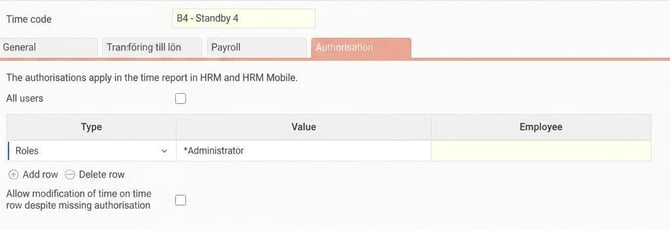
If authorisation is controlled by role, a user is authorised if they have the role for the Employee to whom the time report applies.
If authorisation is controlled by an account code, a user is authorised if they are linked to an employee who has the specified account code as their home account code (tab Account code in Employee register).
You can always view time codes in the time report regardless of authorisation. The authorisation allows you to create and edit time rows with the time code. The setting “Allow editing time on time row despite lack of authorisation” can be used if you only want to restrict the possibility to specify the time code but allow editing of already entered time.
Please note: This article is AI-translated. This means that linguistic errors or misunderstandings may occur.