
Carry out a wage payment in Flex HRM
- Go to Payroll > Wage payment.
- Select what you want to export.
- Click on Start export.
If the transfer succeeds, you will receive a notification with the text Export to AutoPay was successful. The payment is now available for approval in the AutoPay interface for users with the correct role.
Complete approval in AutoPay
In Visma Autopay you then log in to approve the transactions.
- Go to Approve.
- Select display mode:
- Click on Company overview if you want to see the payments grouped by company and payment batch.
- Click on Transaction view if you want to see all individual payment transactions in a straight list.
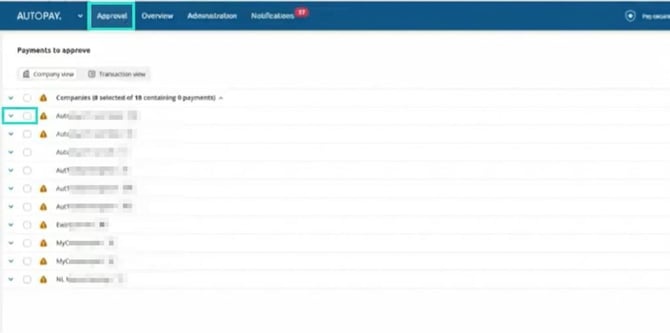
- Select the payments you wish to approve.
- Click on Approve.
- Confirm the approval using your chosen two-factor authentication (for example BankID or a one-time code from your authentication app).
After you have approved the payment, its status changes to Sent to bank and it is forwarded to the bank for payment.
Payment status and overview
Once a payment has been approved, you will find it on the overview page. Here you can use various filters to audit the payments.
The status of the payment changes during the process:
- When the payment is uploaded it receives the status New.
- Once the payment has been approved, it is sent to the bank, accepted by the bank, and finally marked as paid.
If a payment is cancelled or rejected, you must address the cause of the rejection. After that, you upload the payment to AutoPay again and approve it once more.
Other questions about how to do this in AutoPay?
Write directly in the chat in Visma AutoPay to get answers to your questions.
Transfer failed - Troubleshooting in Flex HRM
If a transfer fails in Flex HRM, you can find information about what went wrong in the log file that is created.
Download the log file
You download the file by clicking on the file icon next to the relevant payment file. When you click on the file, an information box appears reminding you that this is a log file and not a bank file that should be uploaded manually.
The log file contains:
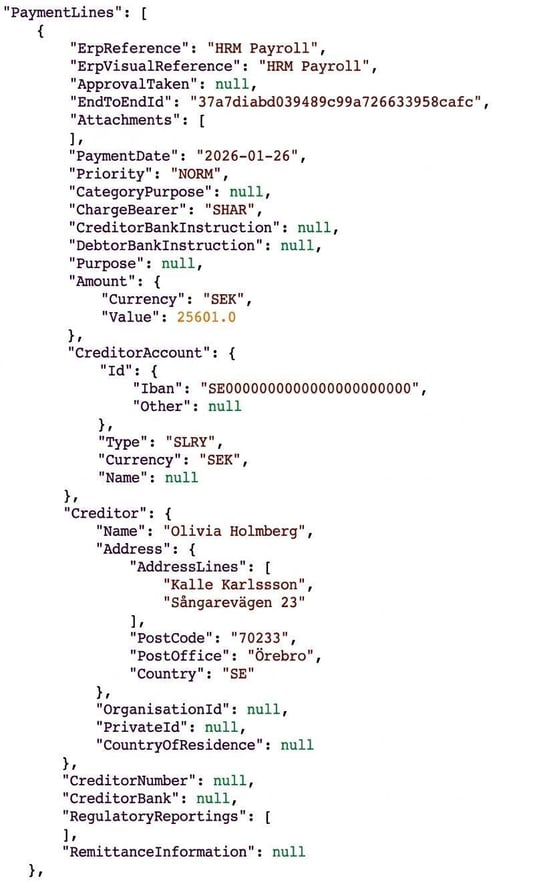
- All the data that we have sent to AutoPay.
- Response from AutoPay with status for each separate transaction.
Find specific errors
If you receive information from AutoPay that a transaction with a certain ID has caused problems, you can search for it in the log file:
- Search for the ID you have received (it often starts with 'TR').
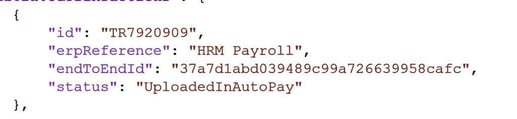
- Once you have found the correct ID, copy the value for endToEndId for the same transaction.
- Search for this endToEndId further down in the file. Here you see exactly which data was sent from HRM Payroll, which helps you see what needs to be corrected.
Please note: This article is AI-translated. This means that linguistic errors or misunderstandings may occur.