
The panel Self-notification is only used for companies whose home country is Norway.
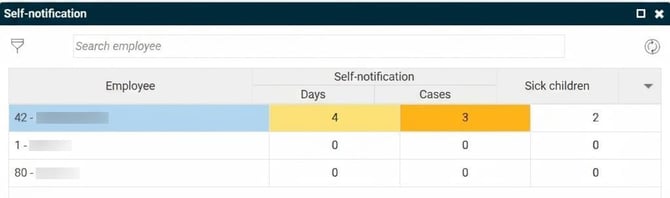
The panel Self-notification on the front page of Flex HRM gives you an overview of employees' registered absence for self-notification and sick children.
What does the panel show?
The panel presents information in different ways depending on the reason for absence:
- Self-notification: Shows the number of days and number of occasions during the past twelve months. Self-notification is therefore not reset at the turn of the year.
- Sick children: Shows the number of days during the current calendar year.
View details and open time report
If you want to see more information on an employee, you can do the following:
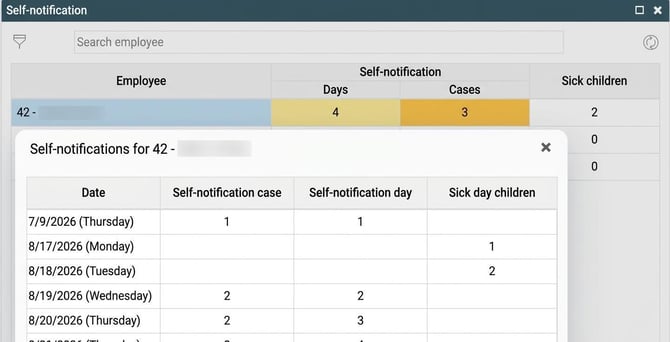
- Click on the info icon which appears when you hover by the person’s name to see details of dates, days and occasions.
- Click on the calendar icon which appears when you hover over a date to open the time report for the relevant day.
Colours in the panel
The columns for self-notification change colour from white to yellow, orange and red. The colour change is based on the company's settings for number of days and number of occasions. In the image above, the number of days is 4 out of 12, while the number of occasions is 3 out of 4. The number of occasions appears more orange, as it is closer to its threshold value.
Here you can see the settings for limits:
- Self-notification: Settings > Time and Plan > Reason for absence
- Sick children: Employees > Employee information
Displaying half days for sick children
If you want absence for sick children to be displayed in half days, tick the setting Round off to half days in the self-notification view for the relevant reason for absence.
When the setting is enabled, time is calculated as follows:
- Registered absence up to and including half the scheduled time for the day counts as half a day.
- Registered absence exceeding half the scheduled time counts as a whole day.
If you do not tick the box Round off to half days in the self-notification view a whole day per workday is counted instead, where sick children is registered.
Please note: This article is AI-translated. This means that linguistic errors or misunderstandings may occur.