
Program link to Arbetsgivarintyg.nu

Integration

Types of employment

End of employment causes

Time codes

Pay code settings

Reason for absence

Bank holidays – public holidays
Program link to Arbetsgivarintyg.nu
The first step is to create a program link connecting the company in Flex HRM to the correct company in arbetsgivarintyg.nu. To do this, create a new program link via Administration > Settings > Import/export > Program links.
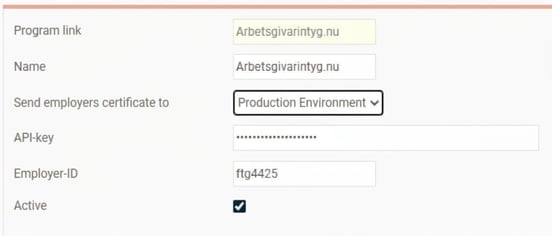
Under the option Send employers certificate to, you can choose whether to send to the Test environment or Production Environment as provided by Arbetsgivarintyg.nu.
You also need to specify the API-key and Employer-ID to connect to the correct company on Arbetsgivarintyg.nu. You will find this information under company details when you are logged in to Arbetsgivarintyg.nu.

Integration
You need to ensure that there is an active integration to Arbetsgivarintyg.nu. You do this via Administration > System register > Integrations.

Types of employment
For the employers certificate to be compiled correctly, the types of employment must be specified correctly. You do this under Administration > Settings > Personnel > Types of employment.
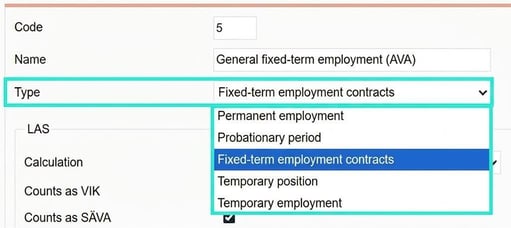
If the employee has had several employment periods which follow directly after each other and have the same Form of Employment, they will be merged in the employers certificate. Probationary period and permanent employment are considered the same Form of Employment.
End of employment causes
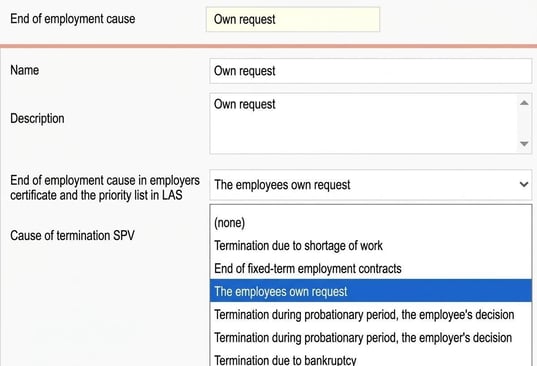
To ensure information on the occasion an employment is terminated can be accurately retrieved, you must enter the end date and end of employment cause for the employment period. The end of employment cause must also be marked with the relevant code for reporting in the employers certificate. This is done via Administration > Settings > Personnel > End of employment causes.
Time codes
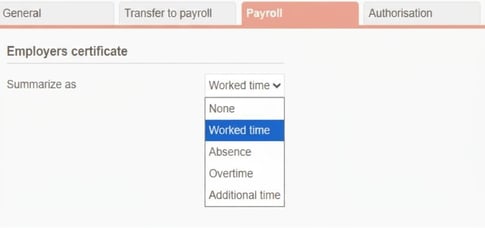
If you use Flex HRM Time and choose to retrieve information about worked time and absence from the time reports, you must specify which time codes refer to worked time, absence, overtime and additional time. This is done under Administration > Settings > Time and plan > Time codes > Pay tab.
Please note!
Keep in mind that paid leave, such as annual leave and special leave, should be counted as worked time.
Also note that Absence part time is counted as either absence or worked time according to the setting on the reason for absence.
Pay code settings
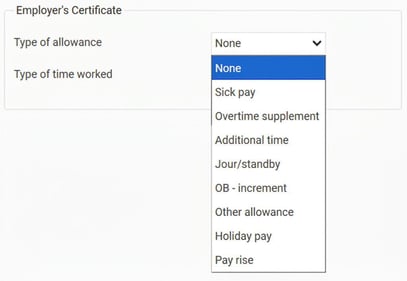
The employers certificate must report certain allowances and pay rises in addition to basic wage. To do this, specify for each pay code which type of allowance it should count as. You will find the setting on the Pay tab in the pay code register.
For each type of allowance, the following applies:
- Sick pay
For sick pay, number of hours as well as the amount are reported. Note that both the pay code for sick pay as well as deductible period must be marked as sick pay. - Overtime supplement
Only the amount is reported. - Additional time
Only the amount is reported. - Jour/standby
Both number of hours and amount are reported. - Unsocial working hours – supplement
Only the amount is reported. - Other allowance
If the pay code has the unit Work days or Calendar days, the number of days is reported. If the pay code has the unit Hours, the number of hours is reported. The amount is always reported. The pay code name appears in the free-text field, which should describe the type of allowance. - Holiday pay
Only the amount is reported. - Pay rise
Only the amount is reported.
When allowances are summed from payroll transactions, they will be allocated to the month associated with the transaction's date. If no date is given on the transaction, it will be allocated to the payroll run’s discrepancy period.
If you choose to retrieve worked time from the schedule or from payroll transactions, you must also specify which pay codes should be counted as Overtime and Additional time. If you retrieve worked time from payroll transactions, you must also specify which pay codes should be counted as Worked time. Note that absence which should be counted as worked time should not be marked as worked time on the pay code. This time is retrieved via the absence reason setting from the calendar.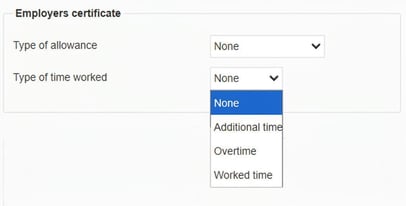
When worked time, overtime and additional time are summed from payroll transactions, they will be allocated to the month associated with the transaction's date. If no date is given on the transaction, it will be allocated to the payroll run’s discrepancy period.
Reason for absence
When calculating allowance for the unemployment fund, absence with retained wage, such as annual leave and special leave, is counted as worked time. To ensure reporting is correct when worked time is retrieved from the schedule, from payroll transactions, or from the time report (applies to Absence part time), you must specify which reasons for absence should be counted as attendance. You do this in the Pay tab via Administration > Settings > Time and plan > Reason for absence. .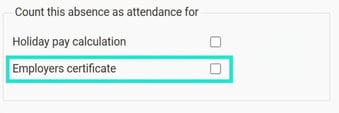
Bank holidays – public holidays
For employees with fixed working hours and a monthly salary, non-working 'public holidays' and 'bridge days' are counted as work, provided that no pay deduction is made for the time off. To process this, you must specify which bank holidays are to be counted as 'public holidays' in the employers certificate under Bank holidays which you will find under Administration > Settings > Time and plan > Schedules > Bank holidays.
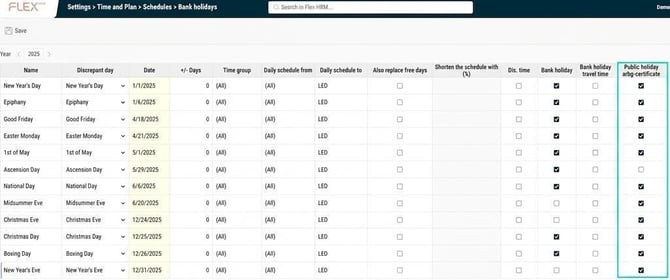
If you have different groups of personnel, and not all are covered by the public holiday rules, you must specify for each timegroup which are to be counted as public holidays by creating several rows with different settings.
A day marked as public holiday will be counted as worked time as if the schedule had not been changed for a bank holiday.
Example 1: Good Friday
If you were supposed to work 8 hours according to the ordinary schedule, but you are off, it will be counted as 8 hours worked time.
Example 2: Maundy Thursday
If you were supposed to work 8 hours according to the ordinary schedule but work 6 hours instead, the time filled up to regular time (2 hours) is counted as worked time according to the rules for public holidays. The 6 hours you still work as per the schedule are counted as worked time or absence, depending on whether you actually worked or were absent on this day according to the usual rules.
Related articles:

How do I create an employers certificate in Flex HRM Payroll?
Please note: This article is AI-translated. This means that linguistic errors or misunderstandings may occur.