
Use the organisation overview in the employee register
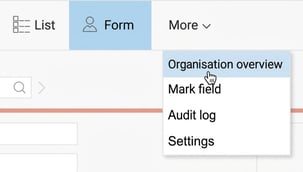
In the employee register, under the menu More you will find the button Organisation overview. When you click on it, a tree structure of your organisation expands to the left.
You can also expand the tree using the small blue arrow in the upper left corner of the view.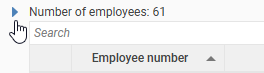
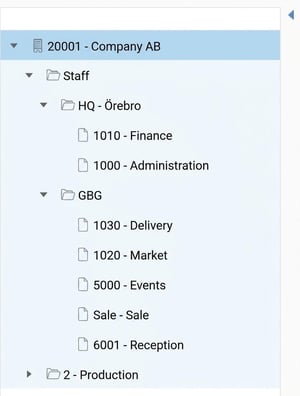
The overview is a useful tool for quickly filtering and managing employees directly in the list view.
Note that the organisation overview is also visible and useful in other views in HRM, such as for example the approval views for HRM Time and HRM Travel, in the Dashboard, Competence search and on the front page in HRM.
Filter the employee list
When you click on a unit in the organization tree, for example a department or a region, the list is filtered and only shows the employees belonging to the selected part. It’s a convenient way to quickly get an overview.
If you click on a region, all employees within that region are displayed. If you instead click on a specific department under the region, only the employees in that department are shown. To see all employees in the entire company again, click on the company name at the top of the tree structure.
View more information about a unit
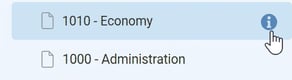
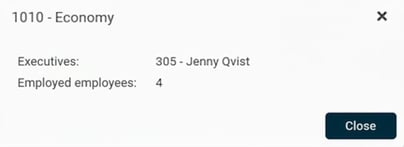
By clicking the info symbol next to a unit in the organisation overview you can see more information, for example who the manager is and how many employees are there.
Move the employees within the organisation
You can use the organisation overview to move one or more employees to another part of the organisation.
Do as follows:
-
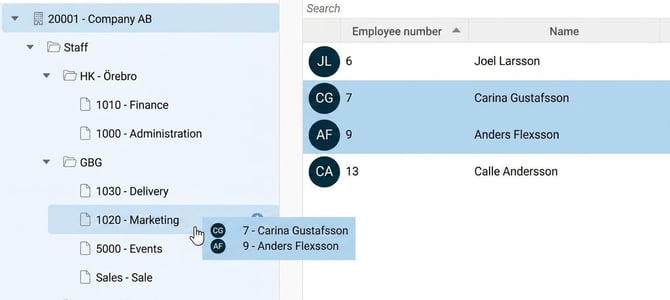
Select the employee(s) you want to move in the list.
-
To select several employees who are not in sequence: Press down the Ctrl key and click the employees you want to select.
-
To select several employees in sequence: Click on the first employee, press down the Shift key and click on the last employee in the block.
-
-
Drag and drop the selected employees onto the unit in the organization tree to which you want to move them.
-
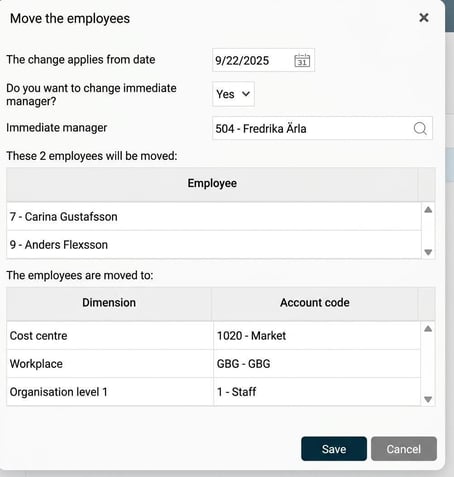
A new window opens where you enter the details for the move.
-
Choose from which date the transfer should apply. You can choose today's date or a date forward in time.
-
Decide if the employees should change immediate manager.
-
If you select No they keep their current manager.
-
-
If you select Yes they receive the manager of the new unit as their immediate manager. If you want to choose another person instead of the suggested one, you can do so manually in the Immediate manager field.
-
Note! To be able to move employees this way you will need to be authorised to change details under the account code tab in the employee register.
Related articles
Copy employee between companies – smarter HR management for the whole concern
⚙️How do I create an organisational chart in HRM Employee?
Please note: This article is AI-translated. This means that linguistic errors or misunderstandings may occur.