
Authorisations
To access the report, this must be activated for the current roles under Users/Authorities > Roles
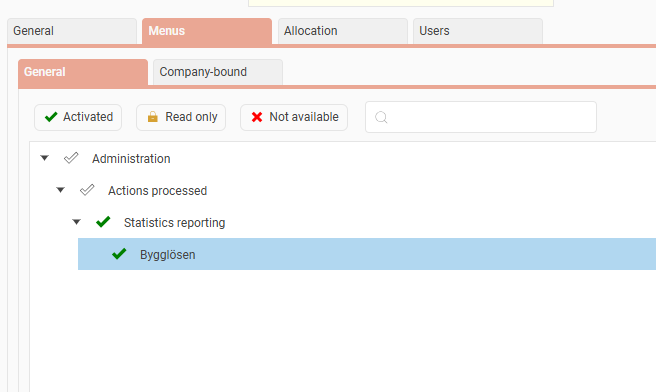
Select the current role and under the Menus tab you’ll find Bygglösen under Administration > Actions processed > Statistics reporting.
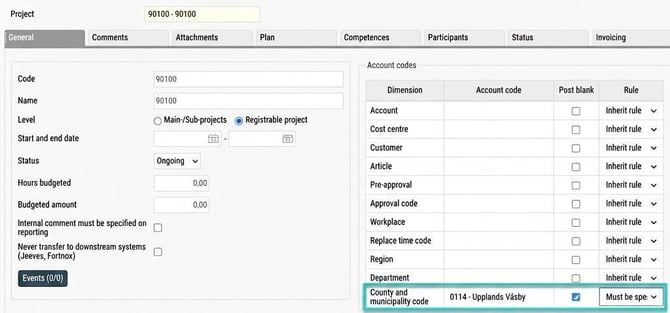
County and municipality code
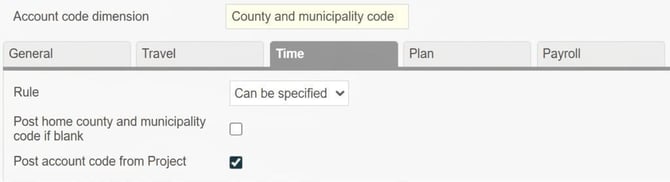
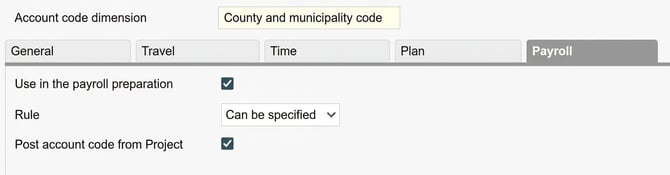
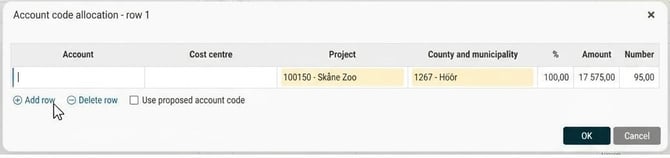
Worked time is reported with a county and municipality code (according to SCB). This is set as an account code dimension under Settings > General > Account code dimensions. Mark that the account code should be used for county and municipality code.
Under the tabs Time and Payroll, select Post account code from Project and under the Payroll tab also choose Use in the payroll preparation.
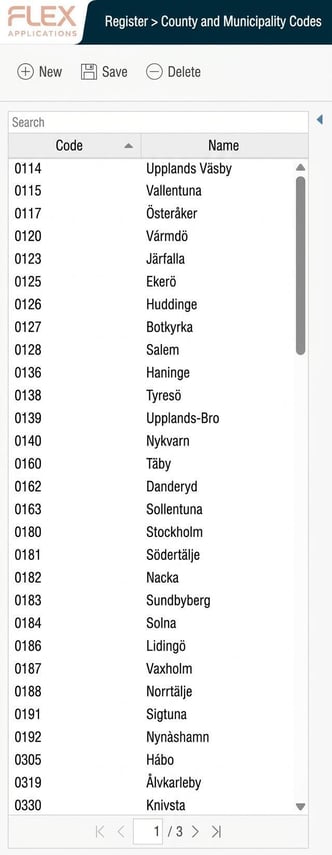
The associated register is filled with values when you save the account code dimension for the first time with the tick for Used for county and municipality code. If new codes are added, these must be included in the register.
Project register
To automatically link County and Municipality Code so they are applied automatically when registering project to time transactions, you need an expanded project register in HRM. Alternatively, to report County and Municipality Code, you can account time transactions against County and Municipality Code in the time report or add them to the home account code for employees.
Complete the projects in the project register with County and Municipality Code. (If you previously used Flex Payroll and switched to HRM Payroll and use 3L Pro, you now need to manage your projects manually in HRM.)
For projects managed as performance pay projects, further settings are available under the tab Bygglösen. Field Salary type determines if the project is managed as an hourly pay or performance pay project. For performance pay, the field Payment level is unlocked and used to specify the actual payment level for the current project.
In the report to Construction password, the workstation number will automatically be set to the project code. If an alternative workstation number is required, it can be entered in the field Workstation number.

If employees do not report their time against a project, you need a project where the company’s county and municipality are linked (this is then configured as a fixed account code on the pay codes to include in the reporting).
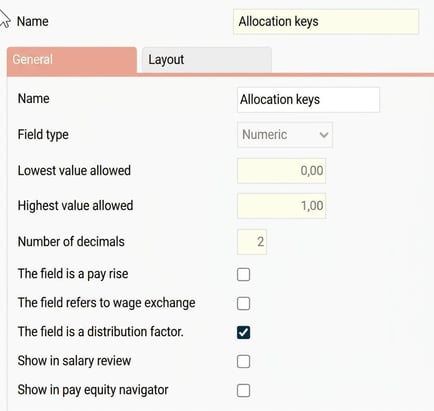
Allocation keys
Determines the part of fully paid hourly wage for apprentices.
Set this up as an Own field under Settings > Personnel > Employee register - additional fields. First, create a table for Construction password of the type Field group with date history.

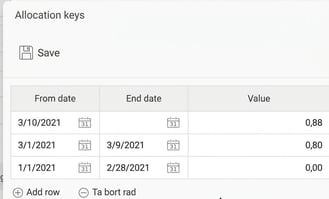
A numeric field for Allocation keys is created in the table. Tick The field is a distribution factor.
Use the configuration guide for Bygglösen
You can use the configuration guide to set up or check your settings for agreement area and pay codes. The guide brings all settings together in one place and guides you through several pages.
You can find the guide by going to Actions processed > Statistics reporting > Bygglösen.
Then click the button in the toolbar to open the guide.

Manage pay codes and settings
On the pay code page, each setting has its own section. Each section has a search box which you use to add the pay codes for the current setting. For example, there’s a section for Paid wage:
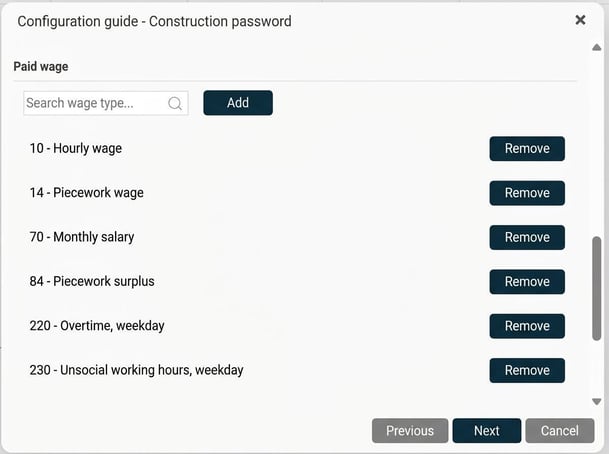
In the guide you can do the following:
- Audit which pay codes have a particular setting activated.
- Add pay codes.
- Remove pay codes.
Save your changes
On the last page of the configuration guide you will see a summary of the changes you have made. Here you can also save the changes. When you save in the guide, the settings are updated immediately for the respective personnel category and pay codes.
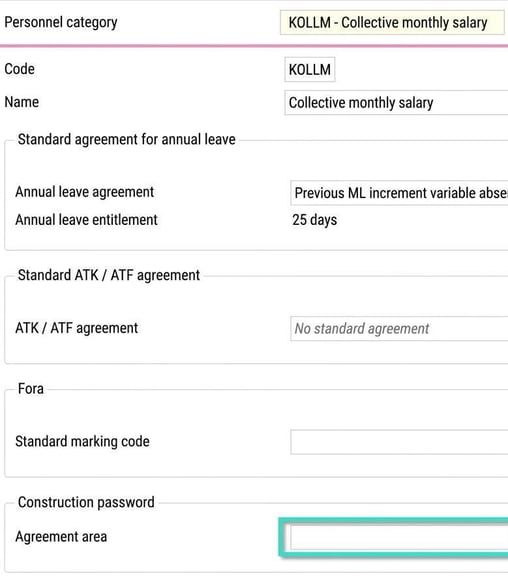
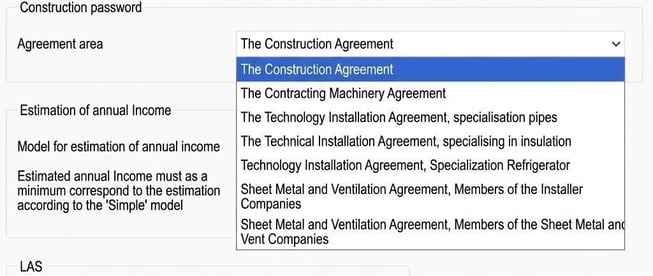
Agreement area
Agreement area is specified for each personnel category under Settings > Payroll > Personnel categories.
Pay codes
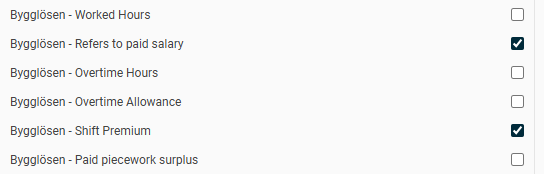
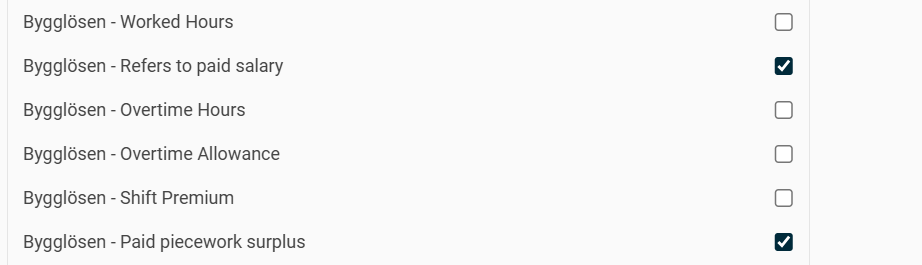
For pay codes, one of the following boxes must be checked depending on how the pay code should be reported.
- Hours worked
- Refers to Paid wage
- Overtime hours
- Overtime supplement
- OB supplement
- Paid performance surplus
- Role supplement
- Activity supplement
- Competence supplement
- Responsibility supplement
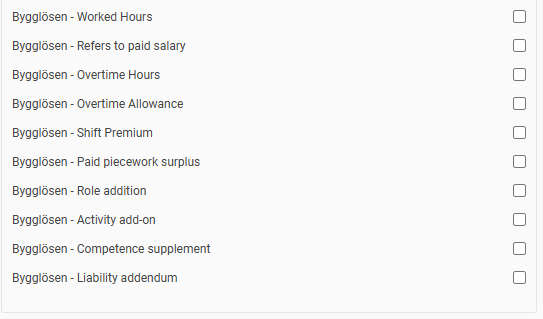
The quantity/amount for pay codes is shown in the report as “of which.....”, e.g. of which overtime hours, of which OB supplement, so several boxes may be relevant for the same pay code.
Example hourly wage:
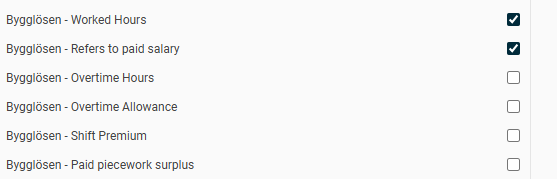
Example pay rise:
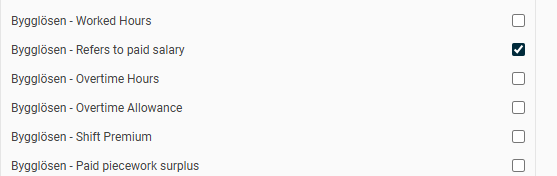
Example overtime pay code:
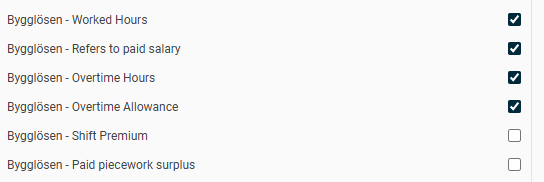
Example OB supplement:
Example Performance surplus:
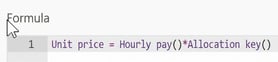
There is also a formula function to retrieve the allocation key from the employee register to use in the formula for the pay code.

Example formula for hourly wage where the allocation key should be considered:
For performance pay, there is a formula function to retrieve the payment level from the current transaction’s project.

Example formula for performance pay where the project’s payment level should be used instead of hourly wage from the employee register:

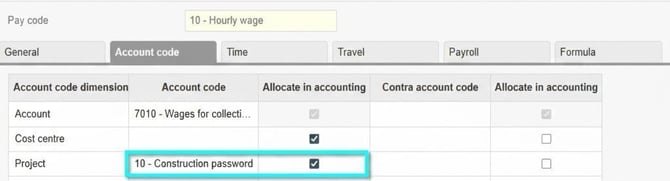
If employees do not report their time to a project, you must also set a fixed account code for all pay codes to include in the reporting under the account code tab, pointing to a project where the company’s county and municipality are linked.
Employee register
The following information is registered for employees:
- Allocation keys – is specified in the own field with the date when each allocation key should apply (0.80 = 80%).
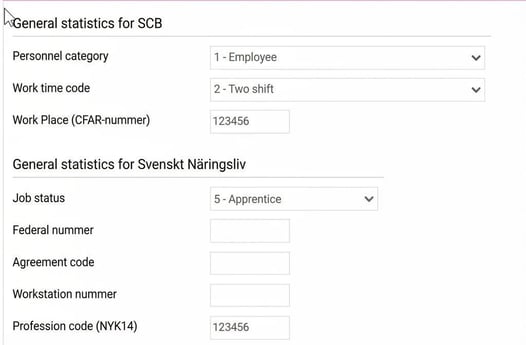
- Fields under the Wage statistics tab also need to be completed.
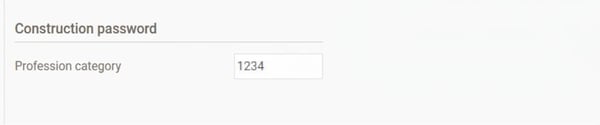
- If the company belongs to the Sheet Metal and Ventilation Agreement or the Technical Installation Agreement, a ProfessionCode and a profession category must also be entered. This is done in the Construction password section on the Wage statistics tab.
Payroll transactions
- Transaction date: To report payroll transactions correctly, the transactions must have correct transaction dates. If a date is missing, the system uses the payroll run's discrepancy period. If an apprentice changes allocation keys during the month, payroll transactions must match the different periods to retrieve the correct allocation key. Otherwise, the most recently valid allocation key is used. For example, the hourly wage then needs to be entered split (not imported for the whole month in one row in payroll).
- Quantity and unit
- Account code dimensions = Project, County & municipality code
- Amount
Example payroll process where different hourly wage should be used for the period 1-20/3 and 21-31/3:

Related articles
How do I generate the report for Construction Pay (Bygglösen) in HRM Payroll?
Please note: This article is AI-translated. This means that linguistic errors or misunderstandings may occur.