
Registration of absence part time.
Display of absence part time in the time report.
Registration of absence part time
- Click on the icon Absence.
- Specify from date and until date for the period.
- Select reason for absence (e.g. 'Sick leave').
- Tick ‘Absence part time’.
- Specify percentage: enter '20' (for 20% sick leave).
- Optionally, enter a message, e.g. information about how the employee wishes to work during the period.
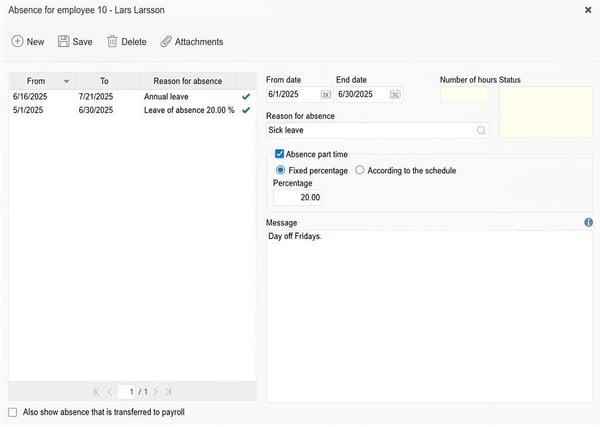
- If the employee is to be on sick leave for the same percentage every day throughout the period:
- Select 'Fixed percentage'.
- The schedule will automatically be shortened by the given percentage when the absence is generated.
- If the sick leave varies for different days (intermittent absence):
- Select 'According to the schedule'.
- Click on 'New schedule' and specify how much and which days the employee is off/working.
Please note. For some payroll systems, including HRM Payroll, the full-time measure must only be distributed on work days, that is, there should not be any full-time measure on a day off. You can set this so that the system inserts it automatically; see the article How do you set up automatic calculation of full-time measure for an absence part time? - Save the schedule when you are finished.
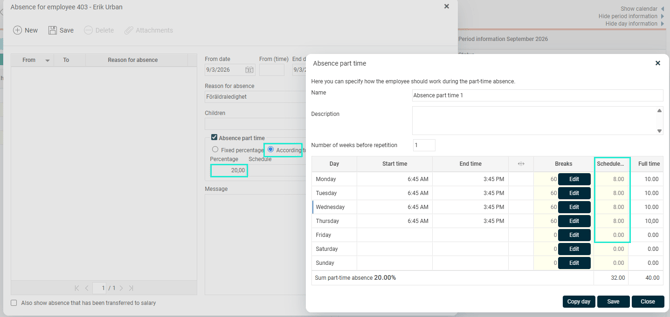
Are you missing the option for "According to the schedule"?
The possibility to specify a schedule for absence part time can be managed by permissions. This is often used if you want the employee to apply only with the percentage and for the manager to complete the scheduling during the auditing of the absence.
Display of absence part time in the time report
Absence part time shortens the employee's schedule. The extent of the absence part time is shown in the time report's day and period information.
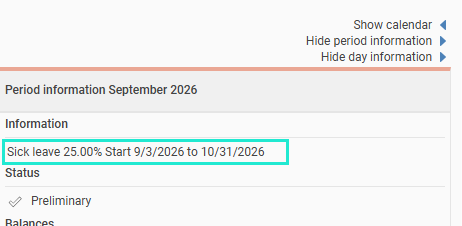
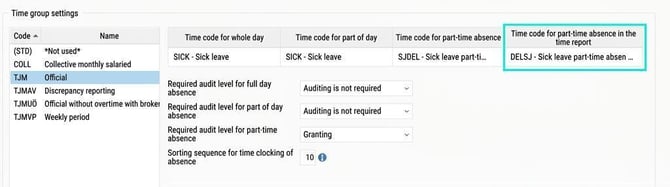
It is possible to display absence part time with time rows in the time report, as shown in the image below. The schedule is shortened, just as described above, but the absence part time is also displayed with a time row, added after the schedule time.
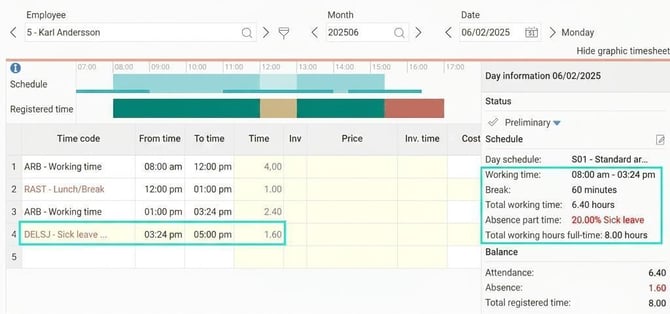
Good to know about time rows for absence part time
For days with schedule time, time rows for absence part time are added when there is something else registered for the day.
For days without schedule time, only a time row for absence part time should be added (for example if you work Monday to Thursday and are on parental leave on Fridays). This is not added in advance. The time row for absence part time is shown on days off only once the day has passed.
Please note!
Use different time codes for Time code for part-time absence and Time code for part-time absence in the time report. If you use the same time code, the absence part time will be sent twice to the payroll system. To avoid this, you can use a separate time code for Time code for part-time absence in the time report, and not connect it to a pay code.
Related articles:
What is a reason for absence?
Please note: This article is AI-translated. This means that linguistic errors or misunderstandings may occur.