
Note: This article applies to the module Flex HRM Analysis for payroll mapping which will reach End of Life on 30 June 2027.
Would you like to learn more about our new module Flex HRM Pay Equity Compass, you will find the relevant articles here.
Employees

The purpose of this view is to provide an overview of all employees’ pay and more, to ensure everything is correct before starting the analysis work.
If information about Full-time salary, Work or Gender is missing for an employee, the system will alert you and you will not be able to proceed. Rectify this for the affected employees and then recalculate the pay equity review.

Edit – Add/Remove employee
At the far left of the menu, you will find Edit where you can manually add or delete employees and write a comment for your action. This will be logged.
Automatic handling of new employees and changed calculation dates
The system will automatically include relevant employees when you perform a recalculation. If a new employee has a start of employment that falls before the calculation date, the person will automatically be added to the selection.
Likewise, employees are removed if their end of employment occurs before the calculation date.
Please note, however, that a recalculation will affect any earlier started analysis in the views Equivalent work and Lower salary higher valuation.
Manually removed employees
- These individuals will not be automatically re-added during a recalculation.
- If you wish to add back a person who was removed earlier, use the button "Add removed employments".
Sort and search in columns
You can click on the heading of each column to sort it ascending or descending. The exception for sorting is the columns Comment and Annual leave entitlement.
In the search field, you can perform free text searches across the content of all columns.
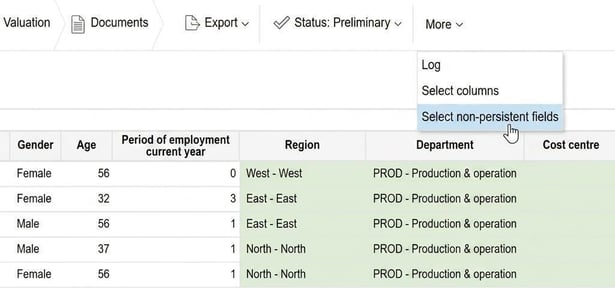
Select non-persistent fields
If you select Select non-persistent fields certain columns will be colour marked. These columns have dynamic values, i.e. they display date-driven data according to the date specified in the pay equity review. For example, if you display Cost centre and change it historically on an employee, the cost centre in the payroll mapping analysis will also change. You can find the marking under More.
Historical salary
A historical salary (may also be referred to as Deviating salary) can appear, for example, if you retain a manager's salary after ceasing to be a manager. In a payroll mapping analysis, it can be a factual basis for a salary difference.
To mark an employee’s salary as historical, you can highlight it with a clock on the relevant salary rows.
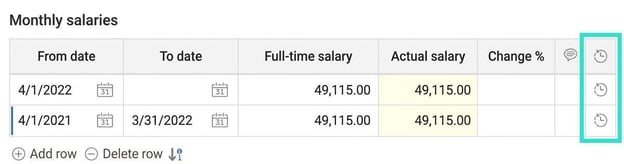
These will then be visible on the employee in the payroll mapping analysis.

Once you have checked all employees, you can submit the view by clicking Status at the top of the menu bar and selecting Submit. You can now proceed to carry out the analyses.
How is period of employment calculated in the pay equity review?
The calculation method for determining number of days to years is
(Total number of calendar days for all periods of employment) / 365.25
Flex HRM then rounds down.
Example
3.5 years = 3 years
2.92 years = 2 years
It is always rounded down.
Please note: This article is AI-translated. This means that linguistic errors or misunderstandings may occur.