
Popup Events
Authorisation
Deviation in event
Example
Events are constructed from formulas and are used to generate time codes or allowance codes. The result is shown in the time report on the tab Allowances.
Events can be used for many purposes, such as giving extra allowance for work on a bank holiday, summing time worked over the ordinary contractual working hours, and much more.
Events can be used at different levels:
- Company.
- Time group.
- Employee.
- Day schedule.
- Public schedule.
- Account code.
- Bank holiday.
Formulas can be written for a separate event, or you can make use of General formulas for events which can be fetched into several events.
The AI assistant Flexie can help you both to understand formulas and to write them. Read more in this article: How can Flexie help you with formulas in Flex HRM?
Events are complex. We recommend that you, if needed, seek assistance from a consultant at Flex Applications to write the formulas required for your event.
Popup Events
To create an event that applies for an entire company, go to Settings > Time and Plan > Time reports, the button Events. To create an event that applies to a time group, use the button Events in the time group's settings, etc.
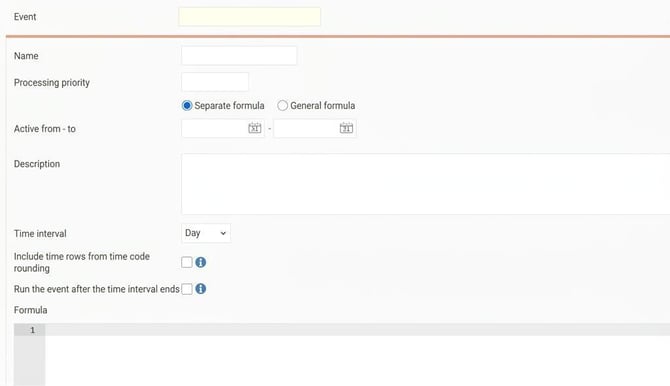
An explanation of the settings in the popup Events follows below:
- Processing priority
Here you can specify in which order each event should run. This can be useful in cases where you have events that generate a time code which in turn affects a balance. Events with processing priority 1 will run first, then those with 2 and so on. Last, events without a specified processing priority will be run. - Separate formula/General formula. The option Separate allows you to write your own formula. The option General means you can choose from formulas that have been entered under General formulas for events, set to be used at the level where the event is created.
You can choose General formula to fetch a formula that has been created at the general level and then change it back to Separate formula. The formula itself will remain but you can edit it if needed. - Active from – to
Specify when the event should apply. Leave the fields blank if the event should not be time limited. - Description
Describe what the event does. It is often helpful to have a detailed description for events. - Time interval
Select how often the calculation and generation for Allowances should be done. If you, for example, select week, the allowance will be generated every week.
The choices for time interval vary depending on the level at which it is placed. The choices that may be available are:
- Day
- Week
- Month
- Period
- Time row
- Time row and allowance row
Rows from Allowances are included in events differently depending on the time range. Day, week, month, and period include manually entered allowances during the current period. Time row runs for each time row and does not include allowances . Time row and allowance row runs for each time row and for each manually entered replacement row.
- Include time rows from time code roundings
Tick this if you want the calculation to include time from time code rounding.
Example: The time report contains 50 minutes of overtime. A time code rounding causes this overtime to be rounded up to one hour. An event has a calculation that includes this time; it can count either 50 or 60 minutes depending on this setting. - Run the event after the end of the time interval
Used if the event should be calculated only after the last day of the period selected as the time interval has passed, or when that entire period has been audited.
Useful for events calculated per month, e.g. ATF accrual, if it would be misleading to show results before the entire month has passed. - Formula
If General formula is selected, the chosen formula will appear here. If Separate formula is used, the formula must be written here. Under the button Function formula you will find the functions available for use.
Authorisation
To create and edit events, it is not enough to have authorisation for the view where the event is found. You must also be Authorised to edit events & balance roof/floor (Users/Authorities > Roles, the tab General).
Deviation in event
Perhaps you have created an event for the whole company, but want a particular time group to use the event differently. In that case, you can use Deviation in event.
Open the button Events in the time group’s settings. Expand the setting to create a deviation and select the event you wish to deviate from. The event set up for the company will then no longer apply to this particular time group. Instead, the event you have now created will be used.
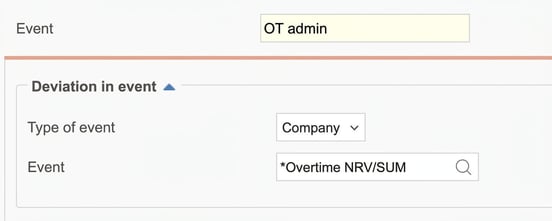
The image above shows that the event "OT admin" should apply instead of the company's event "*Overtime NRV/SUM". This can also be done at other levels, for instance if a specific employee should deviate from the time group’s event.
Example
A company wants to set up so that if someone works on certain holidays, an extra allowance is paid.
To solve this we create a new time code for the allowance (EXT).
We create a general formula for events which says that if time present is recorded, the time code EXT will be generated for the same value as the time present. We specify that the formula can be used on bank holidays.
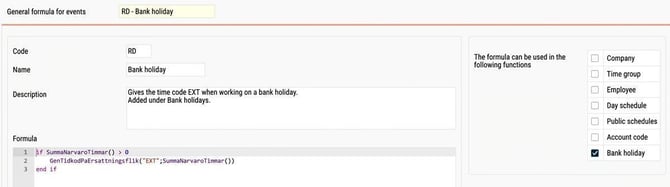
In the settings for bank holidays, each row has the button Events. We use the formula on the days when EXT should be generated for work, including the bank holiday for 1st of May.
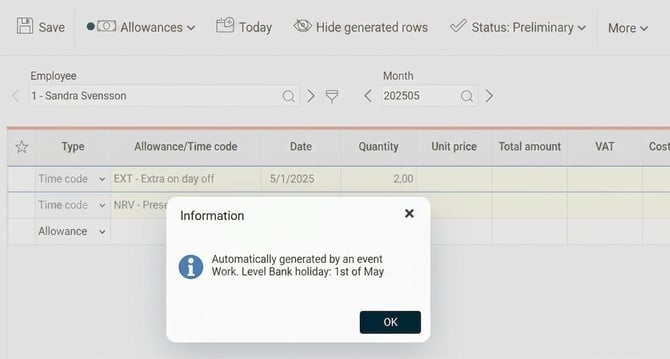
Employee 1 works two hours on 1st of May, which means the time code EXT is registered on the tab Allowances in her time report.
Related
Formula language in Flex HRM.
HRM Time: What are general formulas for events?
Please note: This article is AI-translated. This means that linguistic errors or misunderstandings may occur.