
Find and audit discrepancies in the payroll process

Work with discrepancies – From warning to action

Give feedback and make SmartDetect smarter!

Examples of what SmartDetect identifies

Tips for a more efficient workflow
Find and audit discrepancies in the payroll process
SmartDetect is fully integrated into your work view so you can act quickly.
- Look for the red dot: At the top of the payroll process you'll find the button Discrepancies.
 When the system has identified something that needs your attention, a clear red dot appears on the button.
-
SmartDetect is divided into two main folders:
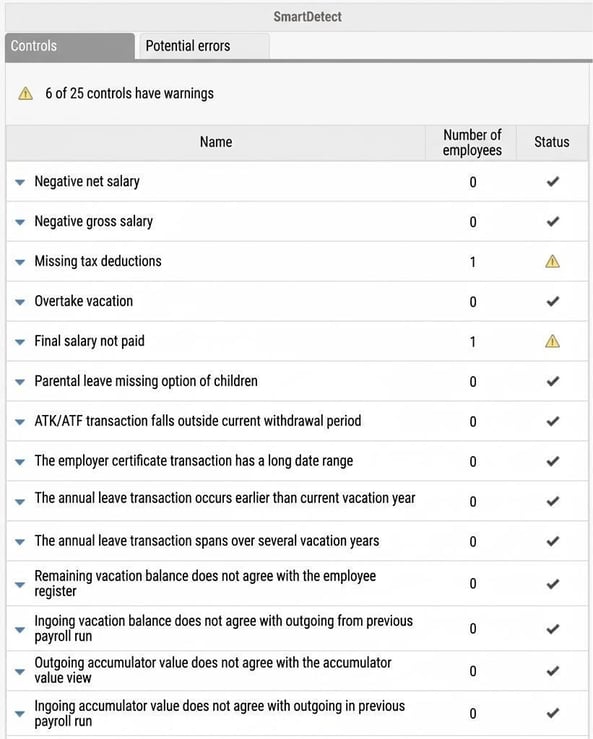
- Controls: Here you’ll find all rule-based controls where the system is 100% certain something stands out, such as a negative net salary. These are calculated controls you can resolve directly in the payroll process. For each control, the number of employees needing to be audited and, if necessary, acted upon is displayed.
In the list view for rule-based controls, you see exactly what the system is checking. Each control displays a clear status:
- Check box: No errors found.
- Yellow warning triangle: Errors have been identified that need to be reviewed.
You can also instantly see how many employees are affected by each discrepancy. For controls with warnings, you can expand a detailed list showing which employees are involved, as well as the specific pay code and row where applicable.
- Potential errors: This folder collects those discrepancies detected by SmartDetect’s AI function. These are insights based on pattern analysis, helping you to spot “possible errors” that are otherwise easy to miss.
You can click directly on an employee in the SmartDetect list to open the person in the payroll process. Once you’ve rectified the issue, a new calculation is triggered automatically and the panel updates as soon as the calculations are complete.
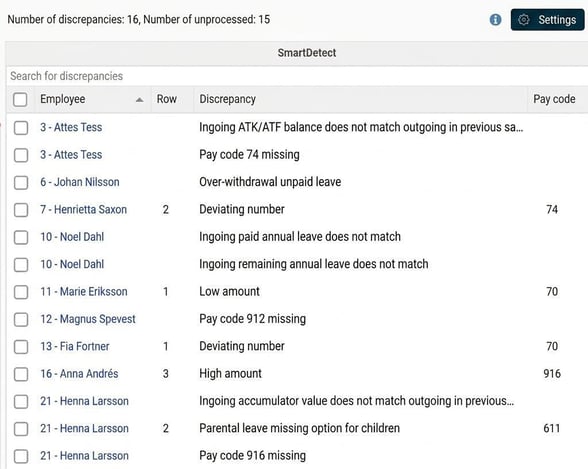
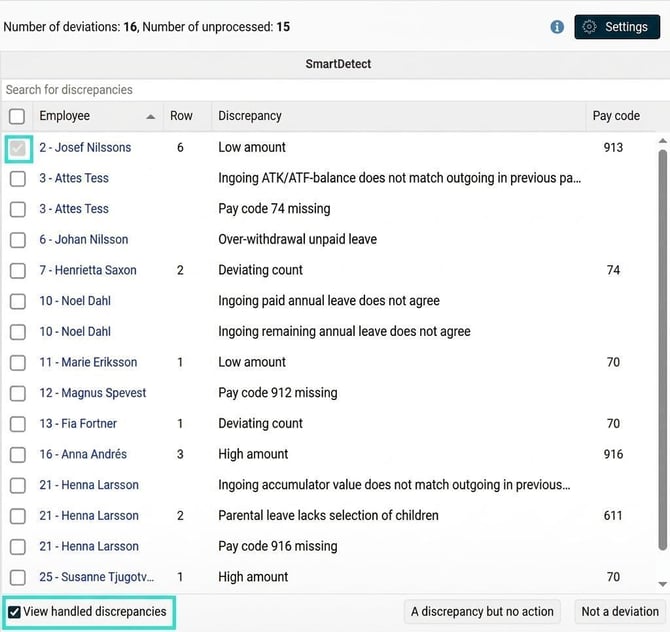
The view incontains the following columns:
- Controls: Here you’ll find all rule-based controls where the system is 100% certain something stands out, such as a negative net salary. These are calculated controls you can resolve directly in the payroll process. For each control, the number of employees needing to be audited and, if necessary, acted upon is displayed.
-
- Check box: With this function, you can mark the row in the list as handled and at the same time send feedback to the AI model to help it provide better results next time. Read more about how this works further down in the article.
-
- Employee: Here you see which employee the discrepancy concerns. Click the name to open the person in the payroll process.
- Row: If the discrepancy is linked to a payroll row, you can see which row this concerns here.
- Discrepancy: Here you’ll see a brief description of what the discrepancy is about. Note that here, we describe what deviates—not why.
- Pay code: If the discrepancy is linked to a pay code, you can see which pay code is affected here.
Follow these simple steps to work through the list of Discrepancies:
- Select a discrepancy: Click on the employee’s name in the list. That person’s payslip will then open immediately in the main window of the payroll process.
- Analyse: Assess whether the discrepancy is an actual error or a correct but unusual event (e.g. a large bonus).
- Act: If it’s an error, correct it as usual. When you save, SmartDetect makes a new analysis, and the discrepancy disappears from the list if the error is resolved.
Give feedback and make SmartDetect smarter!
If a discrepancy is not due to an error, you can provide feedback. This teaches the AI engine what is important to you. Mark the row in the list by ticking the check box in the first column and choose one of the options at the bottom:
-
A discrepancy but no action: Choose this if the discrepancy was relevant, but correct in this case. You are telling the AI to continue registering discrepancies for similar events.
-
Not a deviation: Choose this if the discrepancy is irrelevant. The AI then learns to downplay similar discrepancies in the future.
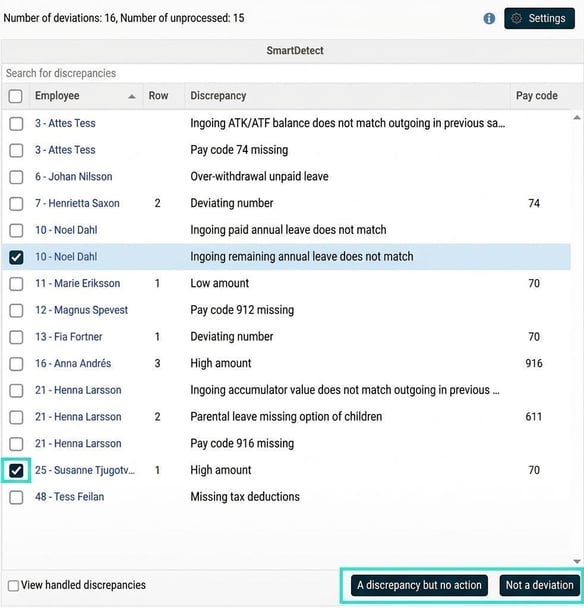
After you have marked and selected one of the feedback options above, the discrepancy disappears from the list. However, you can see which discrepancies you have handled by checking the box for View handled discrepancies. These will then reappear in the list, but their check boxes will be greyed out.
Examples of what SmartDetect identifies
SmartDetect combines AI with fixed rules and can warn about, among other things:
- Transactions and tax: Unusually high/low amounts, missing pay codes, incorrect or missing tax deduction, and negative wages.
- Balances out of sync: Incorrect opening values that do not match outgoing values from the previous payroll run in accumulators, annual leave, or ATK/ATF balances.
- Absence and leave: Over-withdrawal of holiday days, parental leave without linked child, or absences that extend over incorrect periods.
- Other information: Employees who have left but whose final salary has not been handled.
You can read more about which discrepancies SmartDetect can find in the article What can SmartDetect warn about in Flex HRM Payroll?
Tips for a more efficient workflow
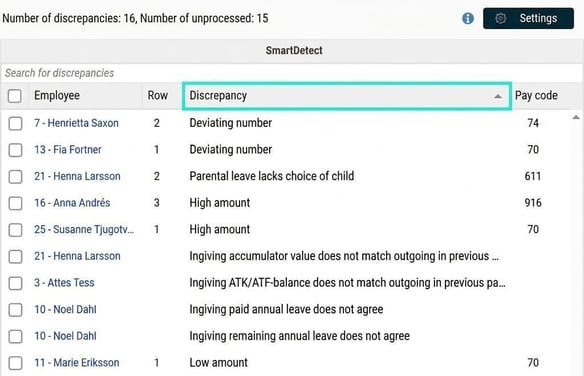
Sort:
Click on the column headers to sort the list, for example by employee.
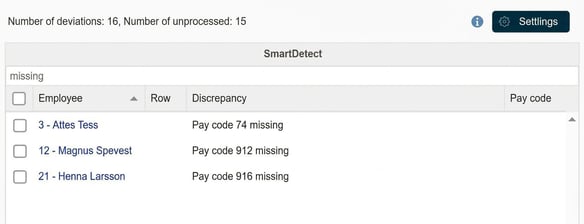
Search:
Use the search field to quickly find a specific employee, pay code, or warning.
Related articles:
What settings are required to use SmartDetect
in Flex HRM Payroll?

What can SmartDetect warn about in Flex HRM Payroll?
Please note: This article is AI-translated. This means that linguistic errors or misunderstandings may occur.