
Licence management – Always active for you
To make things as basic as possible for you, licence management for SmartDetect is completely automatic.
-
If your company has a licence for SmartDetect, the function is automatically active for all companies in your database that use Flex HRM Payroll.
- You don’t need to switch the function on or off for individual companies. It’s there to help you straight away, without extra administration.
Start training SmartDetect
The first time you use SmartDetect, go via the button Discrepancies at the top of the payroll process, and you’ll receive a message stating that training is not initiated. You then need to click the button Accept and initiate SmartDetect (this only needs to be done once per company). Once training is complete, SmartDetect is ready to use in the Company, and it will continue to train itself using your company’s future payroll runs.
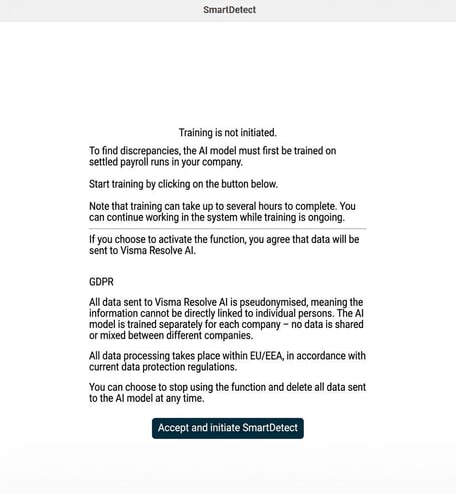
AI engine training – The foundation for accurate warnings
The smartest part of SmartDetect is its self-learning AI engine. To enable it to identify what a "normal" payroll run for your company looks like, it needs to be trained on your unique historical wage data.- Historical data as a benchmark: The AI engine analyses your earlier, authorised payroll runs to understand your patterns.
- O ptimaldata volume: For the best possible results, around 12 months of historical wage data is recommended. With this amount of data, the AI has a solid specification for providing accurate warnings.
- Improves over time: If you have less historical wage data than 12 months, the function still works, but it will become more accurate with each new payroll run processed. The AI continuously learns and adapts as you develop.
This training process is entirely automatic, so you don’t need to manage it manually, but it’s important to be aware of it to understand the quality of the discrepancies the system presents.
Exclude pay codes from audit
Sometimes there are specific pay codes which naturally have large variations from month to month, for example a commission or bonus pay code. To avoid unnecessary warnings and make the list of discrepancies more relevant, you can choose to exclude certain pay codes from SmartDetect’s AI analysis.
This setting is made using the button Settings, which you’ll find above the discrepancy list, and it helps you fine-tune the system so it focuses on the discrepancies that matter most to you.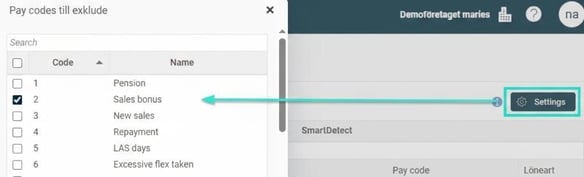
Related articles:
How do you use SmartDetect in Flex HRM Payroll?

What can SmartDetect warn about in Flex HRM Payroll?
Please note: This article is AI-translated. This means that linguistic errors or misunderstandings may occur.