
Using the time clock terminal
Clock your time
Too late or too early clocking
Application for absence/planned absence
Absence out
Absence in
Absence actual day
Clock with overtime marking
Show time report
Balances
Attendance
Change of account code
Connect tag
Using the time clock terminal
HHRM Timeclock is the module used to clock your time in real time. There are also other functions in this module, which are described below.
Note
Your settings may mean that certain functions are not used, and that the buttons in the time clock terminal are called something different from the terms used in this article.
Clock your time
If you use a tag or a card, just scan your card or tag and you will be clocked in. Otherwise, specify your user-ID and press the button for clock-in or just OK.
It is possible to set which button function should be the default when you clock your time. For example, the default button can be linked to "Change of account code" instead of "In/out" at clock-in. Check with your system administrator which function the default button is linked to for your company.
Too late or too early clocking
If you clock in after the allowed arrival time or before the allowed departure time, the clock will alert and ask for a reason for the late/early clocking.
- Select the correct reason:
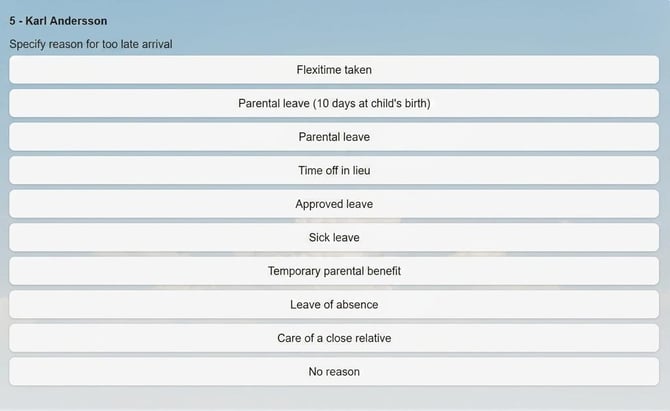
- You will receive verification that clocking has taken place.
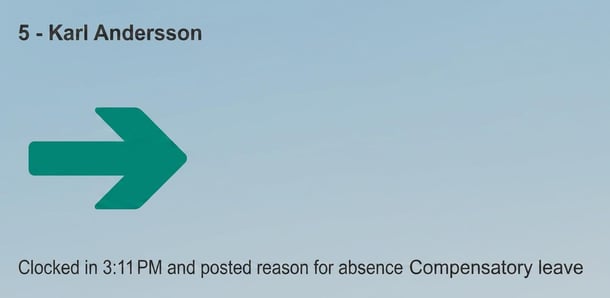 In
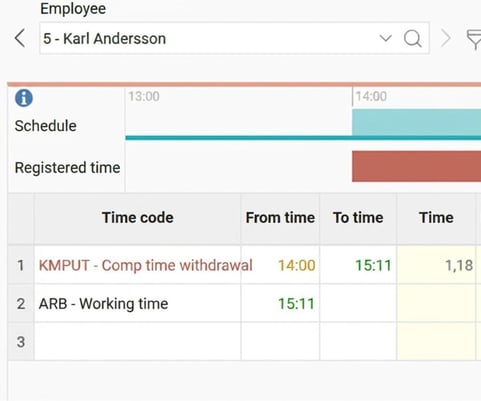
In - In your time report, the selected absence will now appear from the start of the schedule to the clocked-in time or from the clocked time to the end of the schedule.
Application for absence/planned absence
- Enter your user-ID and press the button for Application for absence.
- Select date and (if part of a day) also time. The message box is optional. When you select the message box, a keyboard will appear on the display.
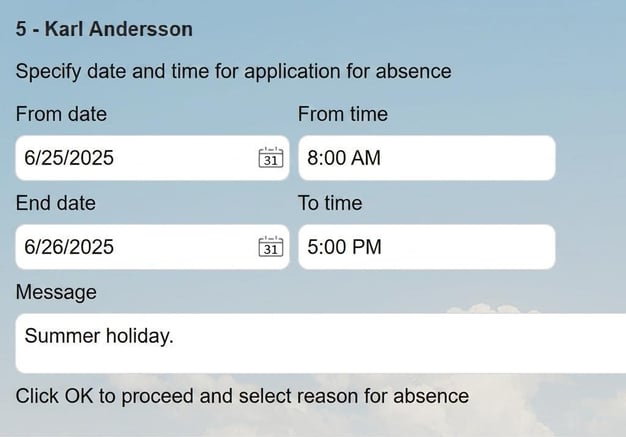
- Press OK and choose reason for absence.
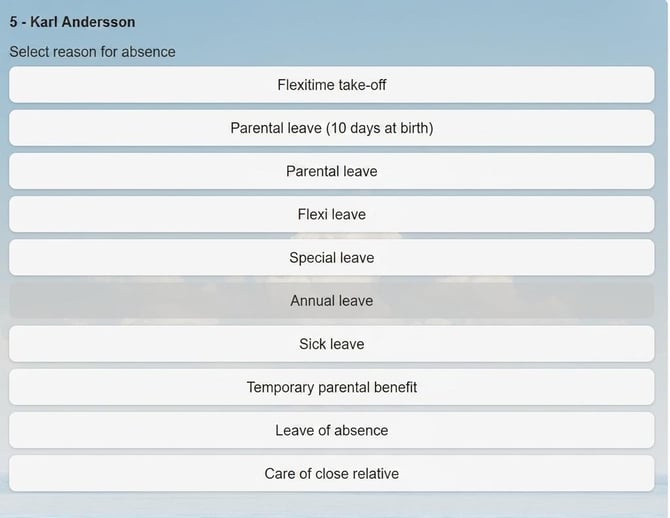
-
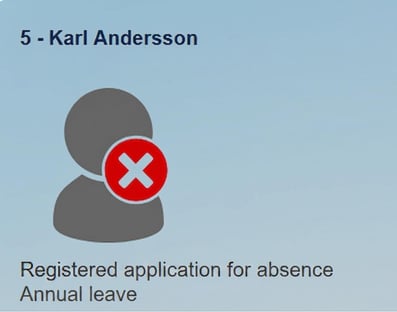
You will receive verification.
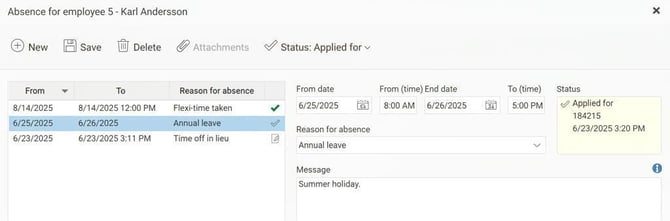
- The absence is shown in the absence manager.
Absence out
If you are clocking out during, for example, a break window, the system will think you are going on a break. If this is not the case, for example, if you plan to take time off during lunch, you need to specify to the system that you are clocking out with absence.
The same applies if you go home sick or in any situation where it is uncertain when you will clock in again.
- Enter user-ID and click on Absence out.
- Select reason for absence.
- You will receive verification.
- You are clocked out. The absence is shown in the time report and in the absence manager.
Absence in
With Absence in you can clock in with a selected reason for absence. Example:
Your schedule is 8:00 – 17:00 with flex frames 6:00 – 10:00 in the morning. You clock in at 9:30 after having had compensatory leave in the morning. Then you can clock Absence in and select the reason for absence 'compensatory leave', and the absence will be added from 8:00 – 9:30. If you only choose to clock in, it will automatically be recorded as flex time deduction since you are clocking in within the flex frame.
- Enter user-ID and click on Absence in.
- Select the reason for absence you want to use for Absence in.
- You will receive verification.
- You are clocked in. The absence is shown in the time report and in the absence manager.
Absence actual day
With Absence actual day, you can clock out with a selected reason for absence that applies for the remainder of the current day.
Example:
Your schedule is 8:00 – 17:00. You want to clock out at 13:30 for compensatory leave for the rest of the current day. You can then use Absence actual day and select the reason for absence 'compensatory leave', so the absence will be added in the time report 13:30 – 17:00 for the current day.
- Enter user-ID and click on Absence actual day.
- Select reason for absence.
- You will receive verification.
- You are clocked out. The absence is shown in the time report and in the absence manager.
Clock with overtime marking
If you know that the time outside scheduled hours should be counted as overtime, you can specify your desired type of allowance at
clock in or out.
- Enter user-ID and click on In/out overtime.
- Select type of allowance.
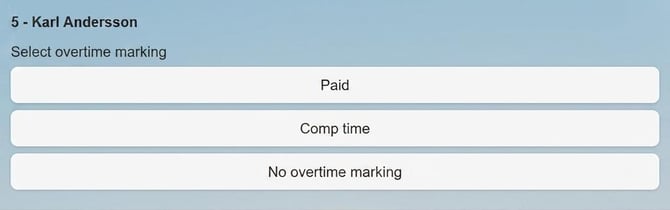
- You will receive verification.
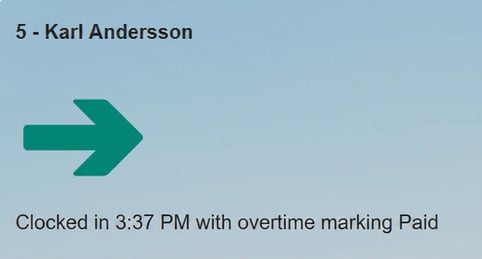
- Overtime marking has now been made in the time report.
Overtime will be generated when you clock out for the day and only if all requirements for overtime are met.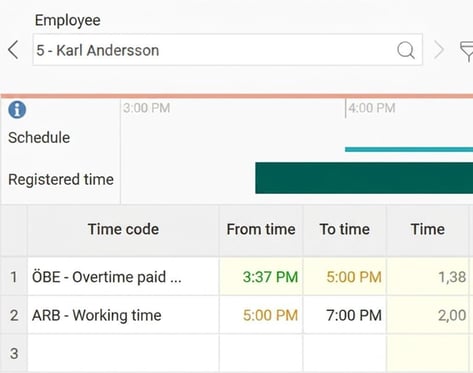
Show time report
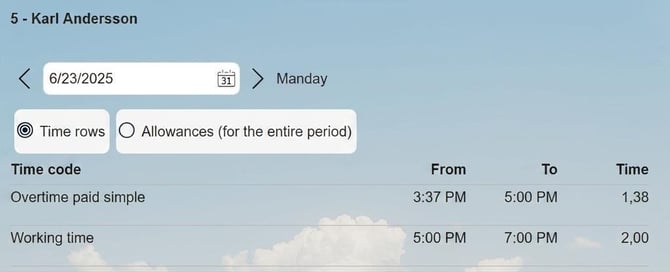
With the function Show time report you can see what the time report looks like today and previously. Use the arrows to switch to the next or previous day.
Balances
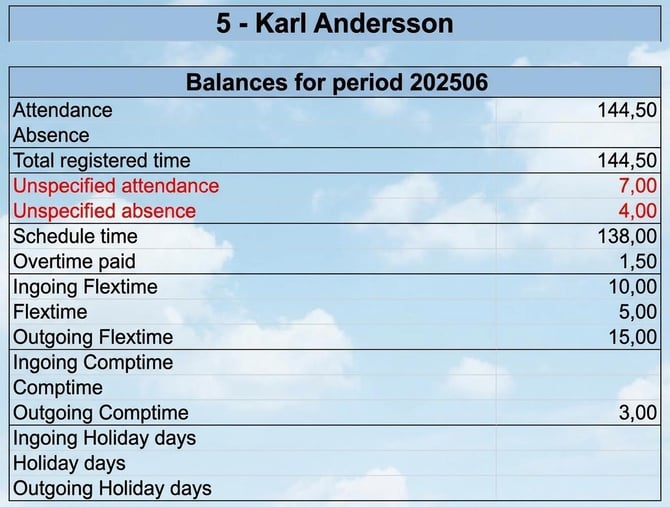
From the time clock you can view information about all the period balances that are otherwise shown in the time report.
Attendance
To get a snapshot of the employees’ status, there is the Attendance button, which displays status and any absence. Here you can search for a specific employee or filter employees by status. Employees can also add a note per day which can be viewed by others in the attendance view.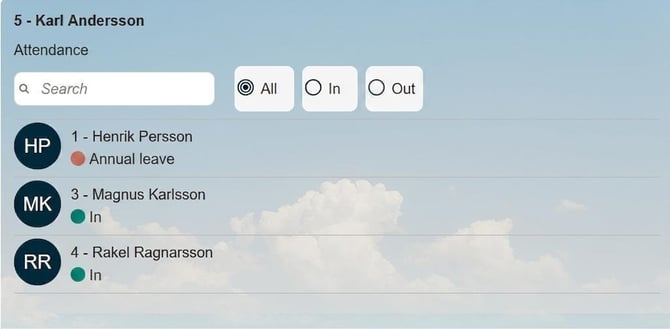
Change of account code
For those who need to clock a change of account code, such as for a project, cost centre or similar, there is the function Change of account code.
When you click on Change of account code, all account codes that can be changed will be displayed, and all account codes can be edited during one clocking event. In the example below you could change cost centre, customer and project at the same time.
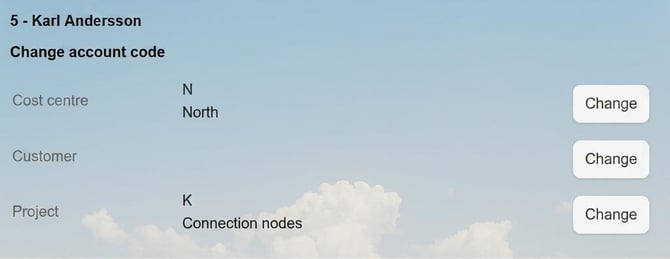
When you select Change on a row, you get proposals of previously used entries. You can search for an account code or select from a register containing all account codes.
If you select Register you will see a list of all available entries, either as a flat list or structured in a tree. In a tree structure you can click + to expand all underlying entries.
Connect tag
The Connect Tag function provides a button that can be used to link new key tags to users.
Click Connect Tag and follow the on-screen instructions. You will be asked to scan the tag twice and specify which user ID it should be linked to.
If the specified user already has a linked tag in the user register, you will be notified. You can then choose whether you want to overwrite the existing tag.
If the tag is already linked to a user in Flex HRM, you will be notified. In that case, you cannot link the tag to anyone else.
Related articles
What happens when the time clock is offline?
How do you clock directly in the time report?
How do you clock your time in the mobile?
Please note: This article is AI-translated. This means that linguistic errors or misunderstandings may occur.