
Document
Click on the tab Documents and you will see the following view:
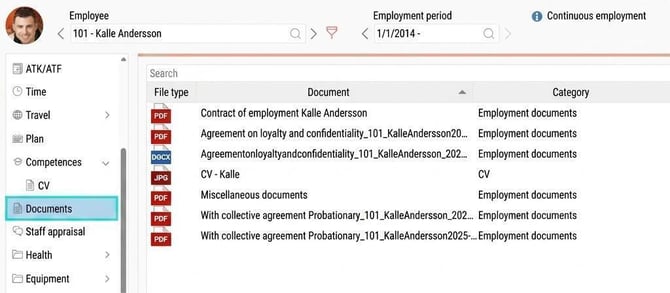
The list shows the documents that have been uploaded for the current employee. File type describes what type of document it is. You can also see information about which category the document belongs to.
To view the document, you can either preview or download the file.
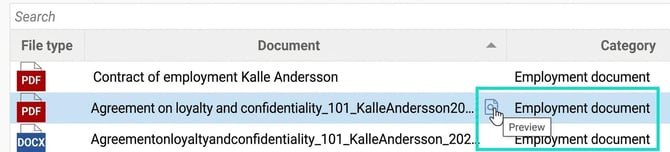
Select a document and click the button Download to open the document.

Add document to employee
Click the button New file to add a document.
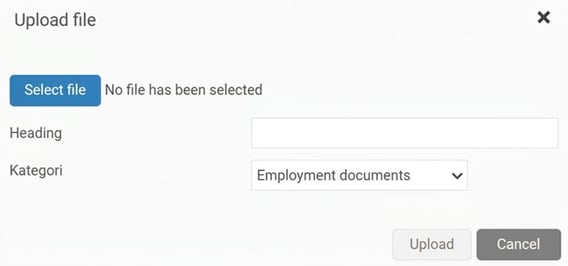
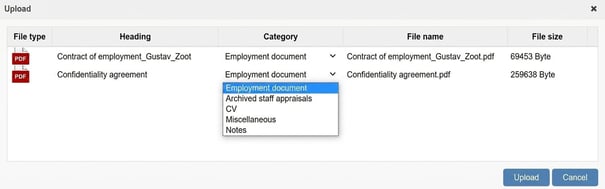
When you click Select file you can browse folders on your computer and find the file you wish to add. Specify a heading for the file and then choose which category it belongs to.
Once you have entered the heading and category, click Upload. The file will then appear in the list of documents.
Good to know!
It is important to upload documents to the correct Document Category in HRM, as authorisation to view documents is controlled per document category via roles.
You can also upload documents via "Drag and Drop". This is done by selecting one or more documents in File Explorer on your computer and dragging them to the documents tab.
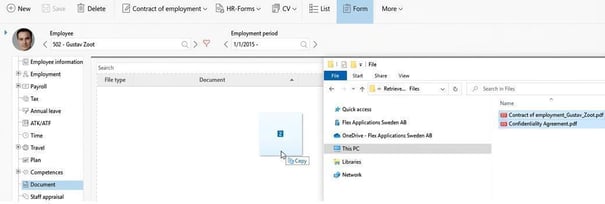
When you release the files, a window will open where you can change the heading for the documents and select the document category. Once you’re done, click Upload and all the documents will be added to the documents tab.
Use the button Delete to remove a document from the list.
Please note that the file is permanently deleted and cannot be restored in HRM.
HR-Forms
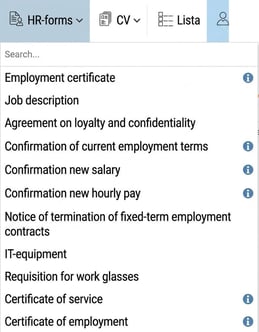
HR-forms are available in HRM to facilitate the administration of various forms such as, for example, certificates and references that managers sometimes need to write for employees. If you as a manager/HR have authorisation to retrieve a form for an employee, you will see the HR-forms icon.
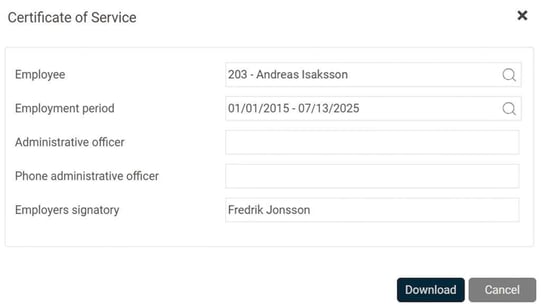
Download a form from the employee’s page in the Employee register by selecting the form and how it should be generated.
Good to know!
If the HR-form retrieves data from an employment period, it is important to first select the requested employment period and then fetch the HR-form.
In some cases, HR-forms retrieve date-specific fields, and if you have the option to select Date within the employment period this means that the date-specific fields will be taken from the date you choose. For example, this could be a form with an upcoming new salary.
If you enter today's date (2023-08-15), the form will fetch the wage valid today. However, if you enter 2023-09-01 and there is a new salary registered in HRM as of 2023-09-01, the system will fetch the new salary.

In some cases, HR-forms can be sent for e-signing, in which case the box Send for e-signing appears next to Download. Here you can find more information about e-signing in HRM.
Read more about how to send a document for E-signing.
Please note: This article is AI-translated. This means that linguistic errors or misunderstandings may occur.