
If you do not yet have any employees in Flex HRM, you have the opportunity to import the information needed for the Pay Equity Navigator.
Flex HRM has a shared personnel register used by all modules. If you already have employment and salary details in Flex HRM, you do not need to create a separate import for the Pay Equity Navigator. As long as all employee information is available in Flex HRM, the Pay Equity Navigator can retrieve it automatically.
If you are unsure, we recommend seeking help from a consultant. Processing imports of employment periods can be quite complex. Since you cannot reverse an import, it is better to get advice or assistance from a consultant. Contact us via the Service Portal and we will help you.
Import or add the position register.
For positions to be linked to employees, a completed position register is required.
- If you wish to add positions manually, go to Register > Positions and manually add entries to the register.
- If you want to import positions from a file
- U se the import template Register_Positions or create your own as described below.
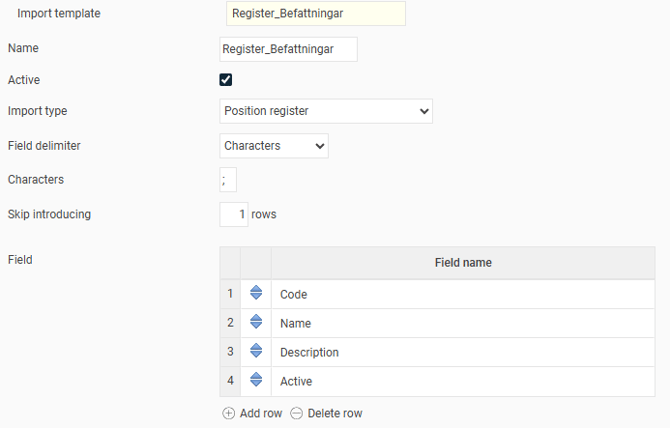
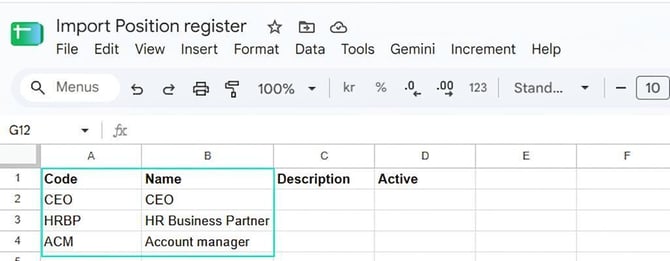
- Prepare your file for the position register so that it matches the import template. Save the Excel file as .csv or according to your selected field delimiter.
Code and nameare the minimum requirements for importing into the position register.
- Go to Actions processed > Service routines > Import and run the import.
- Click on New.
- Find your import template.
- Select file
- Click on Import
Import employees
- Create your own import templates or use the ready-made import templates for Employees called Lönekartläggning - Anställda and for Increment & benefits called Lönekartläggning - Tillägg & förmåner.
Import template for Employees
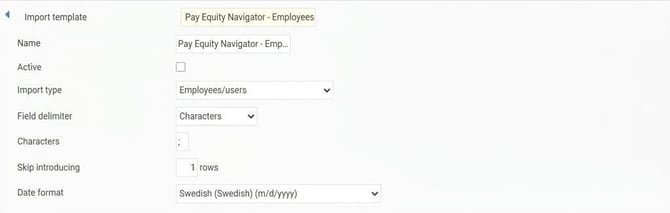
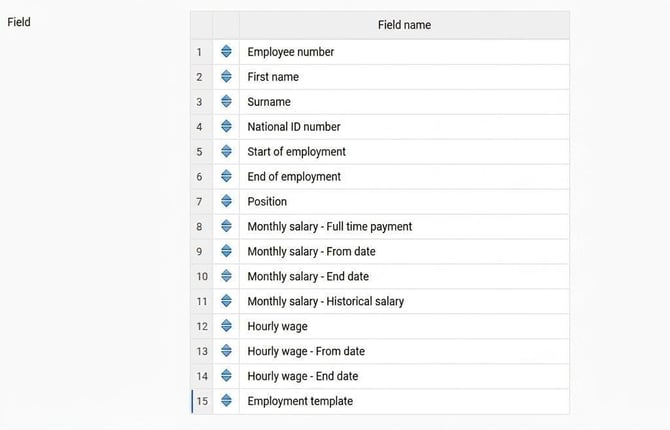
Import template for Increment & benefits.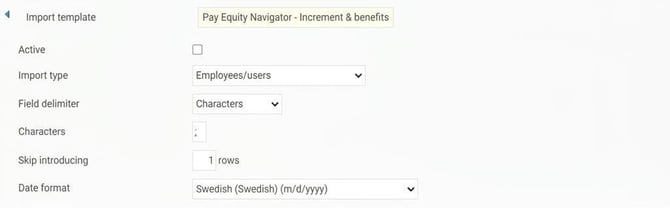
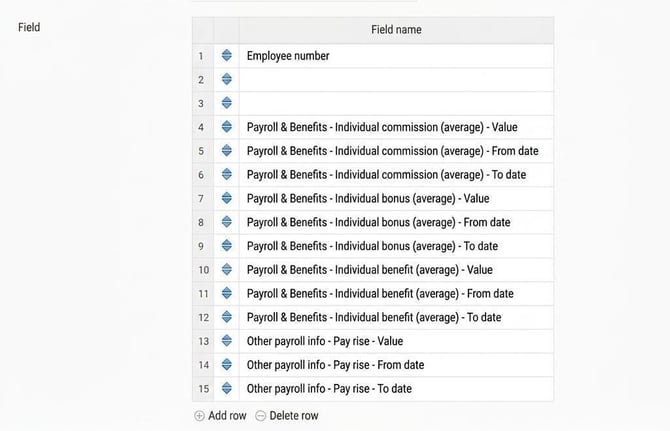
- Export the information for the current employees. Gather the data in a text file, for example an Excel file, so that it matches your import template.

- Save as .csv or according to the selected field delimiter in your import template.
Import the information
You import your data by
- Go to Actions processed > Service routines > Import
- Click on New
- Select import template (Pay Equity Navigator - Employees or Pay Equity Navigator - Increment & benefits).
- Select file and locate your import file.
- Click on Import.
Check the information in the employee register to ensure everything appears correct.
Related articles
⚙️How do you process file imports in Flex HRM?
⚙️How do you process file imports of employment periods in Flex HRM?
Please note: This article is AI-translated. This means that linguistic errors or misunderstandings may occur.