
Company settings

Create new company

Download Company report

Licence
Go to General > Company. You will then see the following view:
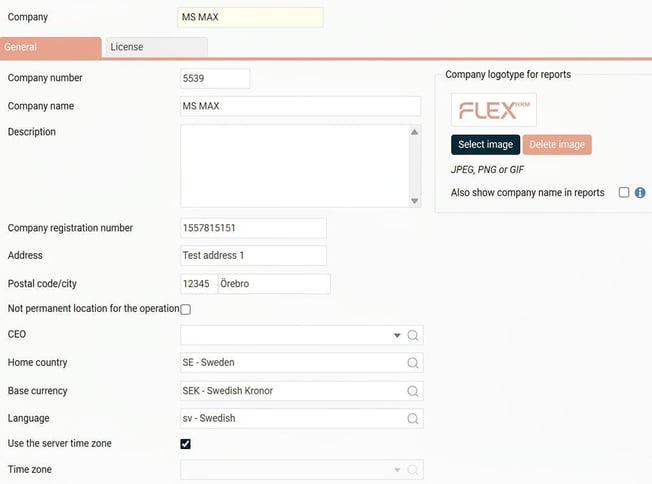
Company settings
Company number
Specify the company number (one to 99999) that will identify the new company.
Company name
Enter the name of the new company.
Description
Here you can add an optional descriptive text about the company.
Company registration number
The Company registration number.
Home country
The Company’s home country (used for importing exchange rates).
Base currency
The Company’s base currency.
Language
Specify which language the programme should display for the company. You can click on the magnifying glass to see available languages.
Time zone
Specify which time zone should apply to time clockings in the company. By default, HRM Time retrieves the time from the server where the system is installed. You can select another time zone from the option menu. All time clockings in the company will then follow the selected time zone.
When you clock in using HRM Mobile, the time is based on the server's time, but adjusted for the difference between the server's time zone and the phone's time zone. Both the Attendance Board (in Flex HRM and Timeclock) and My colleagues (in HRM Mobile) consider which time zone an employee has clocked in when showing current status.
Discrepancy when clocking in another time zone You can also get a discrepancy in the time report if an employee clocks in a different time zone than the company's. To activate this, mark the setting Time clocking in deviating time zone. You can find the setting for discrepancies in the following places:
-
Company: Administration > Settings > Time and Plan > Time reports
-
Time group: Administration > Settings > Time and Plan > Time groups > the tab Time
-
Employee: Personnel > the tab Time
Start date for Flex HRM
Specify the start date for your Flex HRM licence.
The Company is the master company
There is a function for master companies in Flex HRM. This allows you to copy settings from one company to one or more other companies. This is useful if you have many companies with similar settings and need to change something. Currently, it is possible to copy time codes and pay codes to controlled companies.
To use this function, you need to specify which company or companies should be master companies. You do this by marking the setting The Company is the master company. You can have one or more master companies, and each master company can control one or more companies. A controlled company cannot be a master company.
Then you manage controlled companies and the copying of settings under Administration > General > Master company.
The Company is the parent company of a concern
To use concern management, you need to havea licence including the module. Read more about how to activate concern companies in Flex HRM.
Company logotype for reports
You can choose to print a company logotype on all reports in Flex HRM. The logotype is printed at the top left and replaces the company name on the report. Click on Select image to upload a file.
Note that this only affects reports. The logotype displayed in the top left corner of the system is chosen under theme settings instead.
Show company name in reports as well
If you have selected an image for the company logotype, you can also add the company name by marking this setting. If no image is selected, only the company name will be printed.
Create new company
Click on Create new company. The view will then expand with three different options for copying: No copying, Company or Code:
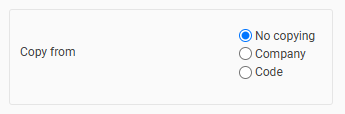
Copy from
Here you specify if you wish to transfer existing settings to the new company, and how the copying should be performed.
- No copying Select this option if you want to create a completely new, empty company without any copied settings.
-
Company If you select Company, specify the desired company in the field below. Click on the magnifying glass to see your options. Under Alternative for copying specify the level at which the copying should take place. You can limit the copying to the company’s settings (with or without the accounting register), or choose to copy the entire company.
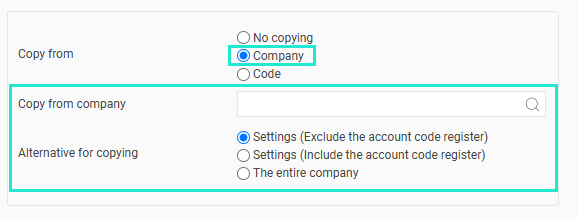
-
Code If you select Code, enter the code and password for the copy created under Administration > General > Copy company.
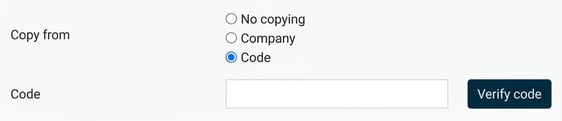
Complete the registration of the new company by clicking on Save company in the top button bar. The new company is now in the company register and you can select it via General > Select company.
Download Company report
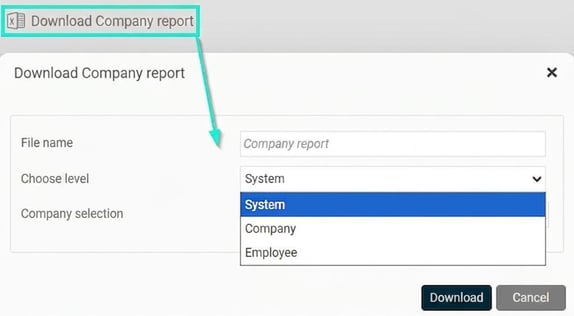
Here you can download a report on the companies in the database. The report also shows the number of employees in the companies using each subsystem and additional module.
The option to download the report is authorisation-controlled. Activate it for the roles that should have access under Administration > Users/Authorities > Roles. The report is downloaded as an Excel file (.xlsx).
When you download the report, you can specify the desired name and choose whether to download it at system, company, or employee level.
The Licence tab
If you have several companies in Flex HRM but only some should have access to specific modules, you can control this here.
Click on the tab Licence to see the view. 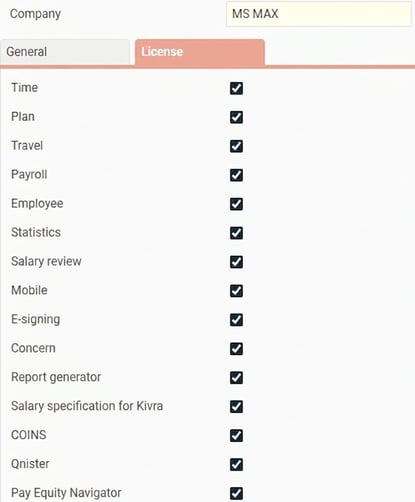
By deselecting a module, you hide all functionality for that module when a user is working in the selected company.
Related articles:
How do I activate concern management in Flex HRM?
What is copied when I copy a company?
Please note: This article is AI-translated. This means that linguistic errors or misunderstandings may occur.