
How do I log in to Flex HRM?
You log in to Flex HRM using a Visma Connect account.
When you enter the web address (URL) for Flex HRM or HRM Mobile, you are first taken to the Visma Connect login page.
-
If your company uses SSO (Single Sign-On) you can continue without having to enter a password.
-
If we do not use SSO you enter the password for your Visma Connect account. After that, you can start working in Flex HRM.
Below you’ll find a step-by-step guide for how to log in to Flex HRM.
How to log in to Flex HRM
- Enter the web address for Flex HRM: https://web.flexhrm.com/
- On the login page, enter the email address prepared in the system by your company’s administrators. This is usually your work email. You can choose to save your email address for your next login by ticking the box.
Then click the Next.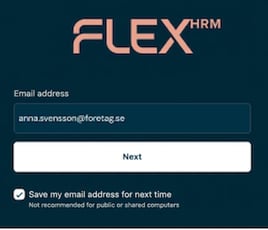
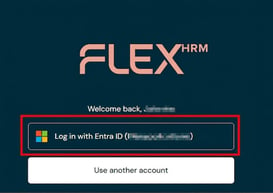
- If you use SSO (Single Sign-On) you can choose to use it and you'll then be logged in. In the image below it says Log in with Entra ID, but it might say something else depending on which Identity Provider your company uses.
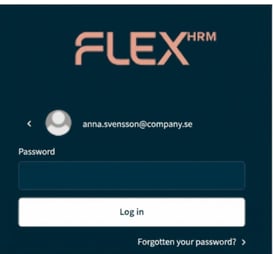
- If you do not use SSO and you are logging in for the first time - Click on Forgot your password?
- Enter your email address and tick I am not a robot. Then choose the option Reset password.
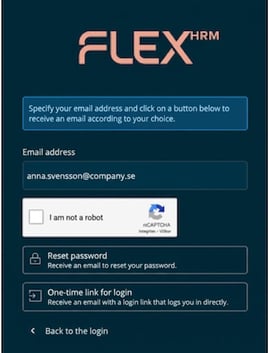
- An email will be sent to the email address you provided.
Go to your email inbox and open the message. Press the green button Enter new password.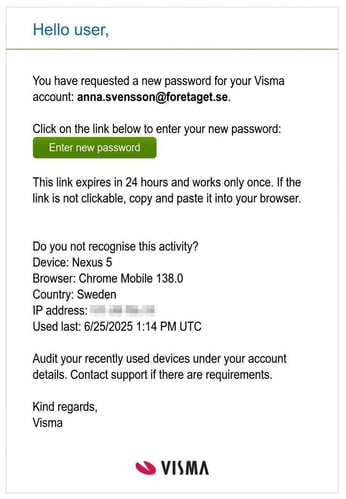
- Enter and confirm your new password. Then press the Enter password.
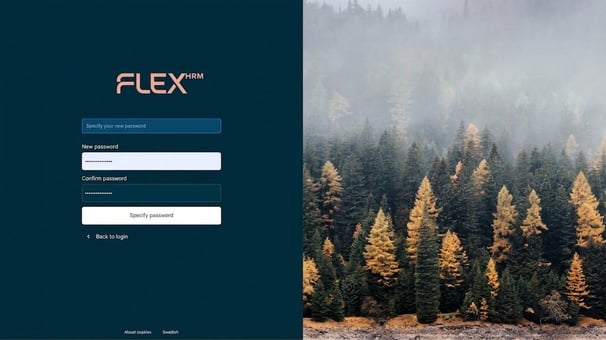
You can now log in to Flex HRM at https://web.flexhrm.com/ with your email address and the password you created.
What is 2FA?
2FA (two-factor authentication) is an extra layer of login security that protects your account beyond your password. Visma Connect supports login using passkeys (biometrics such as Touch ID, Face ID, or a physical security key) and 2FA (one-time codes or push notifications via an authenticator app, e.g., Visma Authenticator, Google Authenticator, or Microsoft Authenticator).
Currently, using 2FA or a passkey may already be a requirement for your login. If it is optional for you today, it will become mandatory in the future. We recommend that you start using 2FA or passkeys now.
Login via the app?
Get started with HRM Mobile
Get started with our new Flex HRM app
Please note: This article is AI-translated. This means that linguistic errors or misunderstandings may occur.