
Curious about our new app?
We have a new Flex HRM app that is under development. Here you can see how to get started with the new app.
In HRM Mobile, there is a function Record journey which you can use instead of registering your car trip manually. You start recording when you begin your journey, and stop recording when you finish your trip. When you save the recording, it is added to your travel expense claim/trip log.
Start and pause the recording
| 1. Click the icon Record journey | 
|
|
2. Ensure you have a good GPS signal. When you start tracking, your phone will display the current accuracy of the GPS. Please note that it may take a moment for the phone to find your position. The trip is recorded based on the data provided by your phone. If the phone loses its GPS signal, it may affect how the trip appears on the map and in the calculation. Since we cannot control the GPS positioning itself, we recommend that you double-check your odometer reading when traveling. |
|
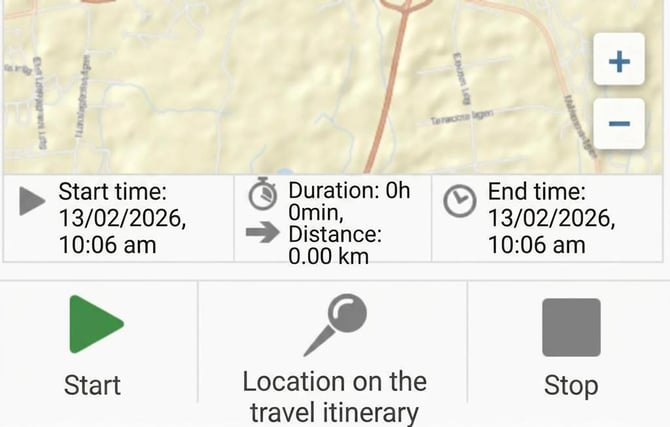
| 3. Click Start and start driving. HRM Mobile will display your route with a blue line on the map. |
 |
|
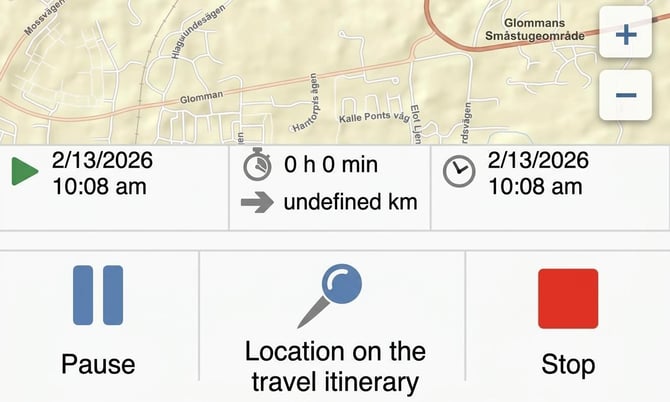
4. If you make multiple stops on the way to your final destination, you can use the Pause button. Please note that the feature to pause a trip is not available for company cars with a fuel benefit. |
 |
| 5. When you resume your trip, click Resume to continue recording. | 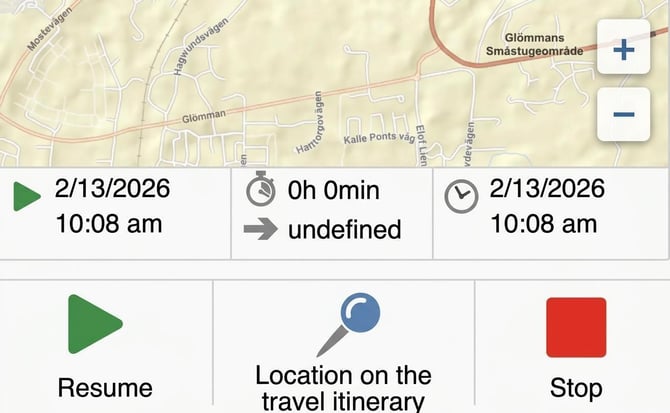 |
Finish and save
When you have reached your goal, it is time to complete the registration.
-
Click on Stop when the journey is finished.
-
Check that all information is correct.
-
Click on Save.
The recording is now saved as a new car trip in your travel expense claim or trip log.
Related:
What is required to record a journey in HRM Mobile?
Please note: This article is AI-translated. This means that linguistic errors or misunderstandings may occur.