Skip to content
English
  • There are no suggestions because the search field is empty.

What is required to record a journey in HRM Mobile?

Settings to check if you have problems recording journeys.

Curious about our new app?
We have a new Flex HRM app that is under development. Here you can see how to get started with the new app.

HRM Mobile has the function Record journey which you can use instead of registering your car trip manually. Start recording when you begin your car trip, and stop recording when you finish your car trip. When you save the recording, it is added to your travel expense claim/trip log.

For the record journey feature to work well, you need to consider the following:

  • HRM Mobile supports the latest version of iOS, as well as versions of Android that are still actively maintained with manufacturer updates.

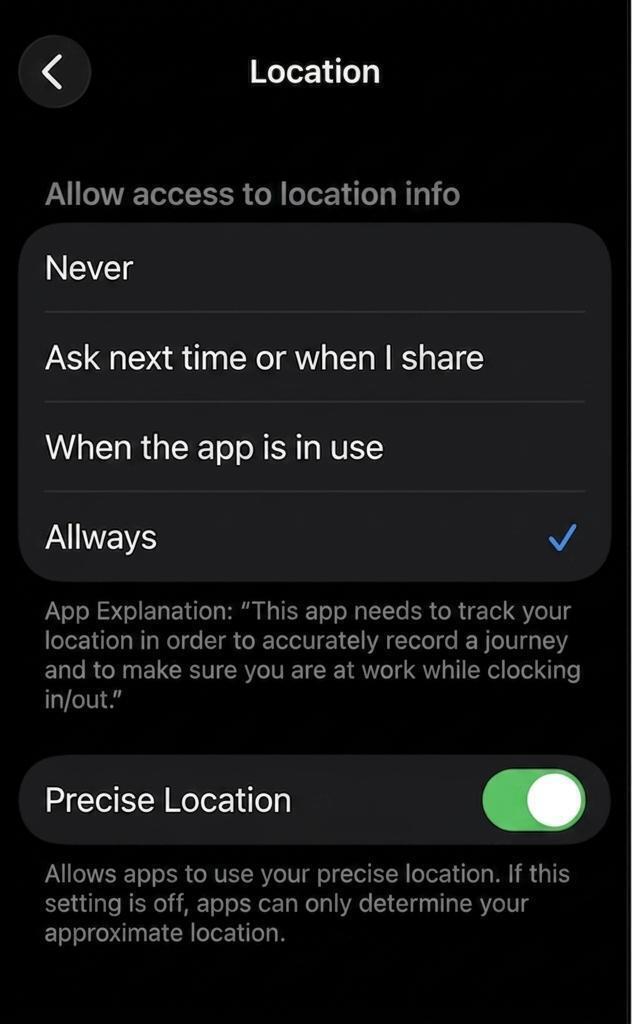
  • You must grant HRM Mobile permission to access your location data in your mobile device settings. We recommend setting location access to "Always" (however, some devices lack this option and only allow access "While using the app").

  • Enable precise location tracking.

  • Place your phone where it can maintain a strong GPS signal.

  • Do not close the app while a recording is in progress. You can turn off the screen or use other apps, but ensure HRM Mobile remains running in the background.

  • Check your device's battery optimization settings. Battery optimization can prevent apps from running in the background, which may negatively impact your trip tracking.

  • Are you having trouble saving your recorded trip? Check your internet connection. For example, if you end your trip in a parking garage with poor reception, you may need to exit the garage before you can save it.

vad-kravs-for-att-spela-in-bilresa-i-hrm-mobile_image_0_en


Related: 
Can I record my car trip in HRM Mobile?


Please note: This article is AI-translated. This means that linguistic errors or misunderstandings may occur.