
💻Here you will find a description of the workflow for adding competences to employees
⚙️Guide
1. Competence groups
2. Competences
3. Competence roles
4. Reminders for expiring competences
5. Authorisation
6. Layout - Control which columns are shown in the employee register
Competence management
In HRM there are competences that can be linked to employees. This makes it possible to see which competences an employee has, as well as plan any competence development.
Competence groups
Register - Competence groups
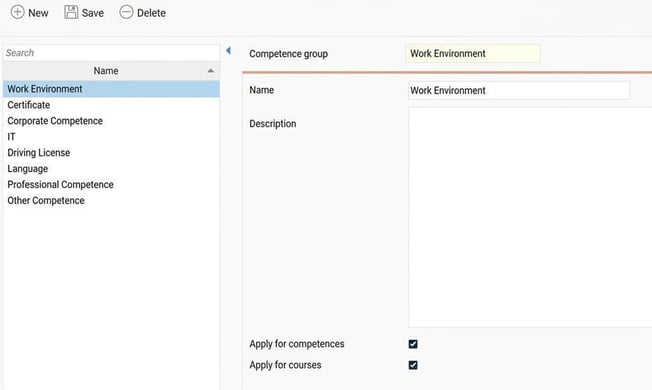
To organise your competences in an overview-friendly way, you first need to group them into so-called competence groups. You must have at least one competence group to move forward.
Below you can see examples of commonly used competence groups. Your company may have other groupings that feel more appropriate.
Create competence groups and decide whether the group should be used for competences and/or courses.
Competences
Register - Competences
Here you add the competences you wish to use/manage in HRM. Consider which competences are actually useful to handle and which ones you want to be able to search for in HRM.
Do this to create a new competence:
Click on New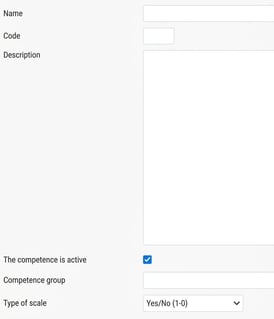
- Enter a Name and choose a Code (create a structure with a maximum of five characters)
- Select competence group for this particular competence.
- Choose which Type of scale should be used for grading the employee's level for the relevant competence.
If you select a grading scale, you will then see an additional option under Type of scale where you choose how many steps the grading should have. 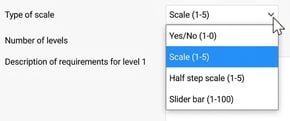
-
- Yes/No switch (0-1)
Used for e.g. certificates or other competences which you either have or do not have, without any grading.
- Yes/No switch (0-1)
-
- Scale (1-5)
Grading with scales. Choose a scale between 1-5.
- Scale (1-5)
-
- Half step scale (1-5)
Grading with stars that allows half steps.
- Half step scale (1-5)
-
- Slider bar (1-100)
Grading using a slider bar. Choose a scale between 1-100 steps. Useful if you want to assess the competence in percent.
- Slider bar (1-100)
If you choose to change the scale on a competence that is being used, the system will adapt the employee's current level to the new scale. For example, if you originally have 4 out of 5 stars, and you change the grading to a slider bar with 100 steps, the level 4 stars will be converted to 80 out of 100 using a percentage calculation. Note that depending on how the scale changes, the current level may become more or less altered, percentage-wise. Therefore, you should not change the scale without first analysing the consequences.
- Description is provided as a help text when you add a competence to an employee. If you select gradings, it is recommended to write a description to clarify what each level means.
- Click on Save at the top when you are finished.
Competence roles
To see if employees meet any competence requirements associated with their role, competences can be connected to competence roles. These are then linked to employees and show which competences are required in a specific competence role.
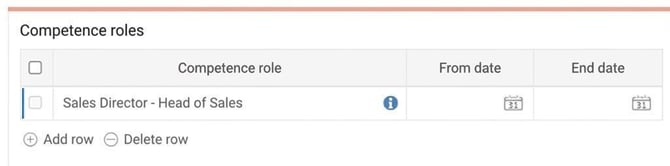
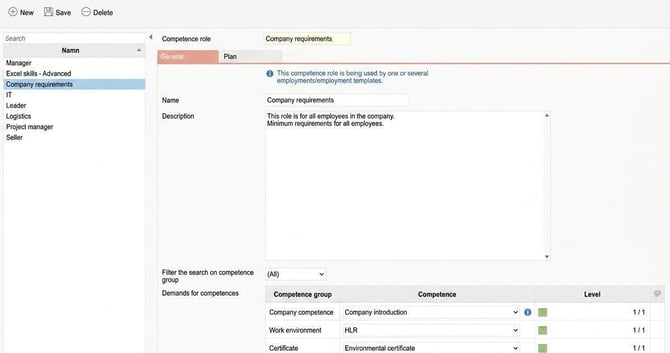
Under Register > Competence roles create your company's competence roles
Good to know
It is indicated in the register for competence roles if this role is being used.

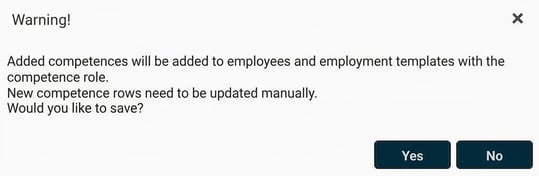
If you add new competences in the competence role, the following will happen.
Competence roles/competences in employment templates
You can add competence roles and/or competences to an employment template to simplify the setup of new employees. This way, you can automatically include the desired competence roles when you add a new employee and specify an employment template. You add the competence roles in the employment template under Administration > Settings > Personnel > Employment templates, the tab Competences.
Reminders
Certain types of competences, such as certificates, need to be renewed regularly, and others you may want to review and update the level from time to time. To make this easier, you can set up a reminder that alerts when a competence is about to expire. The reminder will be triggered on the date entered for the competence on the employee under Valid to date.
To activate this type of reminder, go to A dministration > Settings > General > Reminders and create a new reminder of the type Expiring competences. The following settings can be configured for reminder management:
- Number of days before and after
Here you choose how many days before and after the competence's end date a reminder should appear on the front page.
- Selection of employees
Here you can filter the group of employees the reminder should apply to.
- Selection of competences
Here you choose the competences you want to monitor. For example, if you want different early monitoring for different competences, you can create several reminders with selection on different competences.
- Scheduling of reminder
Here you choose how often reminders by email and notes in HRM Mobile should be sent out to the recipient. For example, you might want to send out an email to all managers who have employees with expiring competences every Thursday at 15. Please note that the email reminder does not show which competence is expiring; this is shown on the front page in HRM.
- Message to employee
Here you specify the requested type of reminder and a message text to be sent to the employee. If you do not select any reminder type, no reminder will be sent out. - Message to user
Here you specify the requested type of reminder and a message text to be sent to the selected group of users, most often managers or HR departments. You can either select specific users to receive the reminder, or choose which roles, such as authorising manager, should get the reminder. The reminder will then be sent to the users who have the chosen role for the employee to whom the reminder applies.
Authorisations
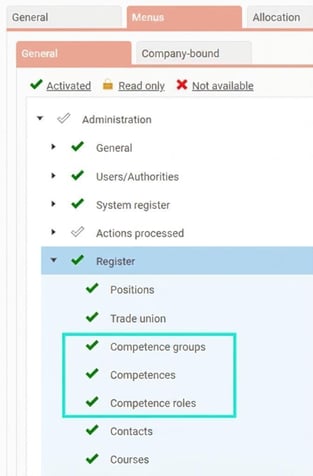
Administration > Users/Authorities > Roles
To be able to administer registers of competences, competence groups and competence roles, the following must be activated for the administrator.
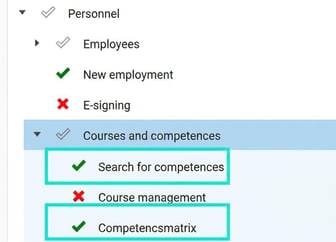
For a role that should have access to search for competences and the competence matrix, activate the following for the role under Personnel
If the role should also have access to competence search from the front page, activate the authority for the role under the menu Home.
Which employees a user can access in the competence search is determined by the role's authority. If the users have this role for the entire company, they can search all employees in the company, but if they have the role for, e.g., a department in the company, they will only have access to that department in the competence search.
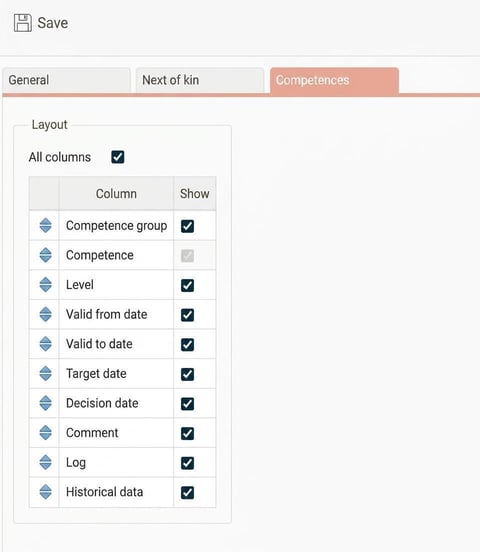
Layout - Control which columns are shown in the employee register
Under Settings > Personnel > Employee register – settings you can set which columns should be visible in the employee register's Competences folder. By dragging the blue arrows you also decide in which sequence the columns are displayed.
Please note: This article is AI-translated. This means that linguistic errors or misunderstandings may occur.