
Contents
Competence roles
Add competence for employee
Add course for employee
Search for competences directly from the front page
Course management
Search for competences
Competence matrix
Competence team
Reminders for expiring competences
Competence and Course Management
HRM allows competences to be connected to employees, making it possible to see which competences an employee has and plan any competence development.
Competence roles
To check whether employees meet any competence requirements for their role, you can link competences to competence roles. These are then connected to employees, showing which competences are required for a particular competence role.
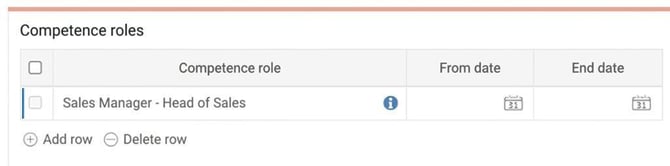
Connect employee to different competences
When linking competences to employees, the easiest way is to connect competence roles. Here you can also add dates, competence levels, etc.

It is also possible to link competences directly, without a requirement for a specific competence in competence roles. Add a row and select the current competence from the list. Then mark the level the employee has today, and if a target level should be achieved for the employee to develop their competence. The target level is set by holding ctrl and clicking on the desired level.
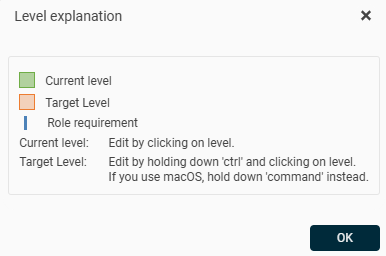
Competence analysis
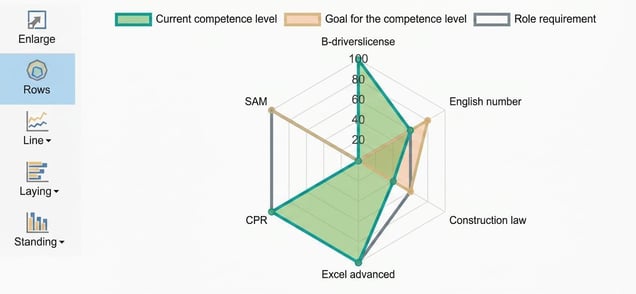
At the top right of the view you will find the function for competence analysis which illustrates the competence gap using various graphs.
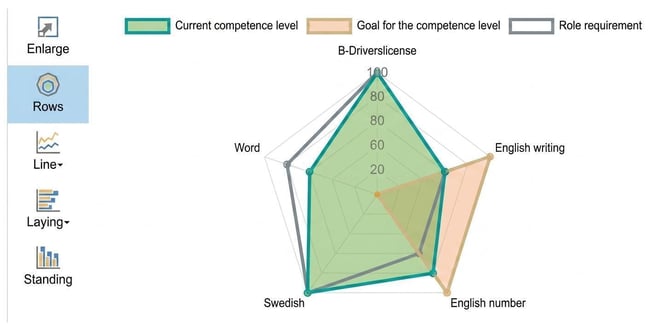
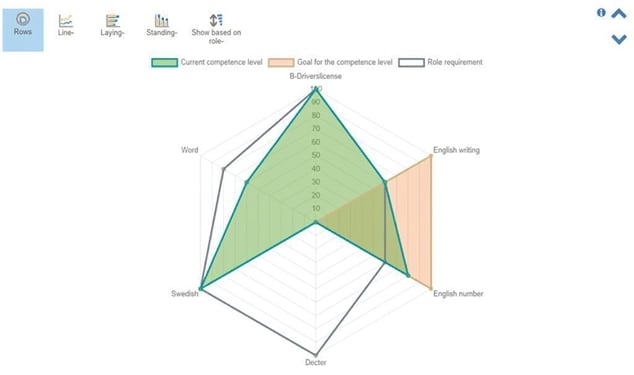
In the button row to the left of the graph you can choose different types of graphs depending on what suits you best. If you have many competences, the radar graph is recommended as shown in the image above.
The radar graph displays the current competence level in green, set goals for competences in red, and the role's competence requirements in grey. Where the green area covers the grey, it means that the current competence meets the role's requirements. Where the grey area extends beyond the green, there is a competence shortfall. The red area shows set goals for competence development.
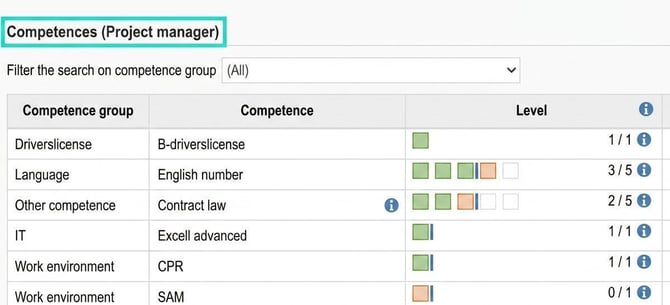
If an employee has several competence roles, you can also choose to mark one at a time to see their competences and competence analysis for that specific competence role.
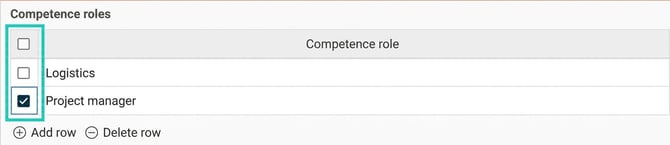
Only the competences relevant to the competence role are shown in the list and on the graph.
Courses
Courses are used for planning training to achieve required competences.
Courses can also be added to a CV if it is used.
Connect courses to employees
Here you can add course sessions that are planned as well as other standalone courses already completed.

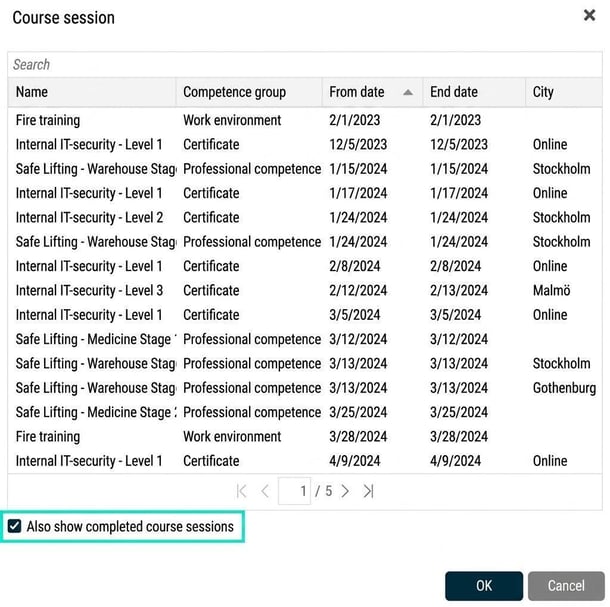
Add course session with +, click the magnifying glass to see available course sessions.
To show completed course sessions, i.e. course sessions with an end date that has passed, you need to tick the box "Also show completed course sessions".
Search for competences directly from the front page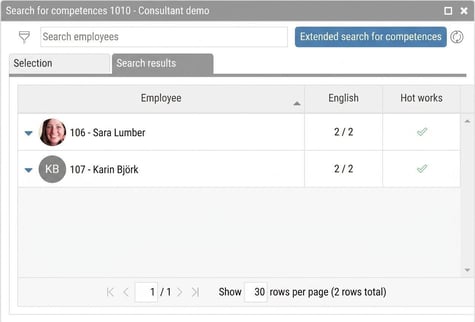
You can search for competences of employees directly via the HRM front page. This is a simplified search, quickly showing, for example, who has a particular competence.
If you want to see all competences of the employee, you can click the arrows next to the name, which expands more details, i.e. all competences each employee possesses.
You can also limit the search to a group of employees by clicking on the filter symbol and here make a selection for the desired group. This can be useful if, for example, you only want to search for employees from a certain department.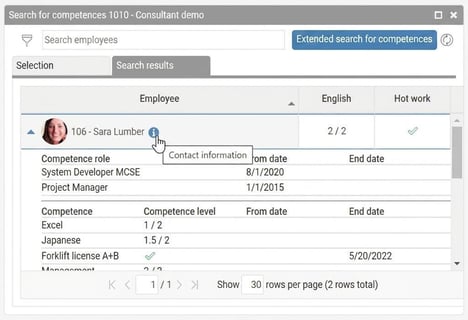
If you want to see the list of search results in a larger view, click the button Extended search for competences. This opens the same search in the main search view, which you can also access under Search for competences.

Course management
HRM has a course management view where it is simple to administer employees’ course sessions.

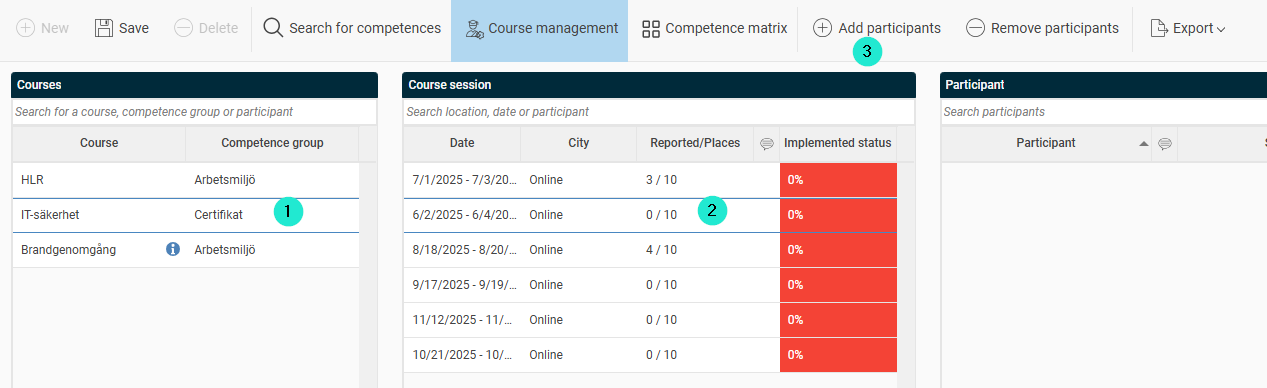
When you have authorisation to the course management view, you can, for the employees you are authorised for, add participants to a course session and adjust the status of a course session for one or more employees at the same time.
- Click the desired course
- S elect course session
- Add participants to a course session via Add participants
When the course session's end date has passed, you can change the status for the employees by marking one of the following options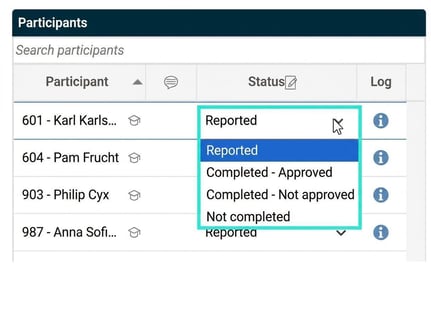
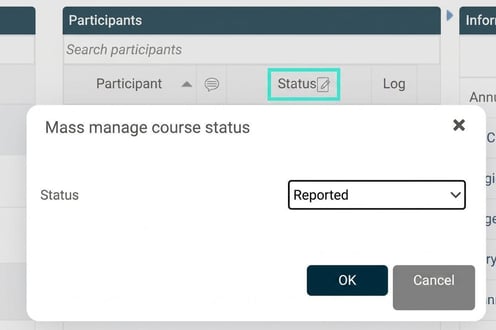
If you wish to mark all as approved, this is done quickly via the icon Status
Extended Search for Competences
Here you can search for both courses and competences to find employees with a specific competence.

Search for employees who have attended a course
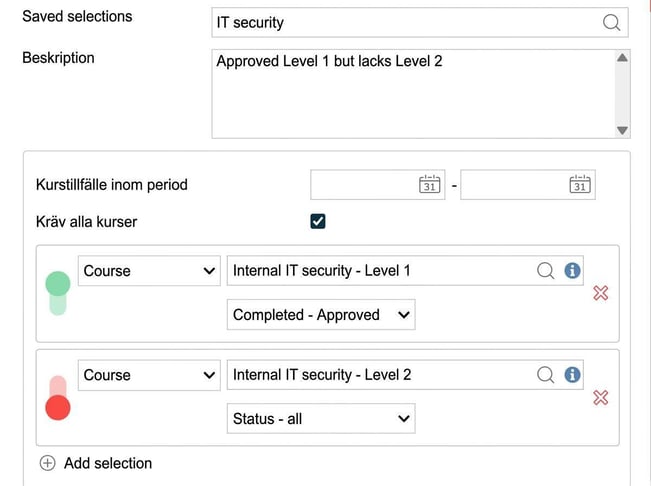
To search for employees who have attended a particular course, click Add selection at the bottom of the selections list. In the field that appears, specify which course you want to search for and what status the course should have. By searching by status, you can find which employees are planned to attend a course or who have completed it. You can also choose to search for all statuses to see both planned attendees and those who have completed the course.
In the search results list, you see the course status.
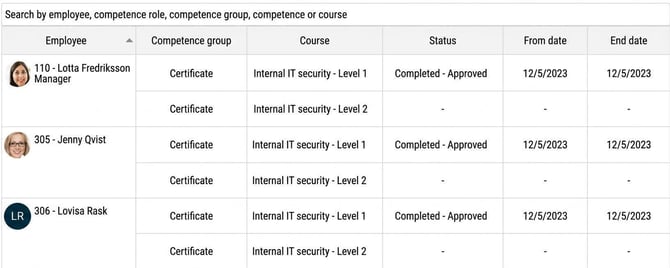
You can also choose to search by a date range for when the course was completed. This is useful if you want to find someone who recently attended a course or someone who is scheduled for a course at a specific course session.
When searching for both competences and courses, you can choose to untick the option Demand all courses/competences if you want to find employees who have attended just one of the searched courses. This can be useful if you are looking for employees who have attended similar courses.

Search for employees who lack competence or have not attended a course
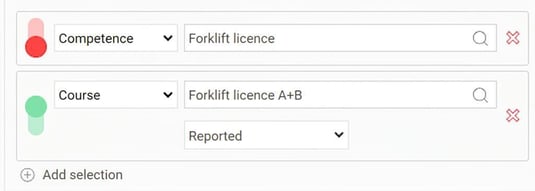
Sometimes it is interesting to search for employees who lack a certain competence or who have not attended a specific course. You can now do this by clicking the green button to the left of the selection for a competence or course. The button then changes colour to red (downward circle) to indicate that the search is for employees who lack the competence or the course.
You can also use this to combine searches for what someone has and what they do not have. In the example below, we have searched for employees who lack the competence 'truck licence', but who are planned to take the course ‘truck driver training Truck Licence A + B’.
Under info button in the button row you can also find information about how this works.
Search for employees with a competence that is soon expiring
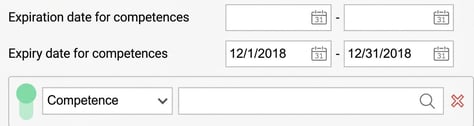
You can also search by expiry date for competences. This is useful, for example, when you have certificates that need to be renewed periodically and you need to plan which employees need to renew their certificate. In the example below, we searched for competences expiring in December 2018. For this to work, an end date must have been entered for the competence in the employee register on which the search is based.
Save search selection
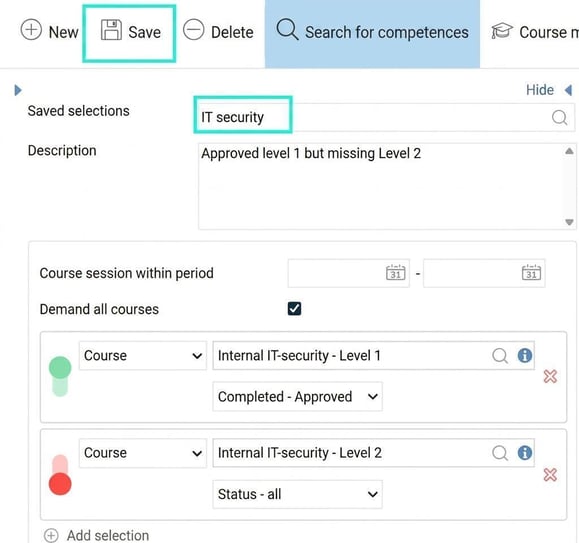
Often you search for similar things when working in the competence search, and then it is convenient to save a search selection to quickly and easily repeat the same search.
To save a search selection, specify a name and an optional description for the selection and then click Save in the button row. The selections you have made are then saved, and in the name field you can find your saved selection next time. A saved selection is personal, meaning only the user who saved the selection will be able to use it again.
Competence matrix
A competence matrix is a tool for getting an overview of a group’s competences.
The competence matrix in HRM has several uses. First and foremost, it's a good way to get an overview of the competences for a group of employees. Additionally, it provides information about competence gaps and set competence goals. There’s also a function for defining different teams, giving a simple overview of the team’s competence shortfalls. The various uses are described in detail below.

Overview of competences and competence gaps
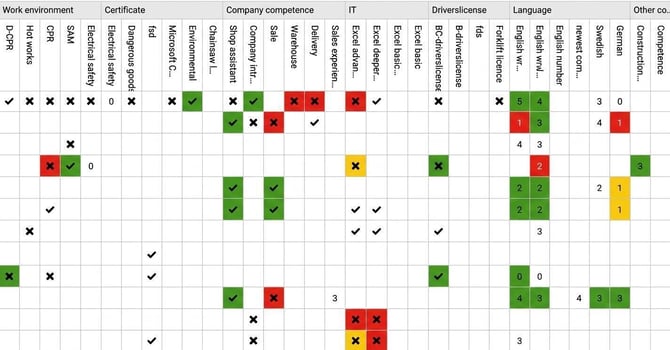
The main use of a competence matrix is to get an overview of the competences for a group of employees. The matrix is structured as a grid, with each column representing a competence and each row representing an employee. Using the filter in the button row, you can select which group of employees and which competences you want to display in the matrix.
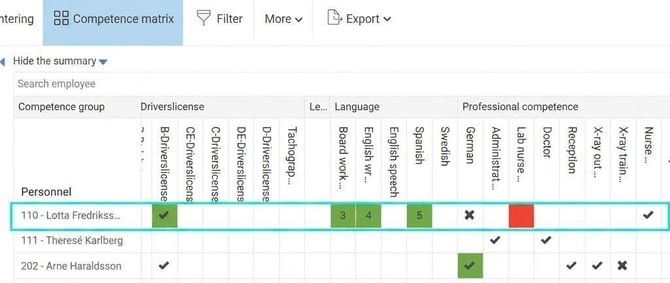
Each cell in the grid represents the competence level for an employee and competence. For competences with a multi-level assessment scale, the current level is shown as a number in the cell. For competences such as certificates or driverslicence where you either have or do not have it, a tick or cross is displayed in the cell.
The cell’s background colour provides information about competence gaps and competence goals as follows
- White background means that the employee does not have a competence role with a requirement for the current competence.
- Green background means the employee meets the requirement for the current competence in their competence role.
- Yellow background means that the employee does not meet the requirement that the competence role demands for the current competence. However, the yellow background indicates that an action in the form of a goal is planned.
- Red background means the employee does not meet the requirement that the role has for the current competence. The red background indicates that no action is planned.
By marking an employee you can view detailed information about the employee’s competences, shown to the right of the matrix.
Here you see information on current level, target level, and which level is required by the employee’s competence roles. The coloured line matches the colour signal in the competence matrix as above.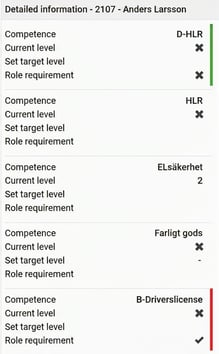
To easily find details for a specific competence, instead of clicking the employee's name in the matrix, you can click a specific cell in the table. This will show detailed information for that competence only.
Show graph for competence gap
You can also directly from the competence matrix display the graph for competence gaps found in the employee register. When you hover over an employee’s name in the competence matrix, an icon appears which you can click to show the competence graph.
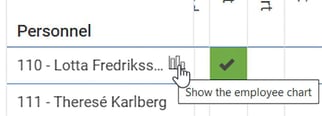
The graph is then shown as a new window where you have the same options as in the employee register (see previous section). You can easily browse between employees in the competence matrix by using arrows at the top right of the window.
Work with competence teams
By using a competence team you can assemble a group of employees and set requirements for the group’s demands for competences. This way, you can use the system to keep track of whether the group has the required competence.
For example, let’s imagine a team of four cleaners who go around cleaning different premises. You may want at least one to have a driverslicence to drive the car, one to have the necessary environmental certificates, everyone to have basic cleaning technique competence, and at least one to be more experienced.
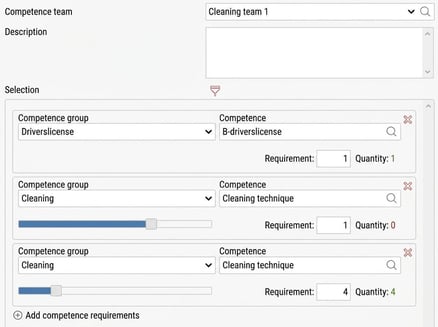
You define this cleaning team to the left of the competence matrix by providing the following information:
- Competence team
Here you enter a name for the team. - Description
Here you can provide a description for the team. - Selection
Here you specify which group of employees are part of the team. You can also specify which competences are relevant to show in the competence matrix for the team. - Demands for competences in the team
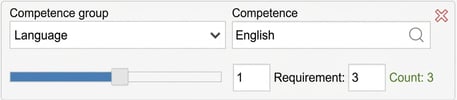
Here you enter all the demands for competences in the team. You choose the competence and level required, as well as the requirement for the number of employees who must have this competence level. At the bottom right, the number of people in the team who have the competence is shown. The colour indicates whether the requirement is met (green or red).
Here is an example of how you can define the cleaning team as described above. Note that the Cleaning Technique competence appears twice so as to demand that all four must have at least level 1, and at least one must have level 4. The requirement for someone with level 4 is not met, as shown by the red text.
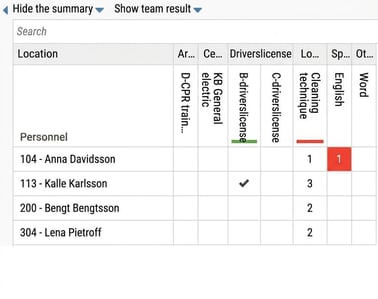
In the competence matrix itself, the employees included in the team are shown, and in the column heading for each competence in the team's requirements, a colour marker indicates if the requirements are met or not. A green line means the competence requirement is met, and a red line means the competence is lacking in the team.
By clicking Show team result, you get more information about what is missing in the team. Detailed information is shown about demand level, number of employees needed at that level, and how many actually have the current competence level. The red marking for Cleaning Technique competence with a requirement of level 4 shows there are no employees at that level (the requirement is one person, but none exist).
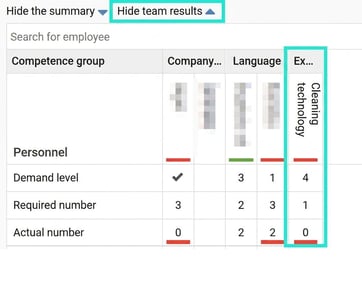
Here we have quickly identified there is a competence shortfall in the team and can plan an action such as competence development. Employee, 113 – Kalle Karlsson, already has level 3 and is suitable for further training to meet the team’s requirements.
Reminders for competences
Some types of competences, such as certificates, need to be renewed periodically, while others you may want to review and update the level from time to time. To make this easier, you can create a reminder that alerts you when a competence is about to expire.
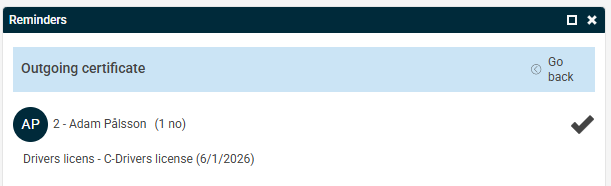
A reminder shown on the front page consists of a heading with the reminder name which can be expanded to see which employees the reminder concerns.
You can then expand the row for the employee to see which competences are about to expire (the expiry date is shown in brackets). If you click the employee’s name, the employee’s competences in the employee register open. If you click the reminder heading, you open the competence search instead.
Reminders sent out by email and as notes in HRM Mobile do not contain information about which employees the reminder applies to.
Related articles
How do I generate a CV for an employee in HRM Employee?
⚙️Competence Management in HRM - How do I create new competences?
⚙️Course Management in HRM - How do I create new courses?
Please note: This article is AI-translated. This means that linguistic errors or misunderstandings may occur.