
Ongoing work for reporting of wage structure statistics (SLP)
Once a year, usually for the month of September, those selected must report wage structure statistics for the private sector to SCB, SN or Sobona. This is done via Administration > Actions processed > Statistics reporting > Wage structure statistics, private sector (SLP).
Create a specification
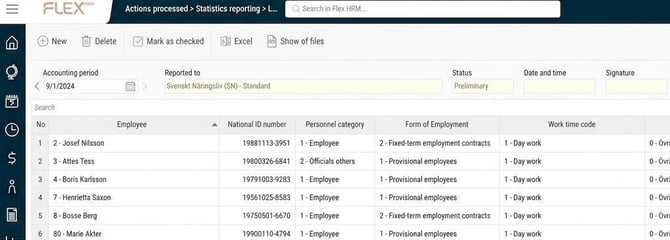
The first step in the reporting process is to create a specification for the month to be reported. You do this by clicking on the button New in the button row.

Here you choose which month you wish to create a reporting specification for, normally September. You can also select which Employees to include if you wish.
To be able to produce the report, the payroll run that contains the transactions for the reporting period must be settled. Usually, September’s transactions are calculated in October’s payroll run, so the payroll run for October must then be settled before the report can be produced.
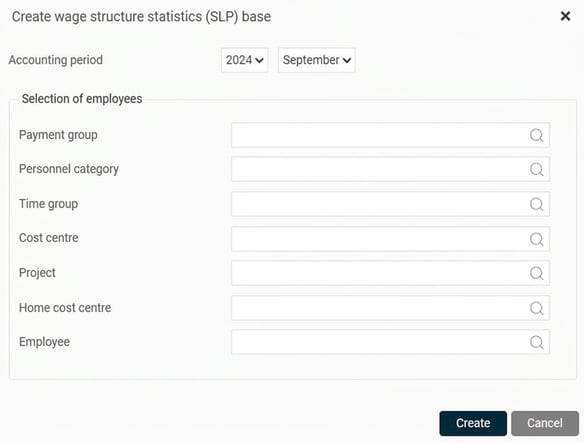
When you click on the button Create the process to create the specification and a file for reporting is started. When the spec ification and file are created, you will see the specification with the status set to Preliminary in the view.

Remove a base
If you discover an error in the specification, you can use the Remove button to delete it and start over. You can also remove earlier specifications that you no longer need to save.

Check the specification
The next step is to audit the specification before submitting the data to SCB or SN. You do this by auditing the specification in the view.
At the top of the view, select which accounting period you want to view. Previous statements remain and are easily available. Here you also see if the information is collected for submission to SCB or SN.

You can read more about the pay statistics settings in the article What settings are required to enable me to report statistics for Wage structure statistics for the private sector (SLP) in Flex HRM Payroll?
The list displays the specification that has been compiled and will be included in the file for reporting. The required data varies depending on whether you are reporting to SCB or SN. More details can be found in the article How is the specification for wage structure statistics for the private sector (SLP) calculated? under the heading "Calculation field by field".

You can also export the specification to Excel by clicking the Excel button in the button row.
Once the specification has been audited, mark it as checked by clicking on the button Mark as checked.

The specification then receives the status Inspected. The system also saves the date, time, and user signature of the person who carried out the checking.

If you find an error in a checked specification, you can remove the check mark again, which changes the status back to preliminary.
File for reporting
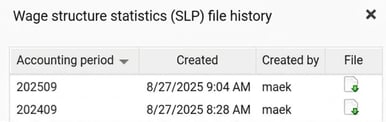
When the specification has been compiled, a report file is automatically generated. This file simplifies the reporting to SCB or SN and can be accessed via the button Show of files in the button row.

The list of files contains one file per accounting period, with the latest at the top. The file remains Available until you choose to remove the specification in the main view. Download the file by clicking on the icon and submit it to SCB or SN. This is done by logging in to the SCB or SN website and following the instructions for file reporting.
Related Articles:

How is the specification for wage structure statistics for the private sector (SLP) calculated?

What settings are required to enable me to report statistics for
Wage structure statistics for the private sector (SLP) in Flex HRM Payroll?
Please note: This article is AI-translated. This means that linguistic errors or misunderstandings may occur.