
Background
Markup is fundamental to ensure that the company's employees are covered by the right insurance policies and that the correct premiums are paid into their occupational pension. In connection with the transition to monthly payroll reporting to Fora in 2024, all employees have been assigned a new marking.
The markup consists of an FOK code and represents a collective agreement or a group within a collective agreement. Most companies have one marking code for all employees, but if you apply several different collective agreements, you will have several different codes which the employees should be marked with.
You can read more about how the markup works on Fora’s website.
Register with the company’s marking codes
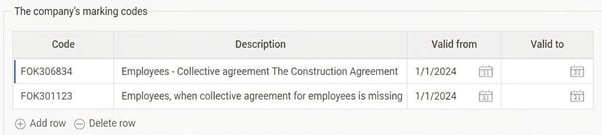
First and foremost, you need to add the marking codes that will be used in the company. You will find the relevant codes for your company on Fora's Mina sidor. In Flex HRM Payroll, you do this under Settings > Payroll > Pension and insurance. It will look something like this:
Markup per individual
There will be several ways to apply the marking to employees. In the employee register, you can enter the period during which the employee is covered by a particular code. If an employee is going to change employment and, as a result, be covered by a different marking, you enter a new date range with the new marking here.
This is how it may look in the employee register:

Markup per personnel category
To avoid having to enter a marking code for all employees, it is also possible to set a marking code per personnel category. If you haven't entered a marking code directly on the employee, the code from the personnel category will be used instead.
Possibility to import marking codes per individual
You also have the option of importing marking codes for employees via a file. In this way, you can easily prepare all markings in, for example, an Excel list and then import all the data for all employees at once. You can read more about how to perform such an import in the article What settings are required to report monthly to Fora in HRM Payroll?, under the heading "Import marking codes to the employee register".
Related articles:

How do I report pension to Fora monthly in HRM Payroll?


What settings are required to report monthly to Fora in HRM Payroll?
Please note: This article is AI-translated. This means that linguistic errors or misunderstandings may occur.