
New marking of employees
New set of rules for premium calculation – Salary attributable to another month
Ongoing work for reporting to Fora
Create file for reporting
Submit the file to Fora
In-depth information on how the specification is created
Please note that Officials are not yet covered by the new set of rules and should therefore continue to be reported annually.
The new marking of employees
Marking is the foundation for ensuring that the company’s employees are covered by the correct insurances and receive the right premiums paid into their pension. In connection with the transition to monthly salary reporting to Fora in 2024, all employees must be assigned a new marking.
The marking consists of a FOK code and represents a collective agreement or a group within a collective agreement. Most companies will only have one marking code for all employees, but if you apply several different collective agreements you will have several different codes to mark the employees with. You can find the company's marking codes on Fora’s My Pages.
Read more on Fora’s website about how the marking works.
New set of rules for premium calculation – Salary attributable to another month
As part of the transition to monthly handling, the pension premium will be calculated per month based on the threshold 7.5 income base amounts (IBB) divided by twelve months.
- For salary portions below 7.5 IBB/12, the premium is 4.5 percent.
- For salary portions exceeding 7.5 IBB/12, the premium is 30.0 percent.
If the pensionable salary for a certain month contains salary portions that refer to other months than the payment month or the discrepancy period (the previous month), these should be reported as “salary attributable to another month”. In this way, you can distribute the salary to the correct month and avoid a high premium in the month when you pay out salary portions relating to previous months. It is up to the employer to specify which parts of the salary are attributable to other months when reporting to Fora.
Examples of use cases include when an employee has earned performance-related pay or piecework pay during a certain period, or where something other than ordinary monthly salary has been paid out.
Ongoing work for reporting to Fora
Each month, you need to report payroll specification for employees to Fora. The information is reported on an individual level and mainly consists of pensionable salary and a marking code indicating which collective agreement the employee is covered by. This is done in Flex HRM Payroll under Payroll – Pension.
Create a specification
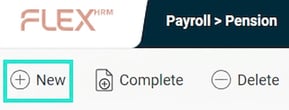
The first step in the reporting process is to create a specification for the month's reporting. This is done by selecting Reporting to Fora and then clicking the New button in the button bar.
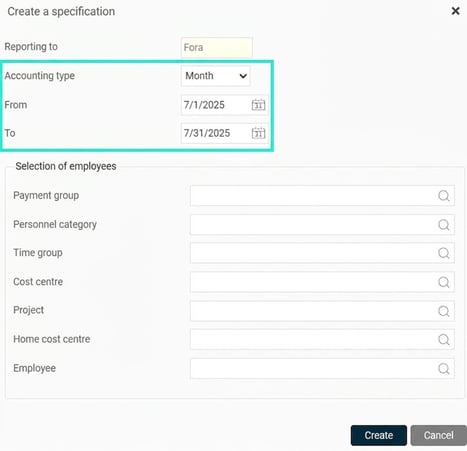
Here you select the reporting type "month" and which month you want to report the payroll specification for. You can also choose to filter by employees if you wish.
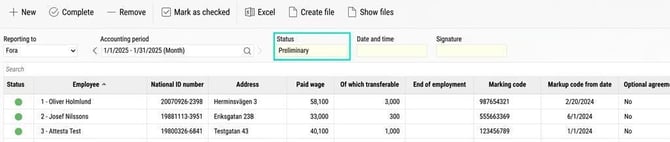
When you click the button Create the work with creating the specification is started. Once the specification is created, you will see the specification with the status set as Preliminary in the view.
Complete and remove a specification
If you spot an error in the specification, you can recalculate the specification for all or a selection of employees by clicking the Complete button and making the desired selection there.
You can also remove a specification by clicking the Remove button, if you wish to start over or no longer want the specification to be saved.
Check the specification
The next step is to check the specification before submitting the information to Fora. Do this by auditing the specification in the view.
At the top of the view, select which reporting (if you have more than Fora) and which accounting period you wish to view. Previous submissions remain and are easily accessible.

The list displays the specification for all employees that have been compiled and will be included in the file to Fora. Above the list is a search field where you can search for different details, such as name and National ID number.

At the start of each row, you see a status indicating whether something is wrong or needs a closer look. Here you will, for example, get a warning if an employee lacks a National ID number or coordination number, as well as if the employee lacks a marking even though an employment exists. If the system does not detect any discrepancies, a green dot is shown. However, this does not mean that all data in the specification is correct, just that no warnings have been registered.
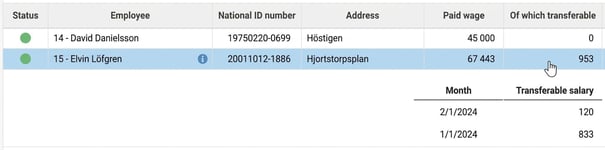
In the column for Of which transferable you can click the field to see details of which months the transferable salary will be allocated to. Read more about how transferable salary is calculated in the section for in-depth information on how specifications are created.
If the employee has had several markings during the reporting month, a number is displayed in parentheses in the column for marking code. By clicking the employee’s marking code, you can see all the markings reported for the employee. Here, you can also see any add-ons reported.
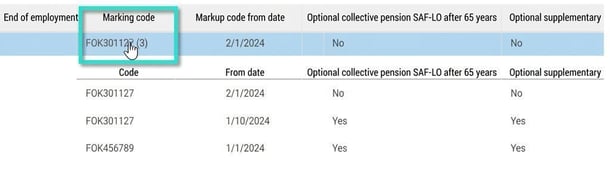
Once the specification has been audited, mark it as checked by clicking the Mark as checked button in the button bar.

The status of the specification is then changed to Inspected, which means the specification is now locked for changes. The date, time, and signature for the user who checked the specification are saved to the record.

If you find an error in an inspected specification, you can remove the checkmark again. The status then switches back to Preliminary, and you can now complete the specification again. When you then mark the specification as inspected again, a new point in time is set for when the specification was checked so that you can see whether the file sent to Fora was created from the most recently updated specification.
Create file for reporting
When the specification has been marked as checked, you can create the file for reporting employees to Fora. Do this by using the button for Create file in the button bar.

In the dialog box that opens, you will see which period will be included in the file.
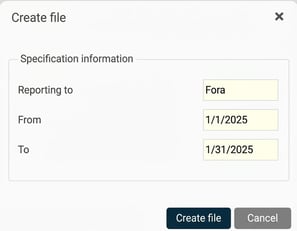
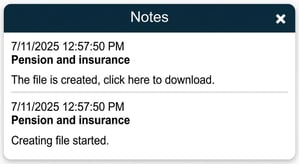
When the file has been created, a notification appears on the page. You can choose to download the file for reporting by clicking the link in the notification.
You can also view and fetch the file for reporting as well as error logs by clicking the Show of files button in the button bar.

The file remains until you choose to remove it from the list. The files are shown for the specification you are on in the view.

If any errors were detected when the file was created, information about this will be displayed via a notification on the page. You can see more details about what went wrong by opening the log file.

Submit the file to Fora
Once the file has been created in Flex HRM, download it as described above and submit it to Fora. Do this by logging in on Fora’s website and following the instructions for reporting employees via file.
For information on how to correct errors in earlier submissions, click the
link below:
"How do I correct reporting already submitted to Fora?"
In-depth information on how the specification is created
Below you will find detailed information about how the specification is created in the system.
Basic principles
The basic principle for monthly reporting to Fora is that everything relating to the reporting month is included.
- Pensionable salary paid out during the month
- Marking codes relating to employment periods ongoing during the month
Which employees are included in the specification for Fora?
An employee is included under the following conditions:
- The employee has an employment period marked as category Employees during the reporting month.
- If the employee has had pensionable salary paid out during the month with a payment date when there is no employment period and there has previously been an employment as an employee. This is then counted as final salary for the employment as an employee.
Note that everyone is included in the reporting regardless of age. However, this does not mean that the employee will accrue pension premiums. The pension premium is calculated by Fora, which takes into account the agreement affiliation, age, and whether the option to continue accruing pension after age 65 has been selected.
Merging per National ID number
If an employee has multiple employee numbers, the specifications for these will be combined, as reporting to Fora can only be done with one record per National ID number.
The following applies:
- Pensionable salary and transferable salary are summed for all employee numbers.
- The marking codes and add-ons for the employee number with the highest contractual working hours will be reported to Fora. If several employee numbers have the same contractual working hours, the lowest employee number will be used. This is because the main employment is the one for which the marking code should be reported.
Calculation of payroll specification
The pensionable salary and the transferable salary reported are those paid out during the reporting month and where one of the following criteria is met:
- There is an employment period as Employees on the payment date.
- When there is no employment period on the payment date but there is a previous employment period as Employees. This will be counted as final salary.
The pay codes counted as paid wage in the specification are those marked as Fora - Refers to wage.
The pay codes counted as of which transferable in the specification are those marked as Fora - Refers to transferable. Pay codes relating to transferable salary should therefore have both tick boxes checked.
Allocation of transferable salary per month
The transferable salary relating to salary for previous periods should be allocated to the months it refers to. This is done by first dividing the amount for each salary transaction by the number of calendar days between the transaction’s start and end date to obtain a value per day. Saved final salary seeholiday, however, should not get another transaction date in payroll processing; in the background, we have built in that the system reports it as transferable salary according to Fora's rules (i.e. it is allocated to the 12 months preceding the month when the last day of employment occurs).
Then, calculate how many days belong to each month and multiply by the value per day to get the value per month.
Example:
The following two transactions paid out in April accounting month
2024-01-01 - 2024-02-28; 8,850 SEK (value per day is thus 8,850/59 = 150 SEK)
2024-01-16 - 2024-03-31; 15,000 SEK (value per day is thus 15,000/75 = 200 SEK)
These are divided as follows:
2024-01: 7,850 SEK (4,650 SEK from transaction 1 and 3,200 SEK from transaction 2)
2024-02: 9,800 SEK (4,200 SEK from transaction 1 and 5,600 SEK from transaction 2)
2024-03: 6,200 SEK (200 x 31=6,200 SEK from transaction 2)
Marking codes and employment end date
The starting point for the marking included in the reporting is all employment periods as Employees that wholly or partly occur during the reporting month. For employees who ended in a previous month and are paid final salary, no marking code is sent as the final salary is linked to an already reported marking at Fora.
The marking that will apply follows this order of priority:
- Primarily, the marking attached to the employee in the Employee register, tab Pension & insurance, applies.
- If a marking as described in the first point is missing for a period when there is an employment as employee, the marking will be retrieved from the personnel category of the employment period if this has a marking code.
- If the personnel category also lacks a marking code, no marking will be included in the reporting for the employee. You will then need to make the marking manually on Fora’s My Pages.
End date for the employment is sent if there is an employment period as Employees ending during the reporting month, even if there are further employment periods after the reporting month as each employment period is reported separately. If there are several employment periods ending during the month, the last end date will be included in the reporting. This is due to a limitation in the file to Fora which can only contain one end date per employee and per month.
Related articles:

Which settings are required to report monthly to Fora in HRM Payroll?
How are Fora FOK codes handled in Flex HRM Payroll?
How do I correct a previously submitted report to Fora in HRM Payroll?
Reporting supplementary pension premiums for employees to Fora
Please note: This article is AI-translated. This means that linguistic errors or misunderstandings may occur.