
Marking code per personnel category

Details at individual level

Import marking codes to the employee register

Pay code settings
Basic settings and registers for marking codes
The first step is to activate the settings for reporting to Fora in the current company under Administration > Settings > Payroll > Pension and insurance.
In the list on the left you can see the company's active reports to different pension providers. If Fora is not in the list, click the New button and fill in the details in the form to activate reporting to Fora.
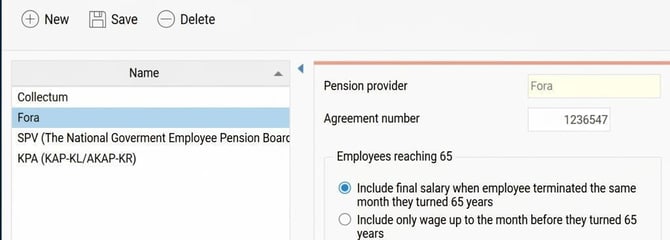
The details on agreement number, employees reaching 65 and accumulator for ingoing value are only used for the old annual statement and do not affect the monthly report.
In the list with the company's marking codes, enter the code(s) you received from Fora. If your company only has one code, enter it. These codes can then be used to mark employees in the payroll system.
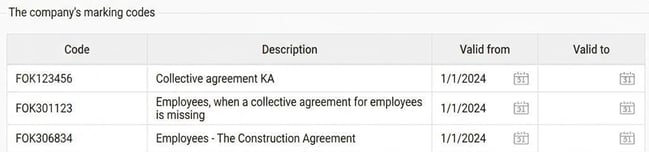
Marking code per personnel category
To avoid having to enter a marking code for all employees, you can enter a marking code per personnel category. If you haven't entered a marking code directly on the employee, the code from the personnel category will be used instead.
This is done under Administration > Settings > Payroll > Personnel categories.

Details at individual level
In the employee register, under the tab Pension & insurance, specify the terms that apply for the employee when reporting to Fora.
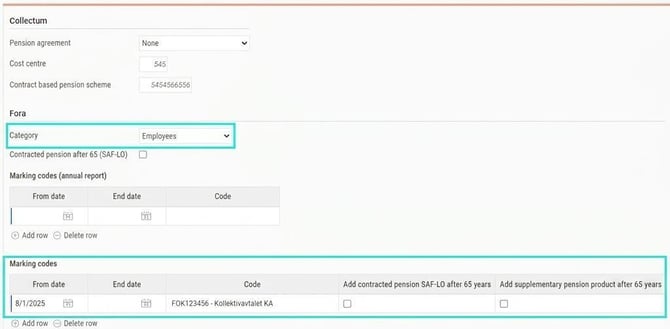
The following details are required for monthly reporting to Fora:
Category
Here you specify whether the employee should be reported as Employees or Official according to Fora’s instructions. Employees covered by Contracted Pension SAF-LO are considered employees. For an Employed CEO who should be reported as an official, select Official – Employed CEO.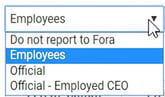
Marking codes and extras
In the list for marking codes, you specify for all employees which marking code applies for which date range. The marking codes you enter here will take precedence over the marking code on the personnel category.
In the marking codes list there are also two checkboxes where you can select extras for the employee.
- Extra contracted pension SAF-LO after 65 years
Tick if the employee should continue earning contracted pension after the age of 65.
- Extra supplementary pension product after 65 years
Tick if the employee should earn part-time pension / extra pension provision after the age of 65.
Please note! Feel free to read on Fora's website for more information about these extras.
I mport marking codes to the employee register
Our recommendation is, if possible, to use marking codes via personnel categories to avoid entering marking codes for each employee individually in the employee register. However, sometimes a personnel category isn't suitable for the division, and in that case you can import marking codes per employee via file.
To import marking data by file, use the import template for Employees/users. All fields for marking described in the previous section are available here.
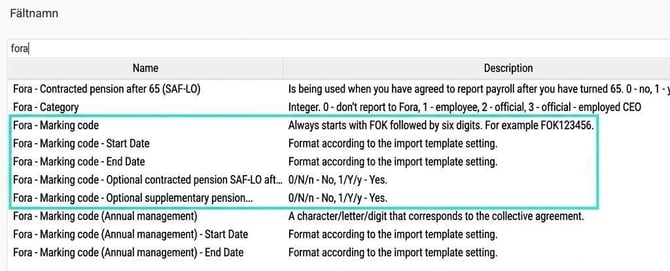
When creating your import file and import template, keep the following in mind:
- Make sure that the register with the company's marking codes is set up. This is required to be able to import markings for employees.
- As a minimum the import template must include the fields for marking code as well as the marking code's start date and end date for you to be able to import
marking for the employees. This also applies if you only want to import the extras checkboxes. If you do not want to import an end date for the marking, you must still include the end date in the import template, but leave the field empty in the file.
Pay code settings
For reporting pensionable salary and transferable salary to Fora, specifications need to be retrieved from certain selected pay codes. This is done under the tab Payroll in the pay code register.
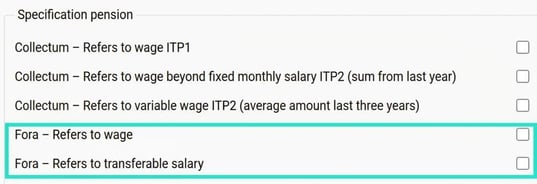
- Fora – Refers to payroll
Specifies which pay codes should be pensionable. - Fora – Refers to transferable salary
Tick the pay codes you want counted as salary transferable to another month. Examples of pay codes this can be useful for include performance pay or piecework.
Please note that pay codes referring to transferable salary should also be marked as referring to payroll.
Please note that payroll transactions must have a date covering the entire period for the months the salary is to be distributed over, in order to be summarised as transferable salary.
You can read more about transferable salary in the article How do I report Pension to Fora monthly in HRM Payroll? and also on Fora's website.
Related articles:

How do I report pension to Fora monthly in HRM Payroll?

How are Fora's FOK codes handled in Flex HRM Payroll?
Please note: This article is AI-translated. This means that linguistic errors or misunderstandings may occur.