
Reports
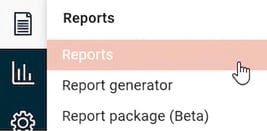
You will find the reports under the menu Reports
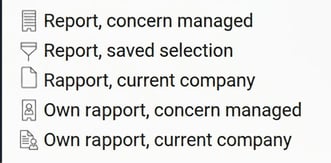
Available standard reports
Below is a summary of which reports are available.
Please note that the reports often belong to a specific module, which means you will only see the reports you are licensed for and have authorisation to access as a user.
- Travel
-
Travel expense claim specification
-
Compilation of travel expenses
- Day travel statistics
-
Travel allowances statistics
-
Allocation of travelexpenses
-
Subsistence allowance statistics
-
Journal voucher
-
Trip log
-
Audit list
-
Payroll specification, preliminary
-
Payroll specification, settled
-
- Schedule/Staffing (Plan)
- Personal schedule
- Schedule overview per week
- S chedule overview per staffing
- Time
- Monthly report
- Absence statistics
- Annual leave schedule
- Allocation of time
- Employee record
- Audit list
- Project follow-up
- Balance summary
- Payroll specification, settled
- Invoicing
- Invoice data
- Capacity utilization
- Personnel
- Employee list
- Next of kin
- Contract of employment
- Payroll
- Bank list
- Journal voucher
- Allocation of quantity and amount
- Payslip
- Payroll specification, payroll run
- Vacation balance
- Sickness statistics
Report workflow
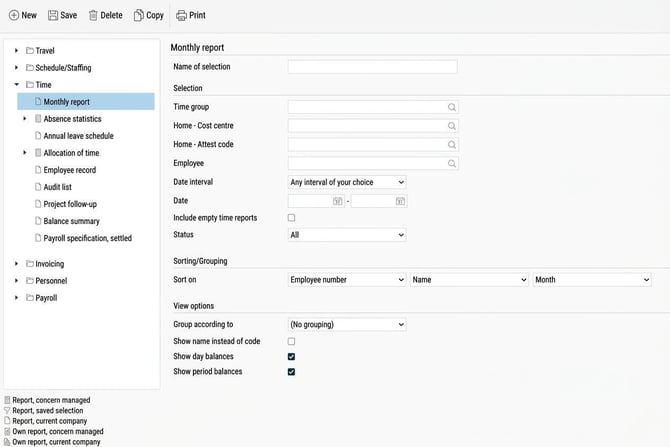
The workflow is the same for all standard reports in Flex HRM:
-
Select the subsystem and the report you wish to use.
-
Define the selection the report should be based on.
- Set Sorting/Grouping and/or View options
-
Print report.
You can see which reports are included in a category by clicking on the arrow in front of the respective main level. To the right of the screen, the selection options available for the chosen report are shown.
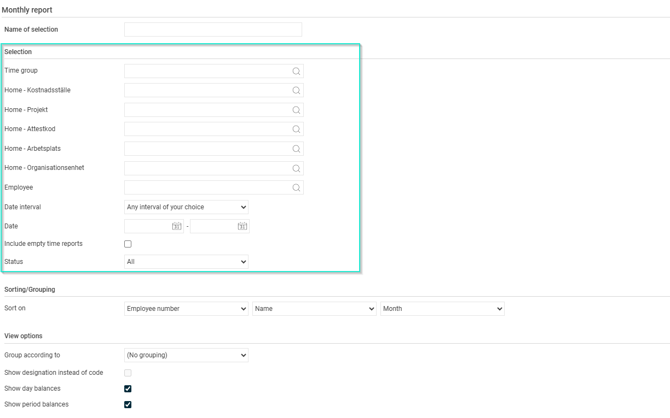
Define selection
Here, you set which data should be included in the report before generating it.
Note
If you make a selection based on home account code or time group data for All employees who currently belong to that home account code or time group will be included. This means that if an employee has changed home account code or time group, when you retrieve the report, the employee will belong to the current account code/time group they belong to today, not the account code/time group they belonged to for the date selection.
To make more specific selections, some reports allow you to choose registered account codes, for example in the time report, travel expense claims and payroll preparation. Data is then retrieved based on registered account code.
Save selection
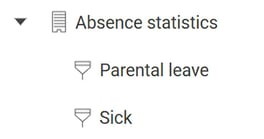
You can save a selection by entering a Name of selection at the top and clicking on the Save button in the toolbar. A saved selection will then be found under the original report in the report tree.
In the example below, you can see there are two different report selections saved for the standard report Absence statistics.
Print report
To print a report, click on the printer icon in the upper toolbar. The report will then open in a new tab in your browser.
Below is a description of the functions you will find in the print window:
-
 Save report in another format (Export) You can save the report in another file format, such as a PDF file. Click on the arrow to the right of the export icon.
Select the desired file format from the list.
-
 Update view Click on Update icon to update the view with any changes that have been made while you have had the window open.
 -
 Print Click on Print icon to print the report. Please note you may need to change the print settings from All to the page range you wish.
Related articles
Report generator - What is the Report generator?
Please note: This article is AI-translated. This means that linguistic errors or misunderstandings may occur.