
Report generator
You find the report generator under the menu Reports > Report generator.
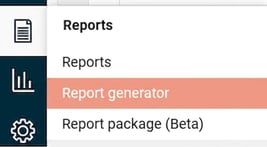
With the report generator you can tailor your own reports. Since all data in Flex HRM is stored in the same database, you can build reports containing information from different parts of the system. You can format the printouts and any report you create in the report generator can be exported to Excel for further processing.
Combine data from the entire system
With the report generator you can combine different data sources and include information from both employees, time transactions and payroll transactions in one single report.
For example, you can combine data from the employee register with time report rows in HRM Time or payroll transactions in HRM Payroll. This allows you to extract information on, among other things, time codes, expense codes, pay codes and account codes.
Authorisation for the report generator
Access to the report generator is managed via a role authorisation under Administration >
Users/Authorities > Roles, the tab Menus.
Please note that the report generator should be regarded as an administrator tool, as users with access to the report generator have access to all employee data, regardless of other authorisations within the system.
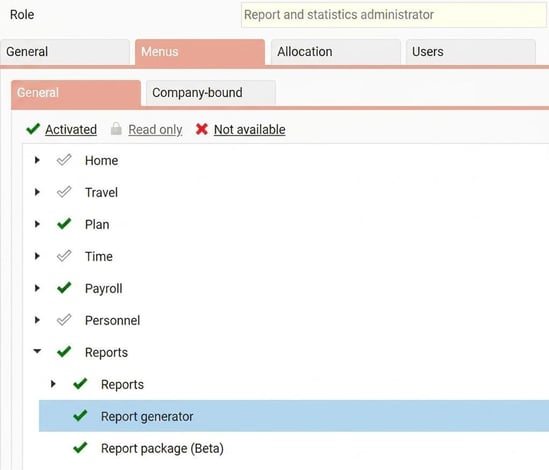
Users authorised to the report generator get access to the
menu entry Reports > Report generator.
Customise contents and selection
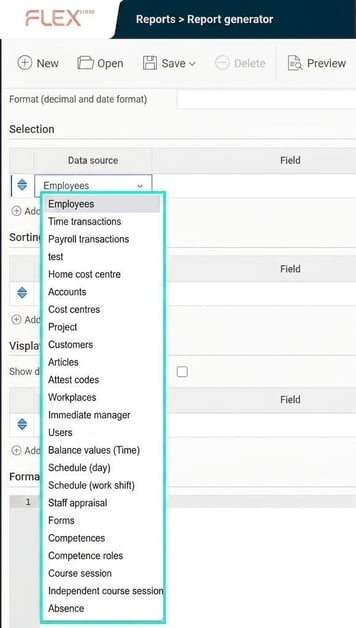
In the Report generator, you first choose a main data source for your report. You can then customise the content in several ways:
-
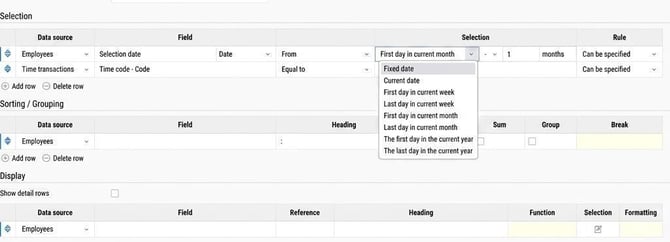
Make selections, sorts, groupings, and summaries.
-
Select data from both the main data source and other data sources you can combine with it. For each data source, there is a list of fields that can be displayed or used for selection.
-
Make advanced date interval selections.
-
Use separate selections for different columns in the report.
Preview and format
While you are building the report, you can preview the result directly in the report generator.

You also have the option to:
-
Format the content in the columns.
-
Edit print format, such as page orientation, column width and row height.
Share and manage authorisation for your reports
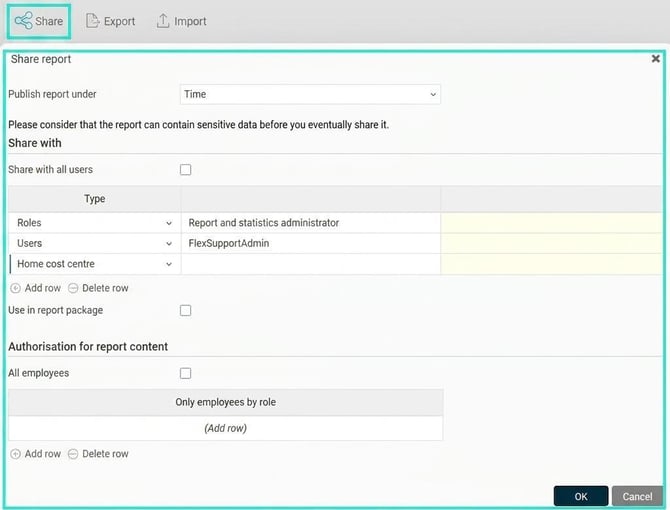
When your report is ready, you can publish it to other users. You then place it under any desired node among the other reports in the system. You can control authorisation on several levels:
-
Decide which users or roles should have access to the report.
-
Use role-based authorisations to control which employees a user can see data for.
-
Control the authority based on account codes.
-
Choose whether the user should be able to change the selections or not when the report is running.
Export and print
Users with access to the report can then choose to:
-
Print it as a PDF file.
-
Export it to Excel for further processing.
-
Save it as a text file.

Handling for several companies and concerns
If you have several companies, you can export a completed report from one company to another. If you use the add-on module Concern you can also build certain reports that collect data from the whole concern.
Please note: This article is AI-translated. This means that linguistic errors or misunderstandings may occur.