
Using documents in HRM
In HRM, you can use the document function in several different ways.
- Personal documents in the employment register
Under Employees > Documents you can gather all documents relating to a specific employee. This becomes a digital hub for all the employee’s documents. - Information material on the front page
You can publish documents directly on the front page as information material for employees. This can be, for example, policies, newsletters or manuals. - Create HR-Forms
To streamline administration you can create HR-Forms which automatically retrieve information from the employment register. In this way you can quickly produce, for example, contracts of employment or certificates of employment.
Document categories
You use document categories to sort and connect the documents you upload in HRM. The categories are also used to control authorisation.
The authority controls
-
Which user roles are allowed to view/administer a specific document.
-
Which user roles are allowed to access HR-Forms from a certain category.
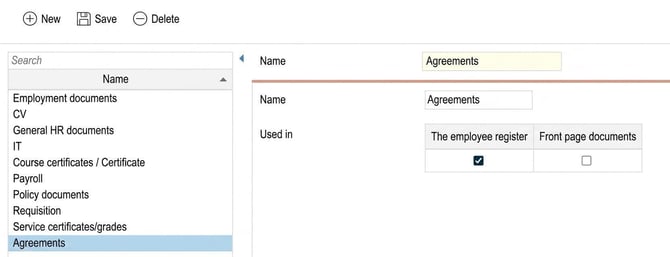
You manage document categories via the menu Administration > Settings > Personnel > Document categories.
Create your categories
- Create the document categories needed for your company by clicking New.
- Choose where the category can be used. Employees and/or Front page? Save.
- Once the categories are created, you can set the authorisations for the roles.
Role authorisation
- Set so that the role which should view employees’ documents has read only access to the icon Documents. The example below shows the role Manager.
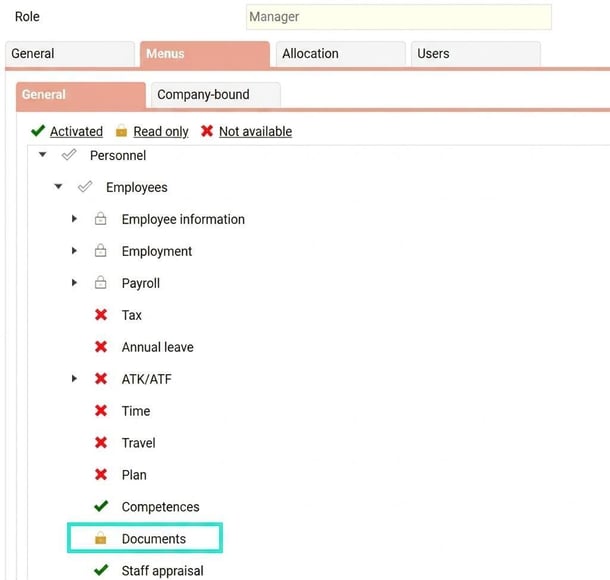
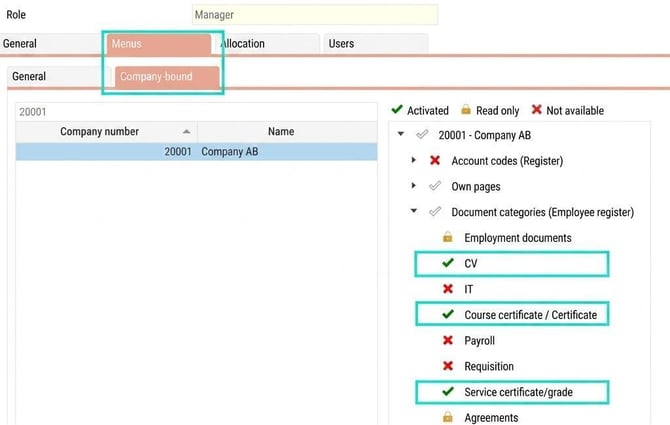
- Then set which document categories the role should have Full authorisation (Activated) or Read only access to. You do this under the role’s settings Menus > Company-bound. Select the current company and set. Read only is sufficient if the user role should only be able to view and download documents for the specific category.
In the example below, the manager is authorized to fully administer documents for the categories CV, Course certificate/Certificate and Certificate of employment/Reference.
The manager can read the documents for; Employment and Agreements. But no authorisation to see documents for the categories; IT, Payroll and Requisition.
What does "Show all document categories" mean?
Note that there is a function in the roles called "Show all document categories".
If you activate this, you get the same authorisation for all document categories. In personnel, this gets the same authorisation as the menu Documents. And the authorisation applies both to documents on the document tab and withdrawal of HR-Forms. In the overview view for e-signing this gets the same authorisation as E-signing. Can be combined with settings on the company-bound tab, where the highest authorisation applies.

Our general recommendation is to set Read only access on the menu Documents, to NOT tick the box "Show all document categories" and instead set the settings per document category under Company-bound. In this way you have better control over who can see which document for employees.
If you add more document categories subsequently, remember to activate the correct authorisation for the roles.
Relaterade artiklar
Can I receive a notification when a new document is uploaded in HRM?
Please note: This article is AI-translated. This means that linguistic errors or misunderstandings may occur.